
Connect LinkedIn Lead Gen Forms to LeadCentre
Turn LinkedIn campaign interest into sales conversations your team can follow through. Connect LinkedIn Lead Gen Forms directly to LeadCentre, then give each new inquiry a clear owner, response and next step.
Built In: Built into LeadCentre, with no other tool needed.

- LinkedIn leads on your sales team's phones as push notifications, with no Campaign Manager login needed
- Company, job title and custom answers kept on each lead, in standard and custom fields
- Statuses, follow-up reminders and won deal values on every LinkedIn lead
- Each lead's progress sent back to LinkedIn, from Contacted to Won with the deal value, so your campaigns learn which leads become customers
What this does
LinkedIn keeps Lead Gen Form responses in Campaign Manager. Once you connect LinkedIn and add a form, LinkedIn tells LeadCentre about each new response from that form, and LeadCentre turns it into a lead using the field matching you saved for the form. A daily check fetches anything that was missed, so a response isn't lost if LinkedIn's notice doesn't arrive.
An example: an IT services company runs LinkedIn ads aimed at operations managers. A response arrives with a name, work email, phone, company and job title, asking about managed IT support for a 40-person office. The sales manager gets the alert, opens the lead and calls while the prospect is still at their desk, then sets a follow-up for later in the week if it goes to voicemail. See how LeadCentre works for B2B businesses with longer sales conversations.
Which forms connect
Lead Gen Forms on your LinkedIn ads, from the ad accounts you add. Each lead keeps LinkedIn's lead ID, the campaign it came from and the form's name, which becomes the lead's source.
What happens when someone fills in your LinkedIn form?
Step 1
A member submits your Lead Gen Form
LinkedIn fills in their profile details, they answer your questions and press submit. The response is saved in Campaign Manager.
Step 2
LinkedIn tells LeadCentre
Through your LinkedIn connection, for the forms you've added. A daily check picks up anything that was missed.
Step 3
LeadCentre creates the lead
Your saved matching fills in name, email, phone and company, with job title and custom answers in custom fields.
Step 4
The right people are alerted
A push notification goes to those switched on for New lead alerts on the Team page. An Instant Email Reply, if you use one, goes to the person who filled in the form.
Step 5
Sales follows it through
Call or email from the lead, move it from New to Quoted or Booked, set follow-ups and record the value when it's won.
Step 6
LinkedIn hears how it went
Each stage you've chosen goes back to your LinkedIn ad account as a conversion, with the deal value for a win.
What you can do with LinkedIn leads
Once a LinkedIn response is in LeadCentre, the whole team can work it from the app or the portal.
On every plan
- Push notifications in the LeadCentre app, on iPhone or Android, to the people switched on for New lead alerts. An Admin chooses who, per person, on the Team page.
- Call, Email, Text and WhatsApp buttons on the lead. Email and text open a pre-written message from your templates, with {first_name} and {my_name} filled in, sent from your own email account or phone.
- Statuses from New through Contacted, Quoted, Booked, Won and Lost. Marking Won asks what the deal was worth, and marking Lost can record a reason.
- Follow-ups with a date, time and note, and a reminder to the person assigned when one is due. A lead can have several.
- Lead assignment. Give a lead to one salesperson. A User sees the leads assigned to them plus unassigned ones, and the new assignee is alerted.
- Instant Email Reply. An Automations template that sends an automatic email to each new lead, with separate wording during and outside business hours.
With the Respond add-on
- Automatic SMS replies to new leads, from a dedicated US local business number.
- Two-way SMS and call forwarding, with conversations in the app's Messages tab.
- Texts from your Automations, such as the Lead Rescue template, which follows up leads that have gone quiet.
Keep the two kinds of message apart: the push notification tells your team about the lead, while the Instant Email Reply and Respond's automatic SMS go to the person who filled in your LinkedIn form. Respond on the pricing page.
How to connect LinkedIn Lead Gen Forms to LeadCentre
Check these first:
- LeadCentre. A login with the Admin role on the account the leads belong to.
- LinkedIn. The LinkedIn login that runs your ads, with access to the ad account in Campaign Manager. LinkedIn's permissions page explains the roles.
- 1
Connect LinkedIn
In LeadCentre, go to Settings > Connections, press Add New Connection and choose LinkedIn Lead Gen Forms. Press "Connect LinkedIn", sign in to LinkedIn with the login that runs your ads, and allow LeadCentre access to your Lead Gen Forms.
- 2
Add your ad accounts
LeadCentre lists the ad accounts that login can reach. Press "Add" beside each one whose leads you want.
- 3
Add your forms
Under each ad account, choose a published Lead Gen Form and press "Add form". Repeat for every form you want leads from.
- 4
Match the fields
Press "Match fields" on each form and match its questions to LeadCentre fields, such as First name, Email, Phone and Company. Smart Match suggests the usual matches. Put job title and custom questions into a custom field, Inquiry type or Inquiry / Message, then save.
- 5
Send a test lead
In Campaign Manager, send a test lead from your form. It arrives in your Leads list with "LinkedIn test lead" as its source, and the alert goes out, so you can check the whole journey. Archive it afterwards.
What form data comes through?
LinkedIn's Lead Gen Forms guide says forms are pre-filled from the member's profile, with fields grouped as contact, work, company, education and demographic details. You can add up to three custom questions, as multiple choice or single-line text, and hidden fields such as a UTM source.
You match each form's questions when you add the form. Job title and custom questions suit a custom field, Inquiry type or Inquiry / Message. Custom fields are free text, and an Admin sets them up. LinkedIn's lead ID, the campaign and the time the form was sent are added for you.
| Field sent | Usually matched to |
|---|---|
| First name and Last name | First name and Last name |
| Email (work or personal) | |
| Phone number | Phone (mobile or landline) |
| Company name | Company |
| Job title | A custom field |
| Country | Country |
| A multiple choice custom question | Inquiry type |
| A single-line text custom question | Inquiry / Message |
| Hidden fields such as utm_source | UTM fields, or a custom field |
| The campaign, added for you | Kept automatically |
| LinkedIn's lead ID, added for you | Unique ID (stops duplicates) |
| The form's name, added for you | Lead source |
Managing leads beyond Campaign Manager downloads
LinkedIn gives you the responses, and its download guide explains how to get them: in Campaign Manager, open Content & Assets, then Lead generation forms, choose the forms and a date range, and press Download leads for a CSV file per form. LinkedIn says collected member profile data can only be stored for one year, and Campaign Manager's notifications can tell you a lead has arrived.
That leaves someone to open the file and decide who calls whom. LeadCentre handles that part:
- The right person hears about it. Push notifications go to the people switched on for New lead alerts, including salespeople who never open Campaign Manager.
- The first call is one tap. The lead opens with its contact details and a Call button.
- Each lead has an owner. Assign it to a salesperson, and they get the follow-up reminders for it.
- Progress is visible. Statuses show which leads have been contacted, quoted or booked, and the pipeline on the Home screen counts them.
- Value is recorded. Mark a lead Won with the deal value, and the Home screen shows won value and win rate over the time frame you choose.
For responses from before you connected, download the CSV from Campaign Manager, upload it in the LeadCentre portal under CSV imports and match its columns to LeadCentre fields. The rows become leads.
Sending results back to LinkedIn
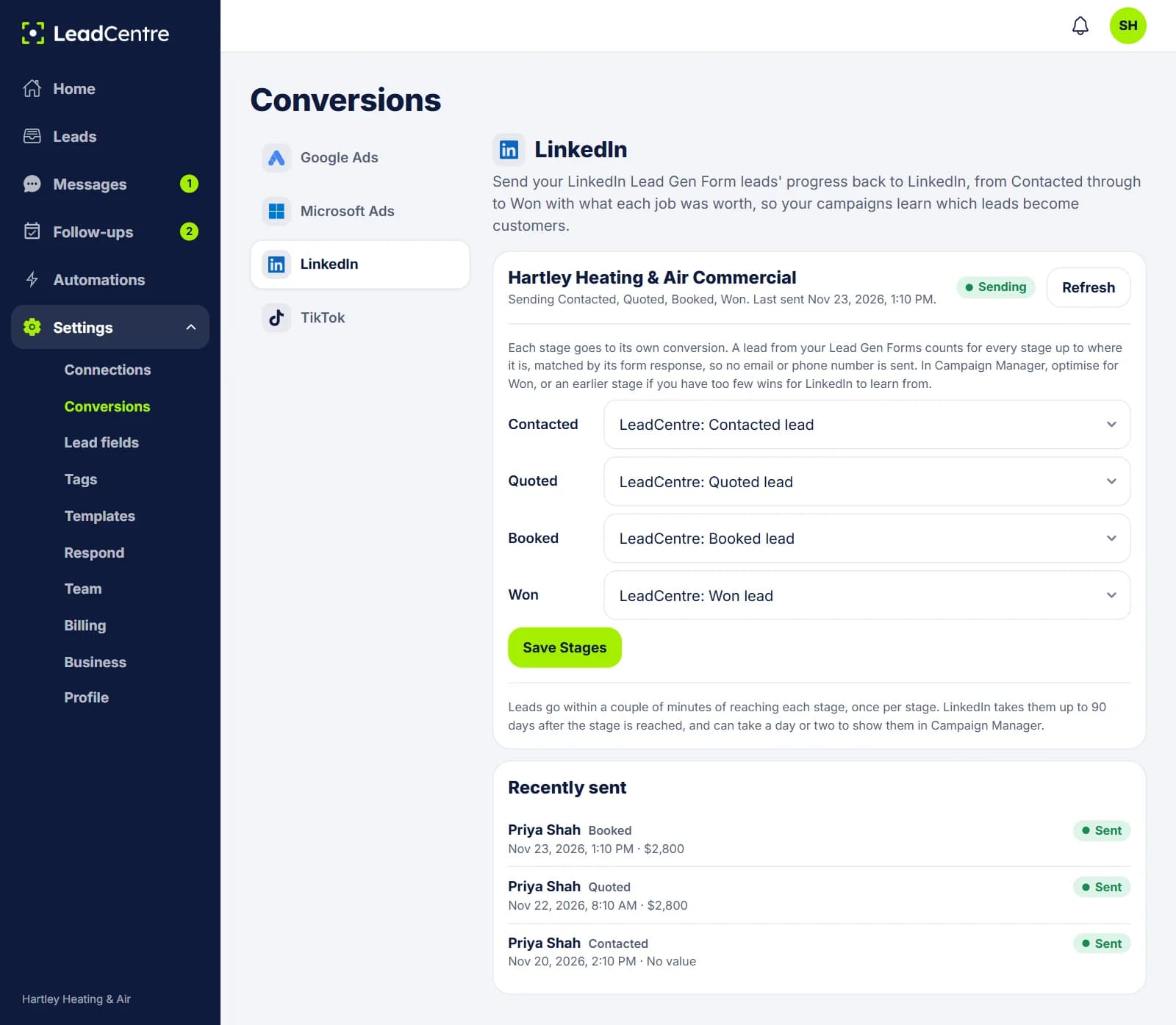
LinkedIn counts a form fill as a conversion, but it can't see which of those people became customers. LeadCentre tells it, so your campaigns can learn which leads are worth paying for.
In the portal, go to Settings > Conversions and open LinkedIn. Each ad account you added on the LinkedIn Lead Gen connection is listed. Press Allow Conversions and sign in to LinkedIn, then choose a conversion for each stage you want to send: Contacted, Quoted, Booked and Won. Pick one you already have in Campaign Manager, or let LeadCentre create one, such as "LeadCentre: Won lead", linked to all that account's campaigns.
- Each stage goes once. A lead counts for every stage up to where it is, within a couple of minutes of getting there.
- Values go with it. A win carries the deal value, and Quoted and Booked carry the estimate if one is recorded.
- No contact details are sent. Each lead is matched by its Lead Gen Form response, so LinkedIn already knows who it is.
- You can see what went. The LinkedIn tab lists the latest leads sent, with the stage and value.
LinkedIn can take a day or two to show new conversions in Campaign Manager. Optimize for Won, or for an earlier stage while you have only a few wins for LinkedIn to learn from. More on lead conversion tracking.
For agencies managing client inquiries
Each client's LinkedIn responses go to that client's own LeadCentre account. Open the client with Open Workspace, go to Settings > Connections and connect LinkedIn there, then add that client's ad account and forms. Say an agency manages ten clients' LinkedIn campaigns: each client's account connects its own ad account, and its leads stay in that account.
- One LinkedIn login can serve several clients. If your login reaches all ten ad accounts, connect it in each client's account and add only that client's ad account there. The client's own people see only the ad accounts added to their account, under "Connected by your agency", never your other clients', and only agency staff can add more from your login.
- Clients see their own leads. Each client signs in to its own account, in the app or the portal, and sees only its leads, pipeline and figures.
- Alerts go to the client's people. The new lead push goes to whoever is switched on for New lead alerts on that client's Team page, per person, and not to agency staff.
- Separate data and permissions. An Agency Admin opens any client with Open Workspace and controls which features the client's own people can use, such as Connections. Agency Users see and manage only the clients assigned to them.
- Reporting across clients. Cross-client reporting, on both agency plans, shows leads, won jobs, win rate and won value client by client.
More on agency accounts.
Pricing and requirements
What you need for this connection. Prices for each plan and the Respond add-on are on the pricing page.
- LeadCentre plan
Any plan. You'll need an Admin login to connect LinkedIn and match the fields.
The LinkedIn login that runs your ads, with access to the ad account in Campaign Manager.
- Respond add-on
Optional. Adds a dedicated US local business number, automatic SMS replies, two-way SMS, call forwarding and texts from your Automations. See Respond.
- Messaging usage
Respond's monthly allowances for SMS and forwarded call minutes are on the pricing page. When one runs out, you're told and can buy credits for extra usage. Incoming inquiries are still saved.
Common problems
The connection says LinkedIn isn't accepting this login
LinkedIn's sign-in has expired or been withdrawn. Press "Reconnect" and sign in again. Responses LinkedIn held back while the login wasn't working are fetched once you reconnect.
No ad accounts are listed
The login you connected doesn't manage any ad accounts. Disconnect it and connect the LinkedIn login that runs your ads, or ask an ad account admin in Campaign Manager to give that login access.
My form isn't in the list
Only published Lead Gen Forms on the ad accounts you've added are listed. Check the form is published and used on that ad account, then press "Refresh".
My test lead didn't arrive
Check the form is added under its ad account and its fields are matched. A test lead that arrives before matching is saved waits under "Waiting for field matching" and joins your Leads list when you save.
Recent activity says "Waiting for field matching"
A response arrived before any matching was saved on that form, so LeadCentre is holding it. Save your matching and it joins your inbox, with a banner saying how many were added. The alert goes out then, so call that person first.
Questions about this connection
How do I get LinkedIn Lead Gen Form leads into LeadCentre?
Connect LinkedIn in Settings > Connections, add your ad accounts and their forms, and match each form's fields once. New responses then arrive as leads.
Can I get an alert on my phone when someone fills in my LinkedIn form?
Yes. Each new lead sends a push notification through the LeadCentre app, on iPhone or Android, to the people switched on for New lead alerts. Tap it and the lead opens with Call and Email buttons.
Do I need Zapier or Make?
No. LeadCentre connects to LinkedIn directly, on every plan.
Can LeadCentre reply to LinkedIn leads automatically?
Yes. On every plan, the Instant Email Reply automation sends each new lead an email, with different wording during and outside business hours. With the Respond add-on, an automatic SMS reply can go from your dedicated US local business number too.
Does LeadCentre keep the company and job title?
Yes. Company has its own field. Job title goes into a custom field, which an Admin creates by typing a name on the matching screen, and it shows on the lead in the portal.
Can LeadCentre send results back to LinkedIn?
Yes, on every plan. In Settings > Conversions, open LinkedIn, press Allow Conversions and choose a conversion for each stage you want, from Contacted through to Won, or let LeadCentre create them. Each lead is matched by its Lead Gen Form response, so no name, email address or phone number is sent.
Can I bring in responses from before I connected?
Yes. Download them from Campaign Manager as a CSV file, upload it in the portal under CSV imports and match its columns. The rows become leads.
Can an agency connect several clients' LinkedIn ad accounts?
Yes. Connect LinkedIn in each client's own account and add that client's ad account. Each client's leads, alerts and figures stay in its own account, and Agency Users reach only the clients assigned to them.
Set up your Connections
Set up your LeadCentre account and add this Connection, and your next inquiry can arrive on your phone.