
Custom Fields
Custom lead fields for what your business needs to know
Start better conversations with the right context. Keep the information that matters to your business alongside each inquiry, from a company's requirements and team size to a project's budget and timing.
Why the right details help
Understand what the prospect needs
The standard fields cover who they are and how to reach them, plus what they inquired about. Custom fields hold the rest, such as the service required, the size of the company or the project budget, so you can see what they're asking for before you get in touch.
Prepare for a useful first conversation
With the answers on the lead, in the app and the online dashboard, you can skip the basic questions and talk about what they need. It also helps you decide who should take the call.
Keep relevant answers with the inquiry
Match your form questions to custom fields and the answers arrive on each lead, ready for whoever picks it up. Every custom field is also a placeholder, so your message templates and automations can use the answer too.
Adding a field
- 1
Go to Settings, then Lead fields, in the dashboard
You need to be an Admin on the account. This part is done in the dashboard.
- 2
Type a label and tap Add
Something like Roof type, up to 60 characters. That's all the setup there is.
- 3
It appears on your leads
Your new field shows on all the account's leads in the dashboard and the app, ready to fill in by hand.
- 4
Match it to your form, if you want it filled for you
In the connection, point the matching form field at your new custom field.
Filling them from your forms
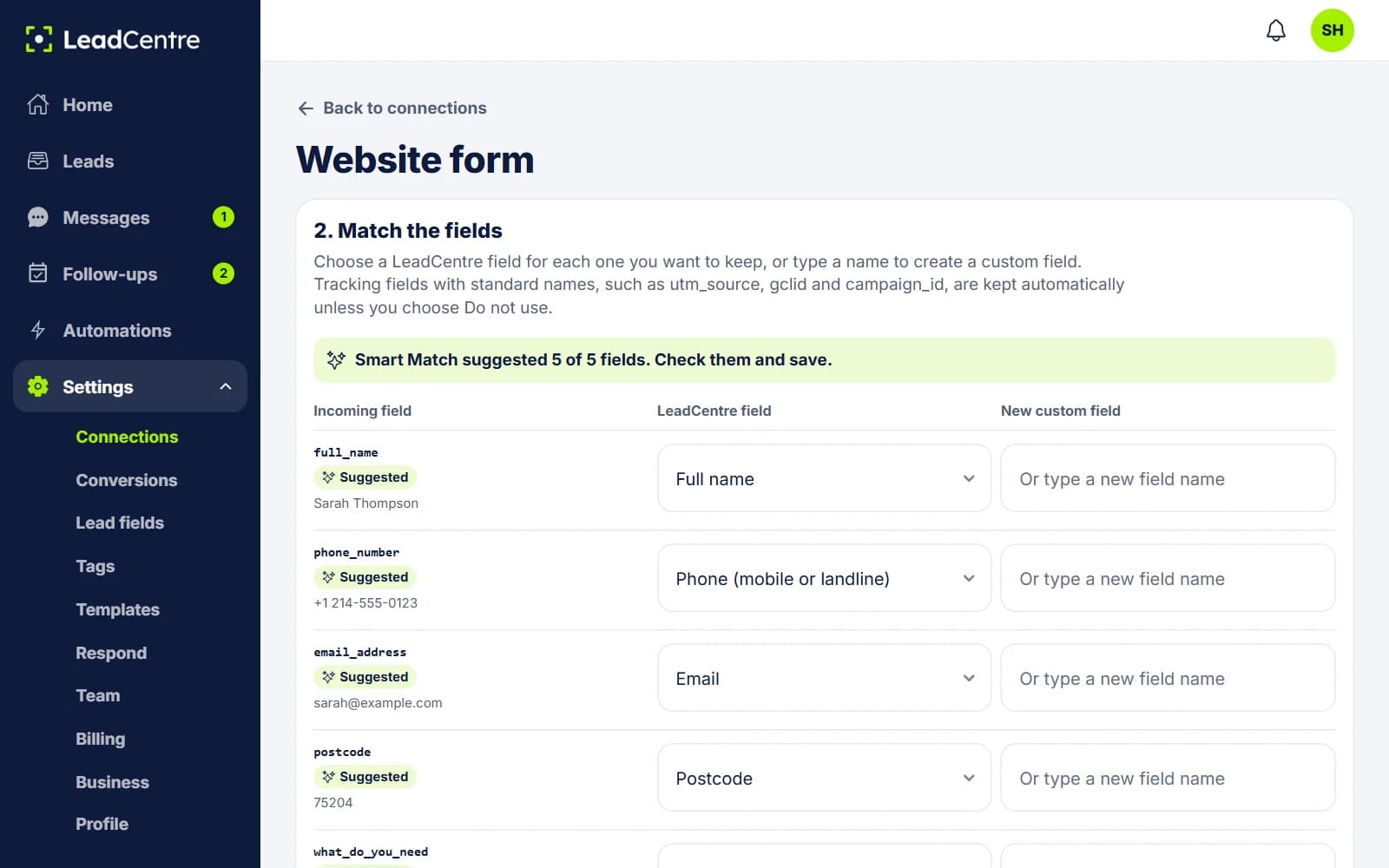
When you set up a webhook connection, you send test data and then match each incoming field to a LeadCentre field. Any custom field you've added appears as a choice, alongside the standard ones. Smart Match suggests the matches, and you can pick Do not use for anything you don't want.
Nested data works too. A field inside a JSON object appears with a dotted name, such as answers.0.text. Zapier and Make post to the same URL, so the same matching applies.
What they look like on a lead
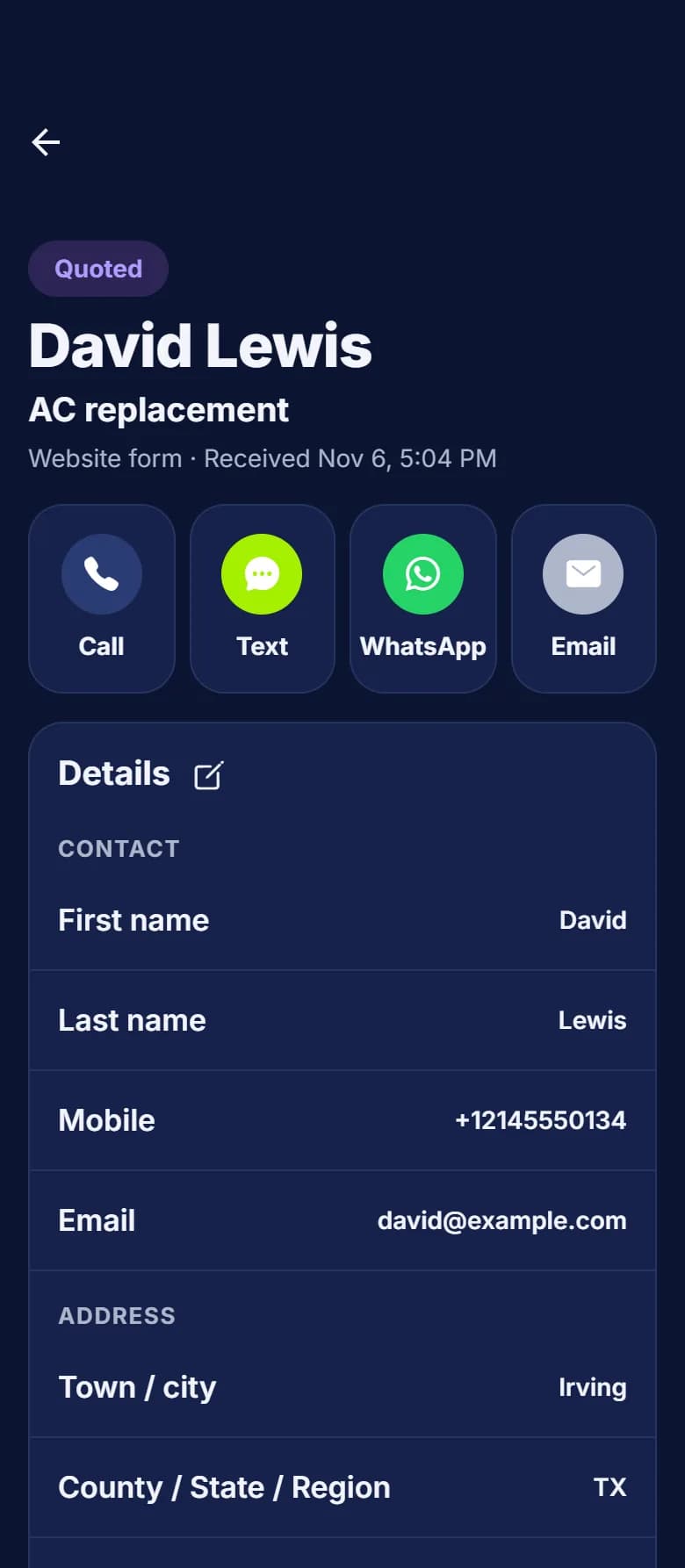
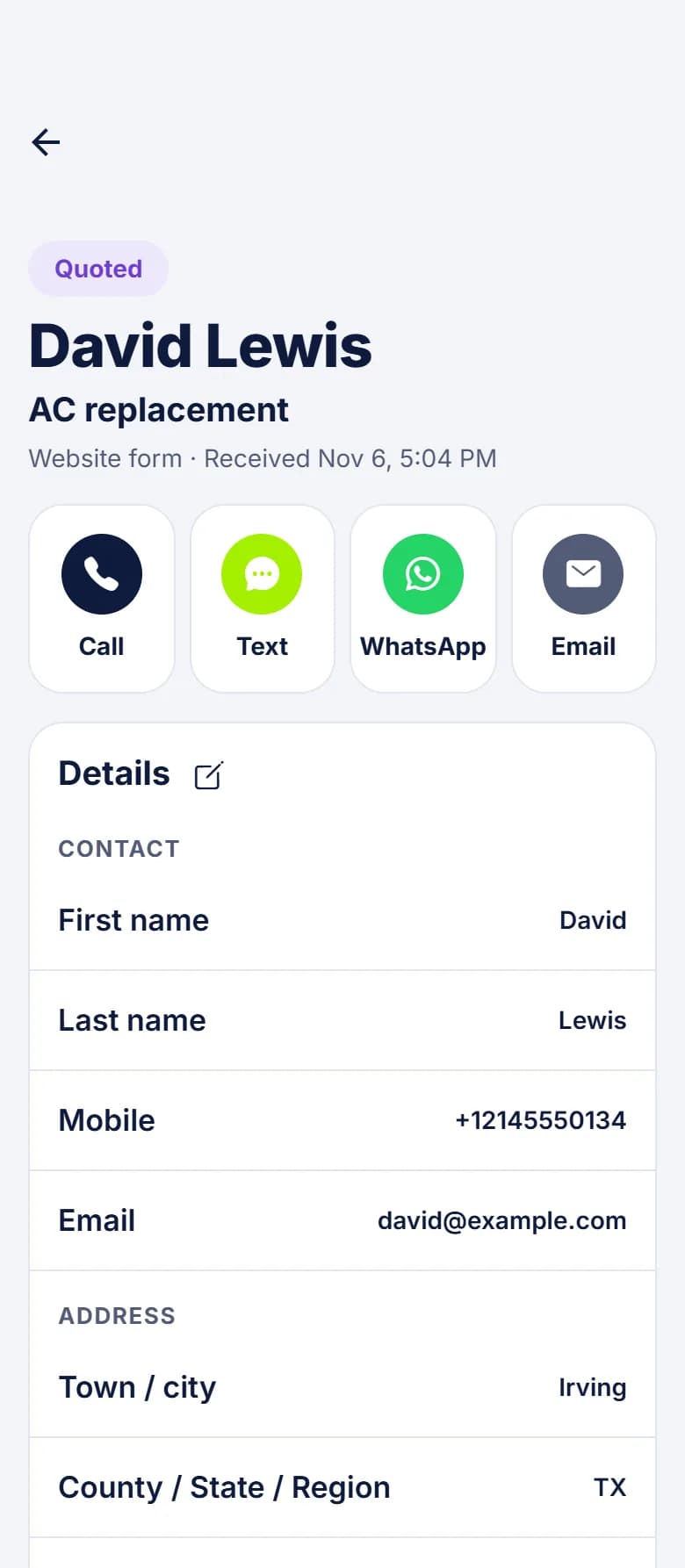
Custom fields appear in the lead's details with the rest of its information. An HVAC technician might see Property type: Single-family and Current system: Combi on the phone before making the call.
Filled-in fields show straight away. Empty ones stay out of the way until you tap the pencil to edit, so short leads stay short.
Useful details for different businesses
A good custom field changes what you do next. If nobody would act on the answer, leave it out. See how they fit together for B2B businesses, professional services, roofers, HVAC technicians and PPC agencies.
- B2B companies: Company size, Service required, Buying timeframe, Current supplier.
- Professional services: Project scope, Preferred consultation time, Referred by. Inquiry type is already a standard field.
- Roofers: Roof type, Stories, Leak inside, Insurance claim.
- Plumbers and HVAC technicians: Water heater brand, Error code, Property type, Homeowner or landlord.
- HVAC: System type, Unit age, Brand, Homeowner or renter.
- Windows, kitchens and bathrooms: Product, Number of windows, Budget range, Finance interest.
- PPC agencies: Keyword, Offer, Landing page variant. Campaign and click details are kept automatically, so they don't need a custom field.
How they behave
- All custom fields are free text. For set answers, use a dropdown on your own form and the chosen answer comes through as text.
- Rename a field and the values already on your leads stay with it.
- Delete a field and values already saved on leads are kept, read-only.
- There's one list per account, and all the leads on that account show the same fields.
- Every custom field is also a placeholder, so a text, WhatsApp, email or automation can include the answer. Choose it from Insert Placeholder in the dashboard.
- On an agency plan, the agency can stop a client's own people changing custom fields. Existing fields still show on leads, and a snapshot can copy them to a new client.
Before you add ten fields
Common questions
Who can add or change custom fields?
Admins on the account, in the dashboard. Anyone who can see a lead can fill its fields in, in the app or online dashboard.
What happens to my data if I delete a field?
Values already saved on leads are kept, read-only.
Can Zapier or Make fill custom fields?
Yes. They post to your LeadCentre URL like any other source, and you match the incoming fields to your custom fields in the same way.
Get the answers you need on the lead
Add your fields, match them to your forms and see them on your phone before you ring.