
Instant Notifications
A lead notification app that puts new inquiries on your phone
Reach new inquiries while the interest is fresh. LeadCentre sends mobile alerts to the people you choose, so your team can review the details and start the conversation without repeatedly checking inboxes.
Why lead alerts help
Respond while interest is fresh
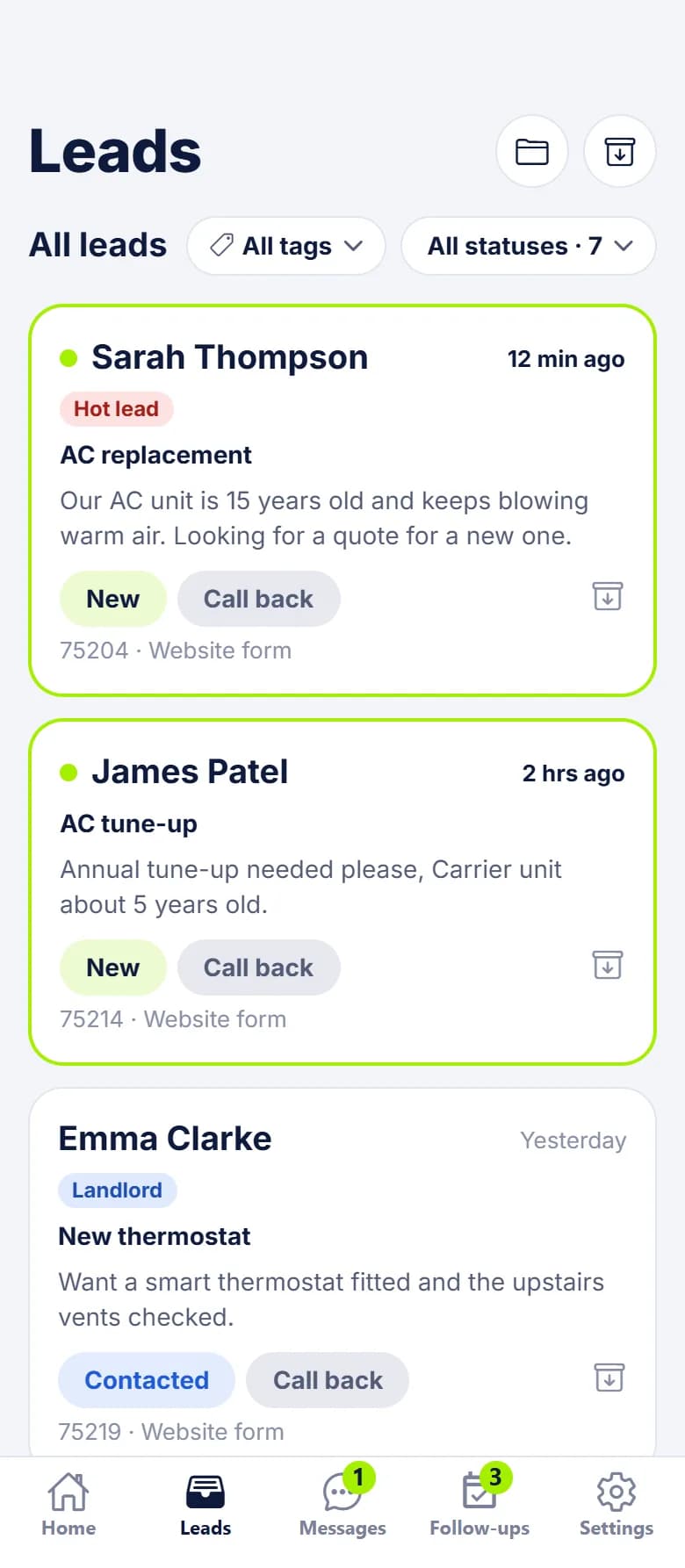
Someone who has just sent an inquiry is still thinking about what they asked for, and may have asked other businesses too. An alert on your phone tells you the lead has arrived, so you can get back to them while it's still on their mind.
Put inquiries in front of the right people
On a team, an Admin chooses who gets new lead alerts on the Team page in the online dashboard. The people who handle inquiries hear about each one, and once a lead is assigned, the alerts about it go to that person.
Take the next step from your phone
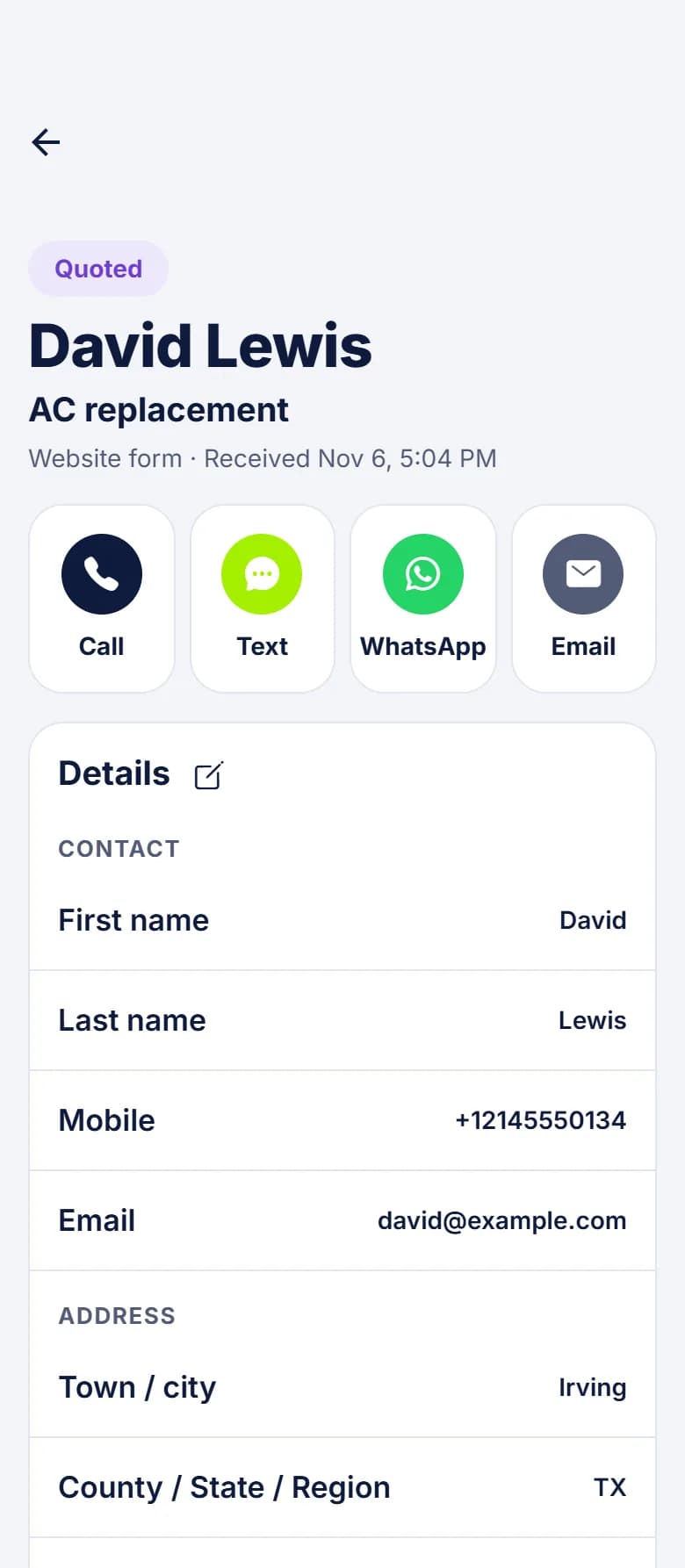
Tap the alert and the lead opens with what they asked for and the Call, Text, WhatsApp and Email buttons. Each one opens your own dialler, messaging or email app, with a pre-written message for a text, WhatsApp or email, and you can set a follow-up for the longer conversation.
What happens when a lead comes in
- 1
The lead reaches your account
It comes from whatever you've connected: a website form, an ad lead form or another system posting to your webhook URL.
- 2
Phones get a push
The alert says "New lead" and the inquiry type, then the name, the ZIP code and the start of the message. "New lead: AC tune-up" tells you what it is before you open anything.
- 3
You tap it
The lead itself opens, not the list. Call, Text, WhatsApp and Email buttons sit above the contact details and the inquiry.
- 4
You make contact
Tap a button and your phone's own dialler or messaging app opens. If the lead still said New, it moves to Contacted by itself.
- 5
The lime marker clears
An unread lead has a lime border and dot. Once anyone on the account opens it, it shows as seen for everybody, so colleagues can tell someone has looked.
Who gets notified, and for what
Three things send a push, and each goes to different people. This matters once there's more than one of you on the account. Assignment decides who a lead belongs to.
- New lead: the people switched on for New lead alerts on the Team page in the dashboard. They also need the app installed, notifications allowed and New lead alerts on in the app. The lead arrives unassigned, so the rest of the team can still see it in the list.
- Lead assigned to someone: only that person. They get a push in the app, plus a bell notice and an email from the dashboard. If you take a lead yourself, you aren't told about your own action.
- Follow-up due: only the person the follow-up is assigned to, not the whole team.
- Two phones on one login: each signed-in phone gets alerts and has its own switch.
- Someone not on call: they can turn off New lead alerts in Settings on their own phone. That silences all pushes to that phone, follow-up reminders included. Their leads still show in the app.
- Agency staff: the new lead push goes to the client's own people, rather than the agency managing the account.
Reply with the words already written
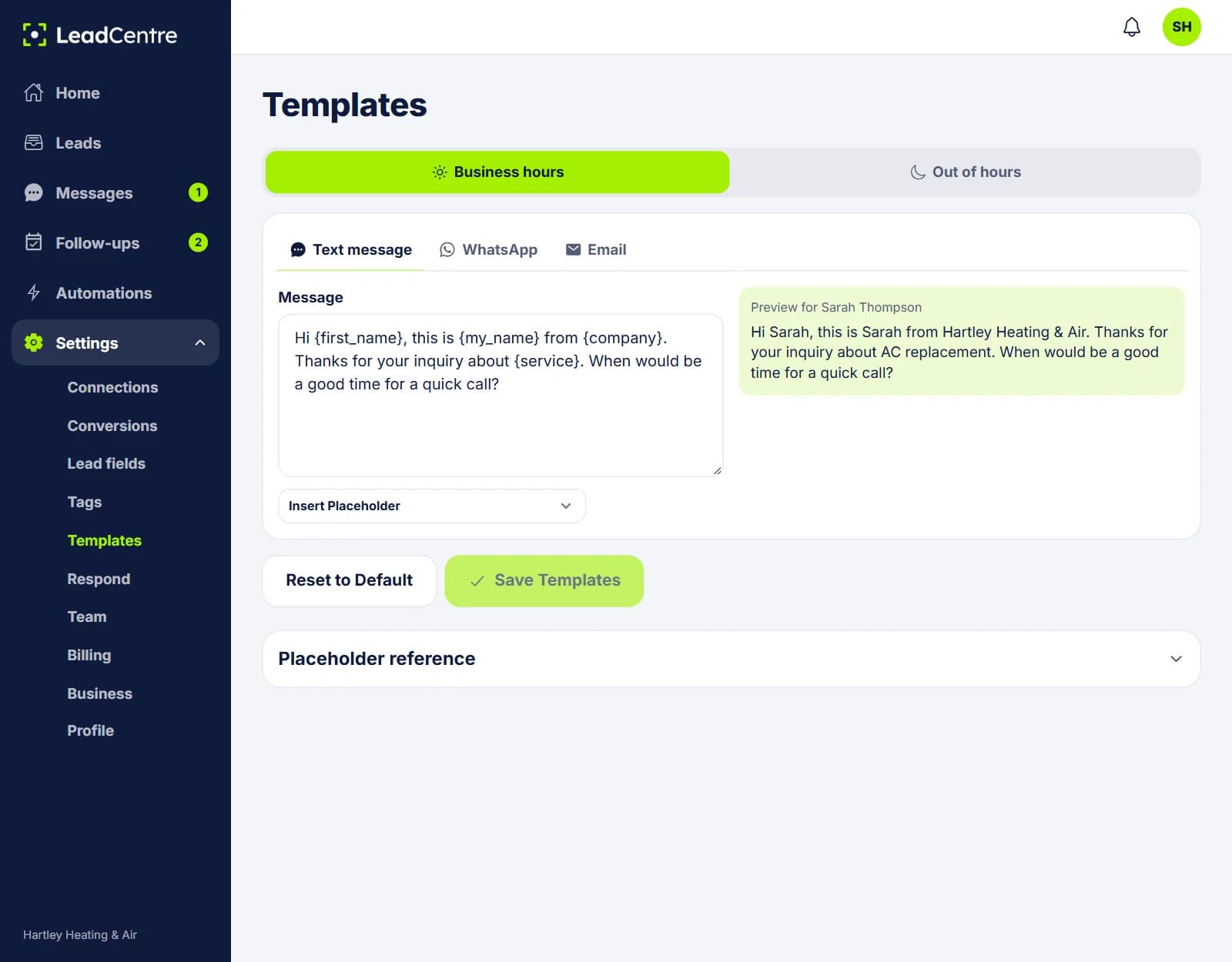
The Text, WhatsApp and Email buttons open a pre-written message from your templates, with placeholders such as {first_name}, {service} and {company} filled in. You keep separate wording for during and outside business hours, and the right one is picked when you tap.
The message goes from your own number or email account when you press send.
If you want something to go without you, the Instant Email Reply automation can send a new lead an automatic email. Automatic SMS replies come with the Respond add-on.
On a busy day
Worth knowing before you rely on it
Calls can become leads too. With the Respond add-on, a missed call to your LeadCentre number becomes a lead and gets an automatic text. A call tracking service that posts to your webhook creates a lead as well.
- Push comes through the app. In the online dashboard, new leads show in the list with the lime marker.
- Alerts come through outside business hours too. Business hours choose which template wording you get. For quiet nights, use your phone's Do Not Disturb or the New lead alerts switch.
- A push depends on your phone's signal, battery settings and notification permissions, and on the services that carry it.
Common questions
Do I need the app to get notified?
Yes, for push. You sign in to the app with your dashboard login. In the dashboard, new leads show in the list with the lime marker.
Will my whole team get an alert for every new lead?
Only if you want them to. An Admin switches New lead alerts on or off for each person on the Team page in the dashboard, and at least one person always stays on. Anyone switched on can still turn alerts off on their own phone. Once a lead is assigned, later alerts about it go only to that person.
Can I stop alerts at night?
Yes. Use your phone's Do Not Disturb, or turn off New lead alerts in the app's Settings and turn it back on in the morning. Business hours only change the message wording.
What does a follow-up reminder say?
It's headed "Follow-up reminder" and shows the lead's name and your note. Tap it and the lead opens.
Why didn't my phone get an alert?
Check four things. You're switched on for New lead alerts on the Team page in the dashboard, your phone allows notifications from LeadCentre, New lead alerts is on in the app's Settings, and the lead really arrived. Anything sent before a connection's fields are matched is held, and becomes a lead once matching is saved.
Get your next inquiry on your phone
Set up your Connections, install the app and stop checking inboxes between jobs.