
Home Services
Lead management for home service businesses
Keep new inquiries moving while you focus on your customers. Bring leads from your website, ads and supported lead providers together, respond from your phone and stay on top of callbacks and quotes.
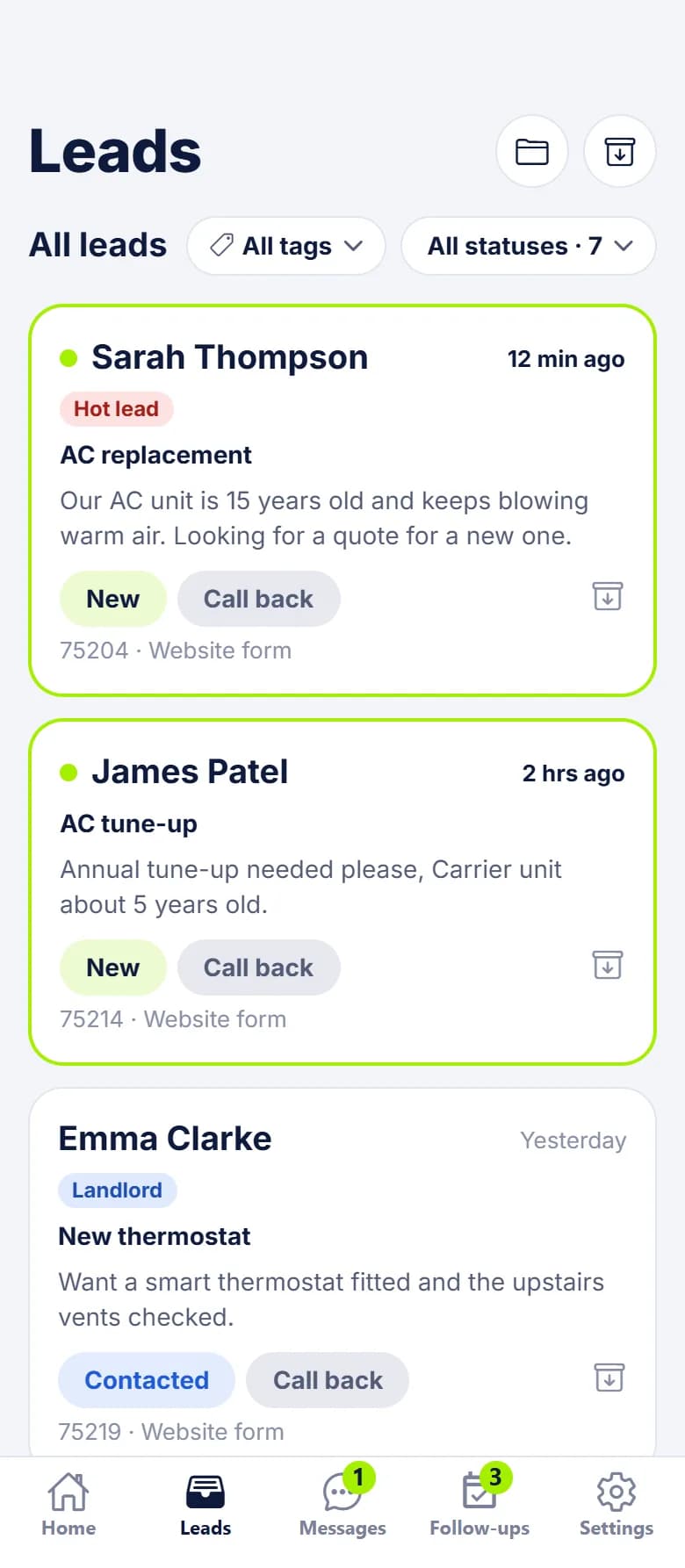
How inquiries really arrive
A form on your website, a Facebook lead ad, a Google Ads form, a directory that sells you leads. With one source, your inbox would do. With four, each has its own place to check, and nobody can say which inquiries have had a reply.
A typical one says: "Hi, can you give me a price to cut back the hedge and clear the side of the house? I'm home Saturdays." There's no budget, no measurements and often no address, and the customer has probably asked two other firms. It tends to go wrong in the same few ways:
- You're on a job all day and read it at 8pm, when someone else has already replied.
- "I'll call you back" only exists in your head.
- Your partner in the office and you both assume the other one has replied.
- Jobs are small and quick, so nobody writes them down. You never find out which ads pay for themselves.
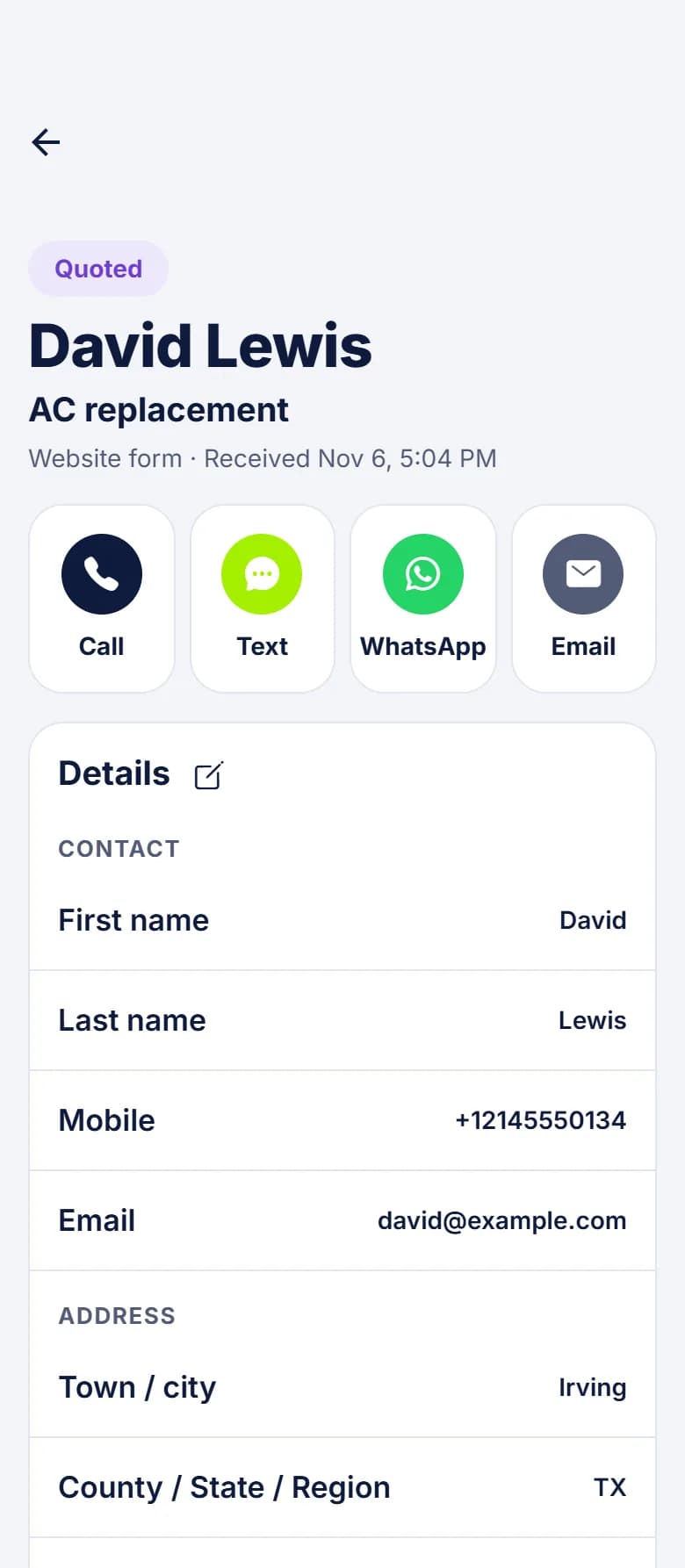
One hedge-cutting inquiry, on one phone
- 1
The alert arrives while you're working
"New lead: Hedge cutting", with the name, ZIP code and start of the message. That's enough to decide whether it can wait until your break.
- 2
Reply from anywhere
Tap WhatsApp or Text. Your own message opens with the name and job filled in: "Hi {first_name}, this is {my_name} from {company}. Thanks for your inquiry about {service}." Add a line and send it. The lead moves to Contacted.
- 3
Ask for what's missing
Most small jobs need a photo or a ZIP code before you can price them. Set a follow-up for Tomorrow with the note "Asked for photos of the hedge".
- 4
Book it and record it
Mark it Booked once it's in the calendar. When the job's done, mark it Won and enter what it was worth, even if it's a small amount.
A clearer process for a busy team
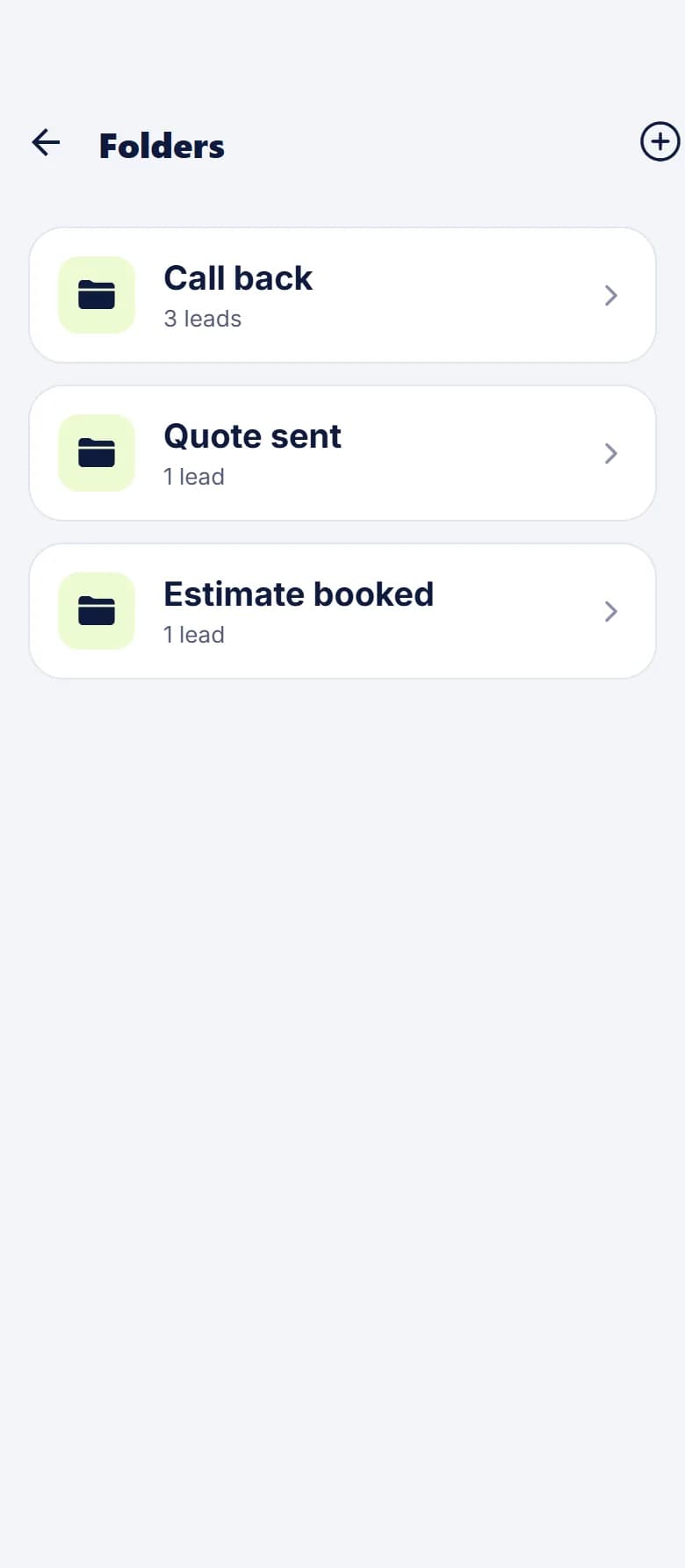
Everyone works from one shared lead list, so nobody has to ask whether an inquiry has had a reply. Each lead has a clear owner, and follow-up reminders bring back the callbacks and quotes that can't be dealt with straight away.
What you add to that will differ by trade: a landscaper might want a Spring jobs folder, an electrician a custom field for Landlord, a pest controller one for Pest type. Quoted is for jobs you've priced, but plenty of small jobs go straight from Contacted to Booked, and that's fine.
- Folders: Waiting on photos, Regular work, Spring jobs, Out of area.
- Custom fields: Property type, Access notes, Pets, Preferred day, How often.
- Follow-up notes: "Quoted for a every two weeks clean. Wanted a week to decide."
- Templates: during hours, say you'll ring after your current job. Outside hours, say you'll ring in the morning.
- Lost reasons: Outside our area and Not a service we offer tell you if your ads are reaching the wrong people.
An end of tenancy clean, start to finish
Working out which source pays
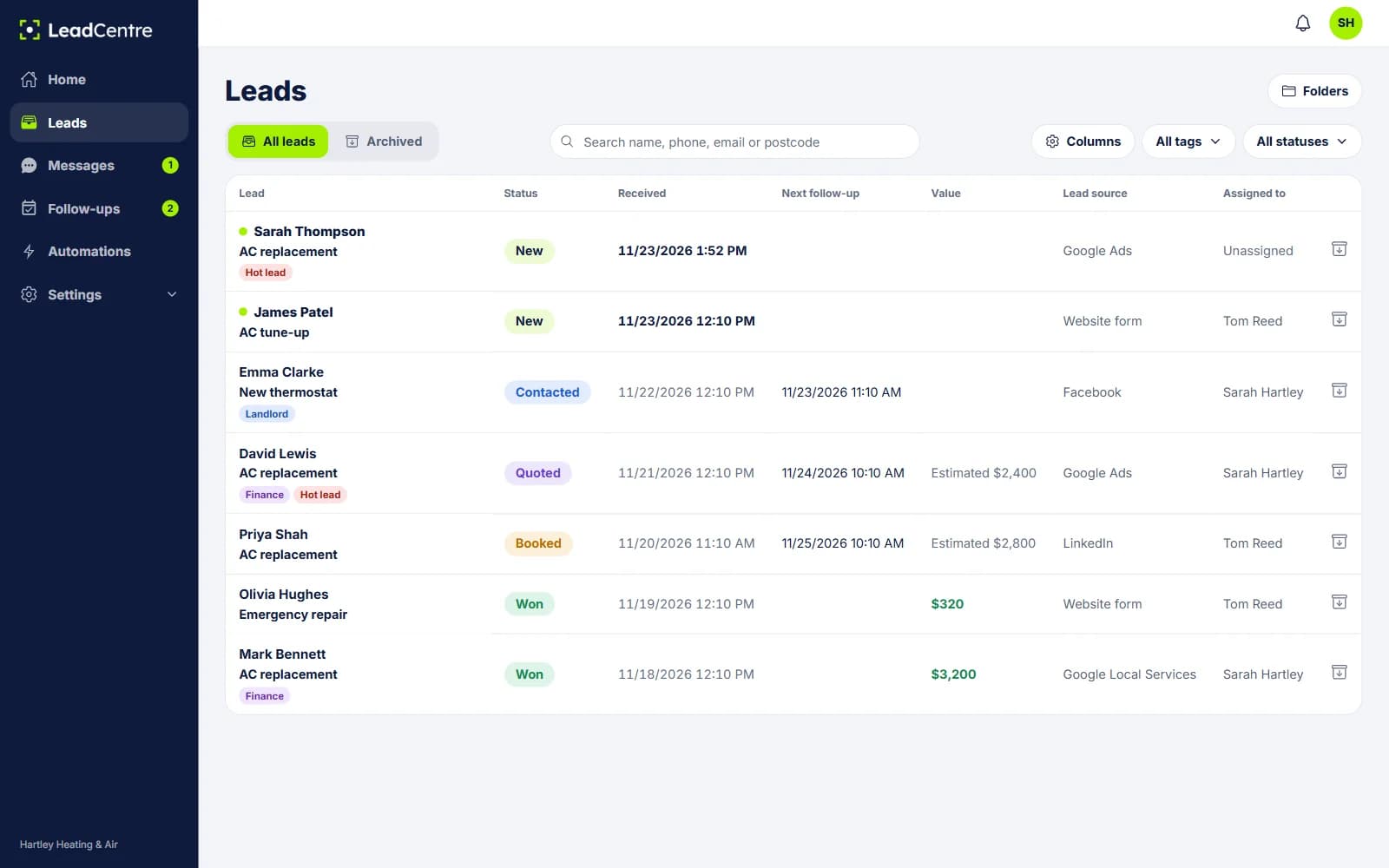
Send a Lead source with each connection, and each lead shows where it came from. If you've marked your jobs Won with what they were worth, you can open the Won list in the portal at the end of the month and read down the Source column. Add up the values for each source, and even a rough sum shows whether the directory you pay for is bringing in work or only bringing in inquiries. Our guide to why businesses lose leads covers what to check if it isn't.
When there's more than one of you
If an office manager or partner handles inquiries, make them an Admin so they see everything. Crew leaders can be Users: they see leads assigned to them, plus any nobody has taken yet.
An Admin chooses who gets the new lead alert on the Team page in the portal. If only one person should field inquiries, switch it on for them alone. The others still get a push when a lead is assigned to them or a follow-up falls due.
Your calendar, calls and texts
- Keep your calendar, rounds and invoices in the tools you use now. LeadCentre looks after each inquiry until the job is booked.
- The Text button opens your phone's messaging app with your wording ready to send, and the Instant Email Reply automation can send new leads an automatic email.
- The Respond add-on adds automatic SMS replies, and turns a missed call to your LeadCentre number into a lead with an automatic text.
Common questions
Most of my work comes by phone. Is this any use?
It helps with the inquiries that come by form or ad, which are the ones most often forgotten. A call you answer doesn't need it. With the Respond add-on, a missed call to your LeadCentre number becomes a lead and gets an automatic text. A call tracking service that can post to a webhook can also turn calls into leads.
Can someone in the office handle inquiries while I'm on a job?
Yes. Add them as a user. They can see new leads, reply, set follow-ups and assign work to you, and you get an alert for anything assigned to you.
I already use a job management app. Do I need this too?
They do different jobs. Your job app takes over once work is booked. LeadCentre covers the part before that: giving each inquiry a reply, a follow-up and an outcome.
Get inquiries from all your sources in one list
Get alerts between jobs, reply in a couple of taps and see what your small jobs add up to.