
Automations
Lead automations that follow up for you
Make timely follow-up part of your process. Automatically acknowledge inquiries, assign leads and create the next follow-up, with different paths for different requests. Your team spends less time repeating routine tasks and more time having useful conversations.
- Included on every plan
- Text steps with Respond
Why teams use Automations
Included on every plan, so routine follow-up happens on time and your team can spend more of the day talking to leads.
Acknowledge new interest
Email every new inquiry straight away to say you've got it, with different wording during and outside your business hours. With Respond, a text can go too.
About RespondGive each inquiry the right next step
If / Else and AI Intent send different requests down different paths, so a pricing question and a request for a consultation each get the right email, owner and follow-up.
Follow up consistently when your team is busy
Waits, reminders and Lead Rescue keep quieter leads moving, whether a lead lands at 2pm on a Tuesday or 9pm on a Sunday. Built-in stops leave a lead alone once it's won, lost or opted out.
A simple example
Reply straight away, then make sure someone calls
A new inquiry gets an email at once, and the person handling it gets a callback reminder. If you have Respond, a text can follow the next morning for anyone who hasn’t replied.
Emails and reminders are included on every plan. Only the text step needs Respond. Automations are built and changed in the online dashboard on a computer.
- When: A new lead arrivesFrom any of your connections.
- Then: Send emailIncluded on every planStraight away: thanks for your inquiry, we’ll call you shortly.
- Then: Create follow-upIncluded on every planA callback reminder for the person handling the lead, due in an hour.
- Then: Send textNeeds RespondOptional: the next morning, if they haven’t replied.
The builder
Every step on one screen
An automation reads from top to bottom, and each kind of step has its own color, so you can tell an email from a wait at a glance. Click a step in the panel to add it at the end, or drag it onto a + in the chart.
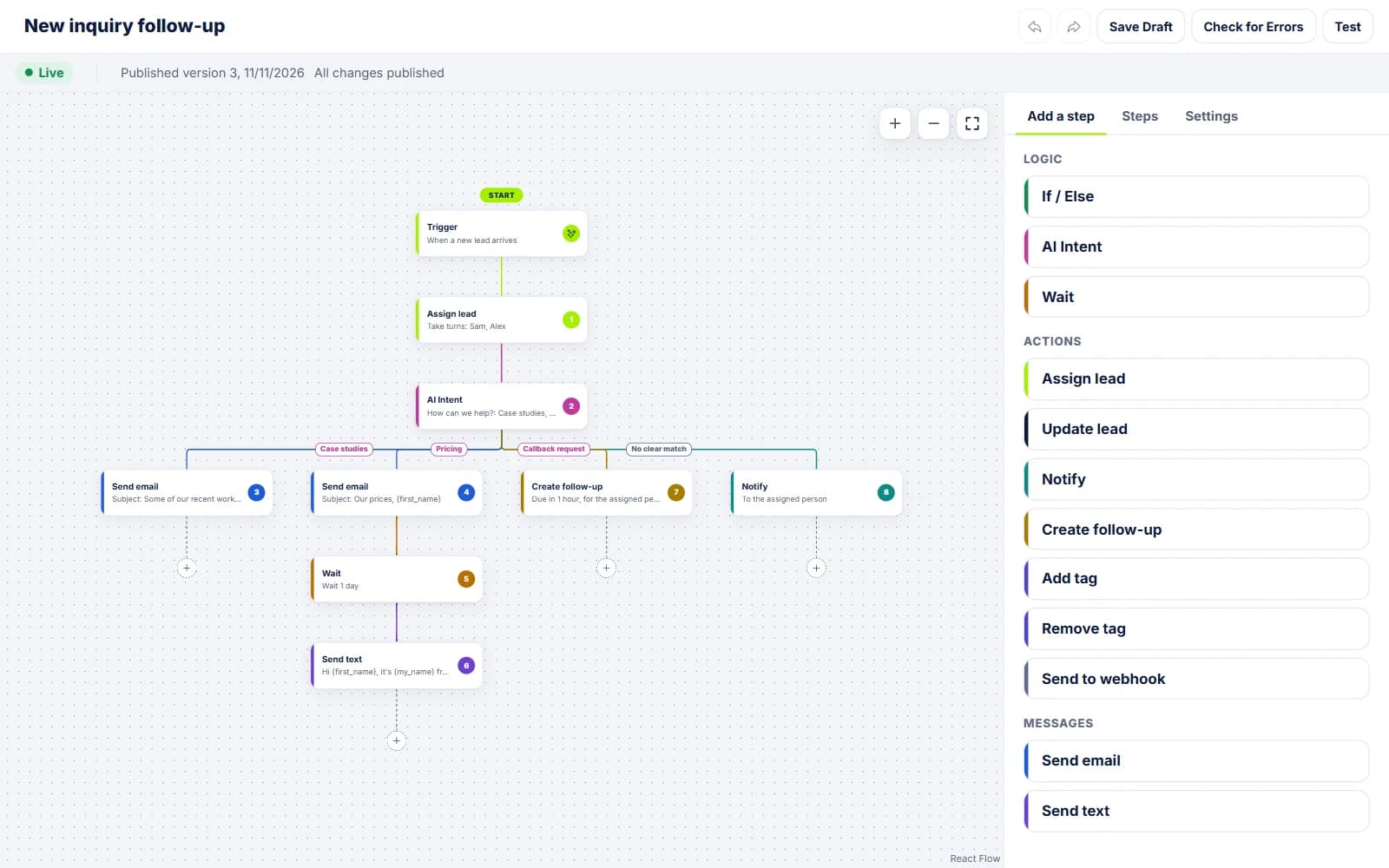
- 1Save DraftKeeps your changes without starting anything.
- 2Check for ErrorsFinds anything that needs fixing before it goes live.
- 3PublishStarts it for the next lead that matches.
Triggers
What starts an automation
Each automation has one trigger. Add a filter and it only runs for the leads you mean, such as one type of inquiry or one ZIP code area.
- A new lead arrivesFrom any of your connections. Imported leads only start it if you tick the box for them.
- A lead's status changesTo any status, or only the ones you pick, such as Quoted.
- A lead is assigned or unassignedUseful for telling the new owner, or setting them a follow-up.
- A lead's details changePick the details to watch, such as the inquiry type or ZIP code.
- A tag is added or removedAny tag, or only the ones you pick, such as Hot lead. However the lead was tagged, by a person, a connection or another automation.
- A lead texts your LeadCentre numberWith Respond. An AI Intent step can read the text that started it.
- You miss a call to your LeadCentre numberWith Respond. The call becomes a lead, and the automation can wait a set number of hours before starting again for the same caller.
Steps
Ten steps, each with its own color
Mix them in any order. Only Send text needs anything beyond your plan.
- LogicIf / ElseSplits the path in two by what the lead's details or tags say.
- LogicAI IntentReads a lead's message and chooses a path by what they're asking for.
- LogicWaitWaits minutes, hours or days, or until your business hours, then carries on.
- ActionsAssign leadGives the lead to a person, or shares leads out in turn.
- ActionsUpdate leadChanges the lead's status or one of its details.
- ActionsNotifyTells people on your team, in the app and by email.
- ActionsCreate follow-upAdds a follow-up reminder for someone on your team.
- ActionsAdd tagPuts a tag on the lead, such as Hot lead.
- ActionsRemove tagTakes a tag off the lead.
- ActionsSend to webhookSends the lead to your CRM or any other app, tags included.
- MessagesSend emailEmails the lead from your business, in your own words.
- MessagesSend textTexts the lead from your LeadCentre number.Needs Respond
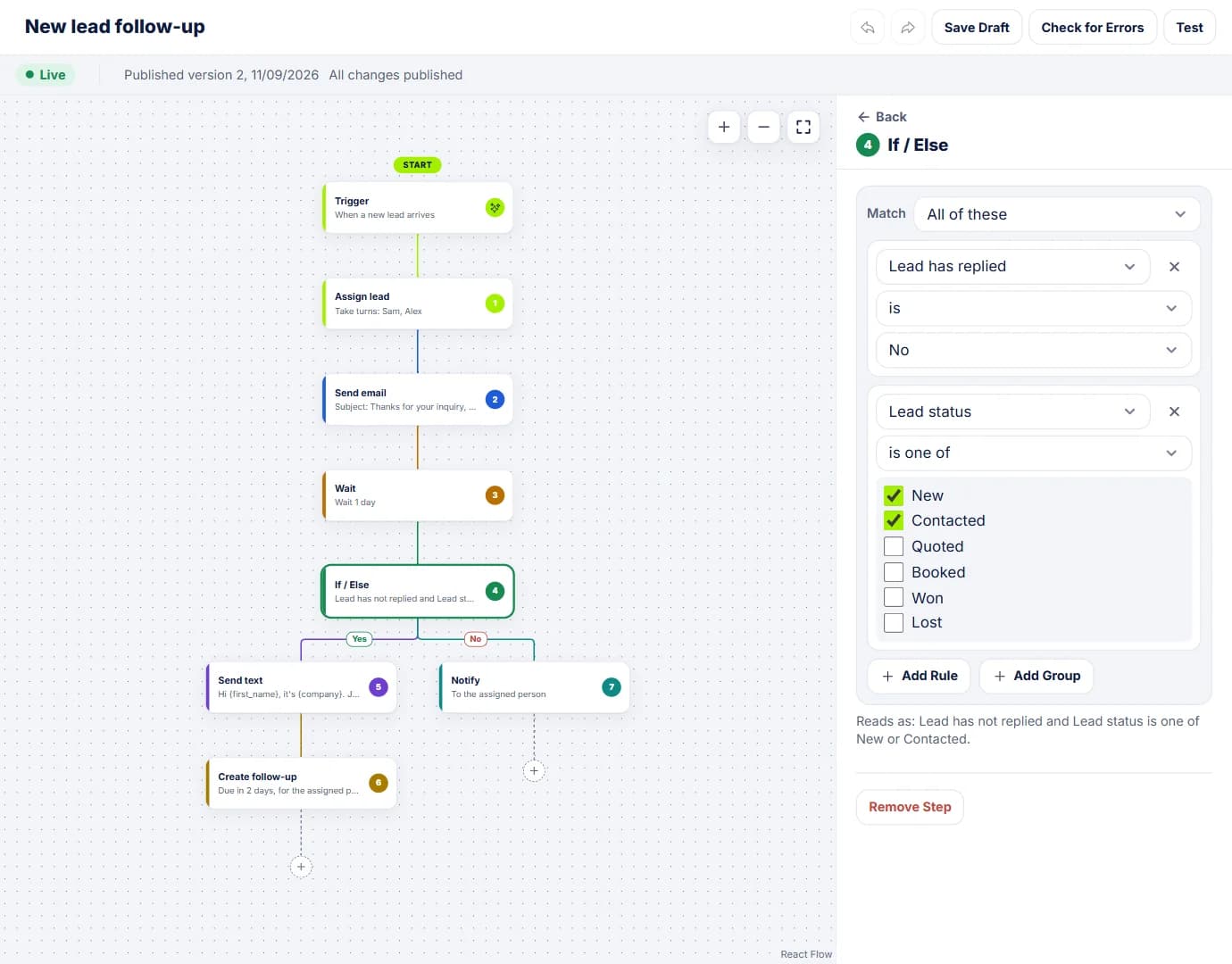
If / Else: one path for leads that match, another for the rest
Build a rule from anything on the lead: its status, inquiry type, ZIP code, where it came from, any of your custom fields, whether the lead has replied, or whether it arrived during your business hours. Match all of your rules or any of them, and put rules in groups for the trickier cases.
- Leads that match go down the Yes branch on the left, and the rest go down No on the right.
- Under the rules, the step reads them back in a plain sentence, so you can check it says what you meant.
- Each branch can carry on with its own steps, and its own If / Else.
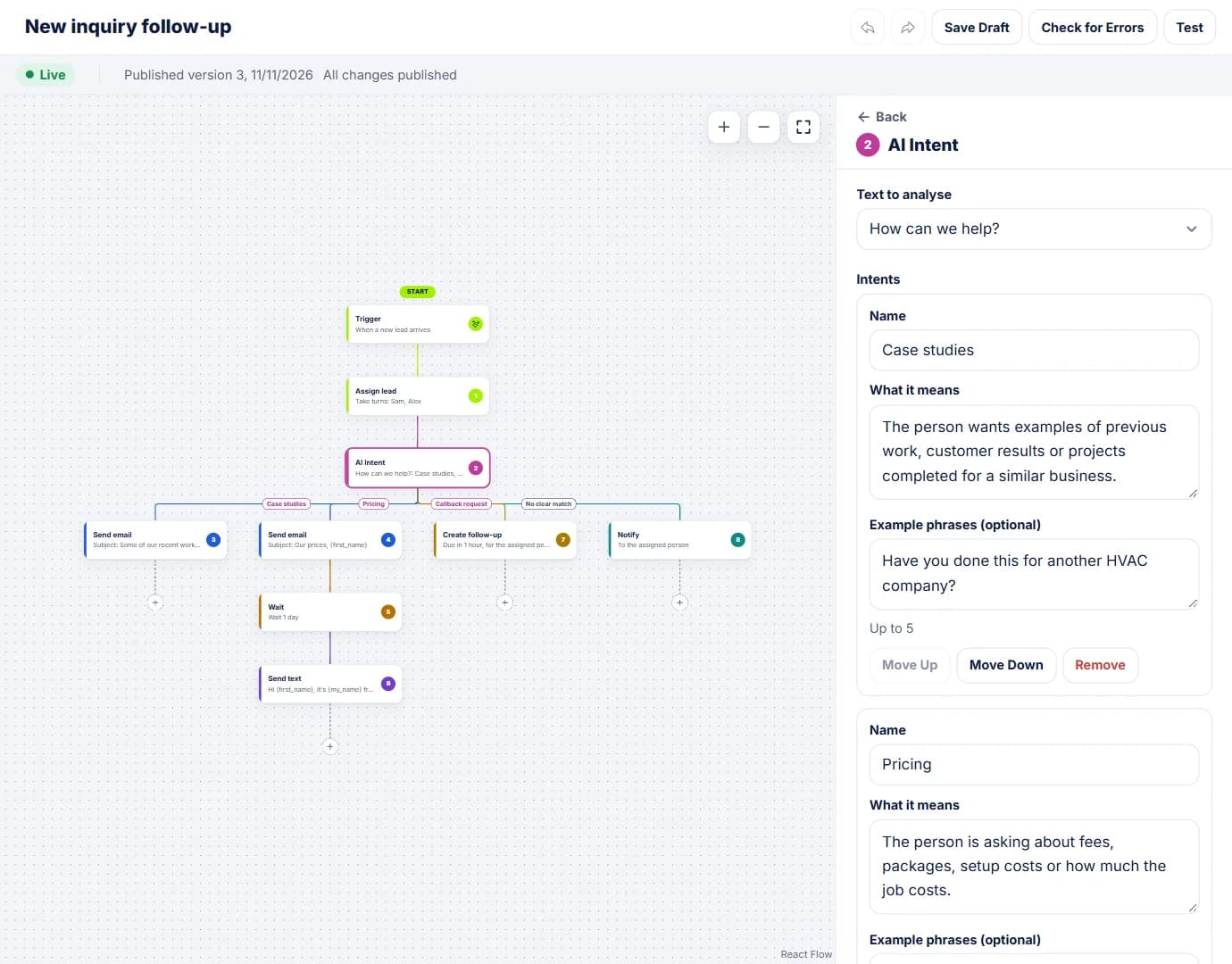
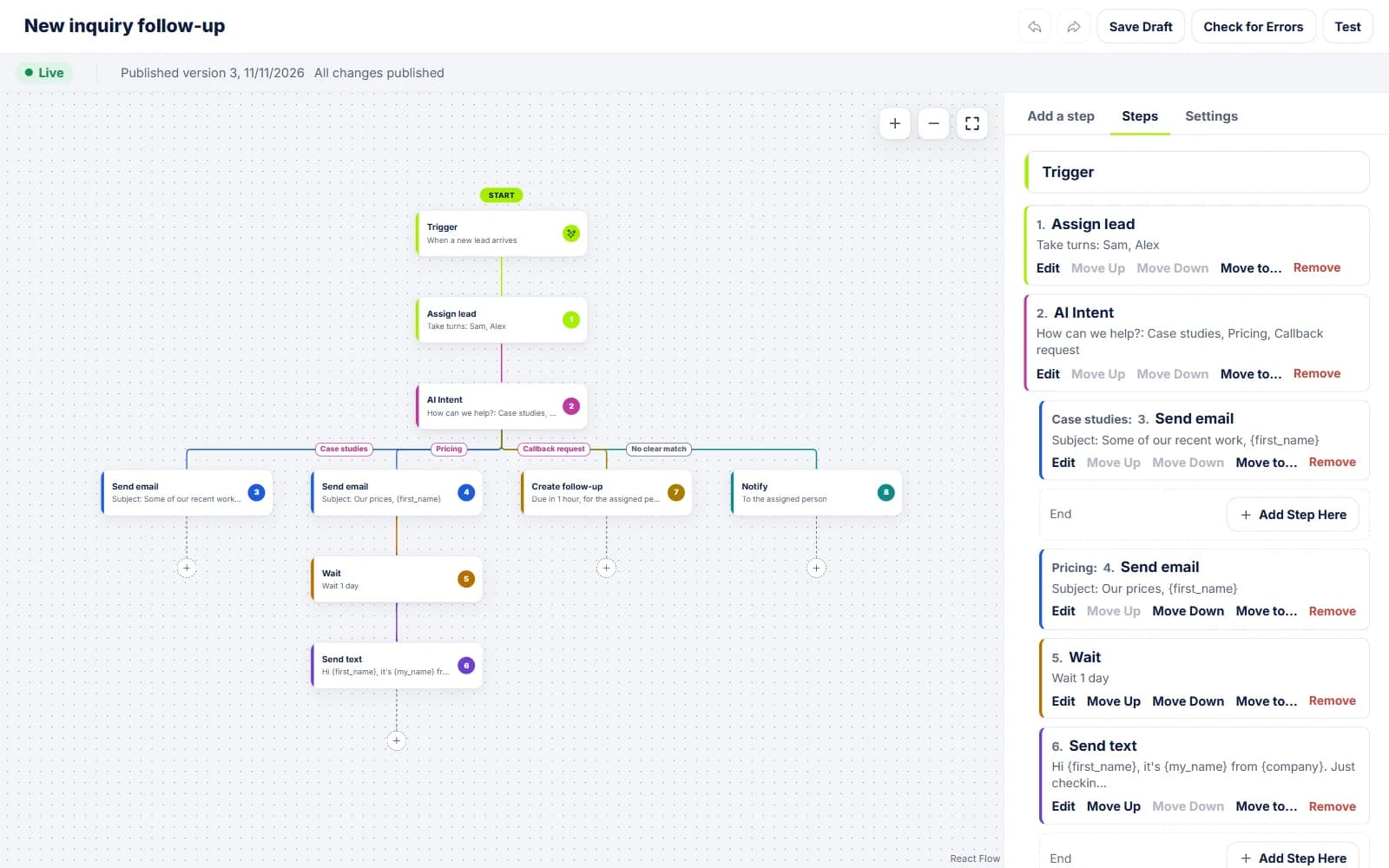
AI Intent: a path for each kind of request
Included on every planLeads put the same question in many different ways. An AI Intent step reads the text you choose, such as the inquiry message or a form question like “How can we help?”, and sends the lead down the branch that fits what they’re asking for.
- You write each intent in plain words, with example phrases if you like, and decide every step on its branch.
- The AI only chooses a branch. Your own steps send the emails, set the follow-ups and notify your team, so it never writes to a customer.
- When nothing fits, two requests are equally clear or the field is empty, the lead takes No clear match, a branch of its own.
- Paste a sample message into Test intent to see which branch it would take before you publish.
- If the AI can’t be reached, the step waits and tries again, then stops with the reason in the run history. It never takes No clear match by mistake.
With Respond, an automation can also start when a lead texts your LeadCentre number, and an AI Intent step can read that text.
Emails in your own words
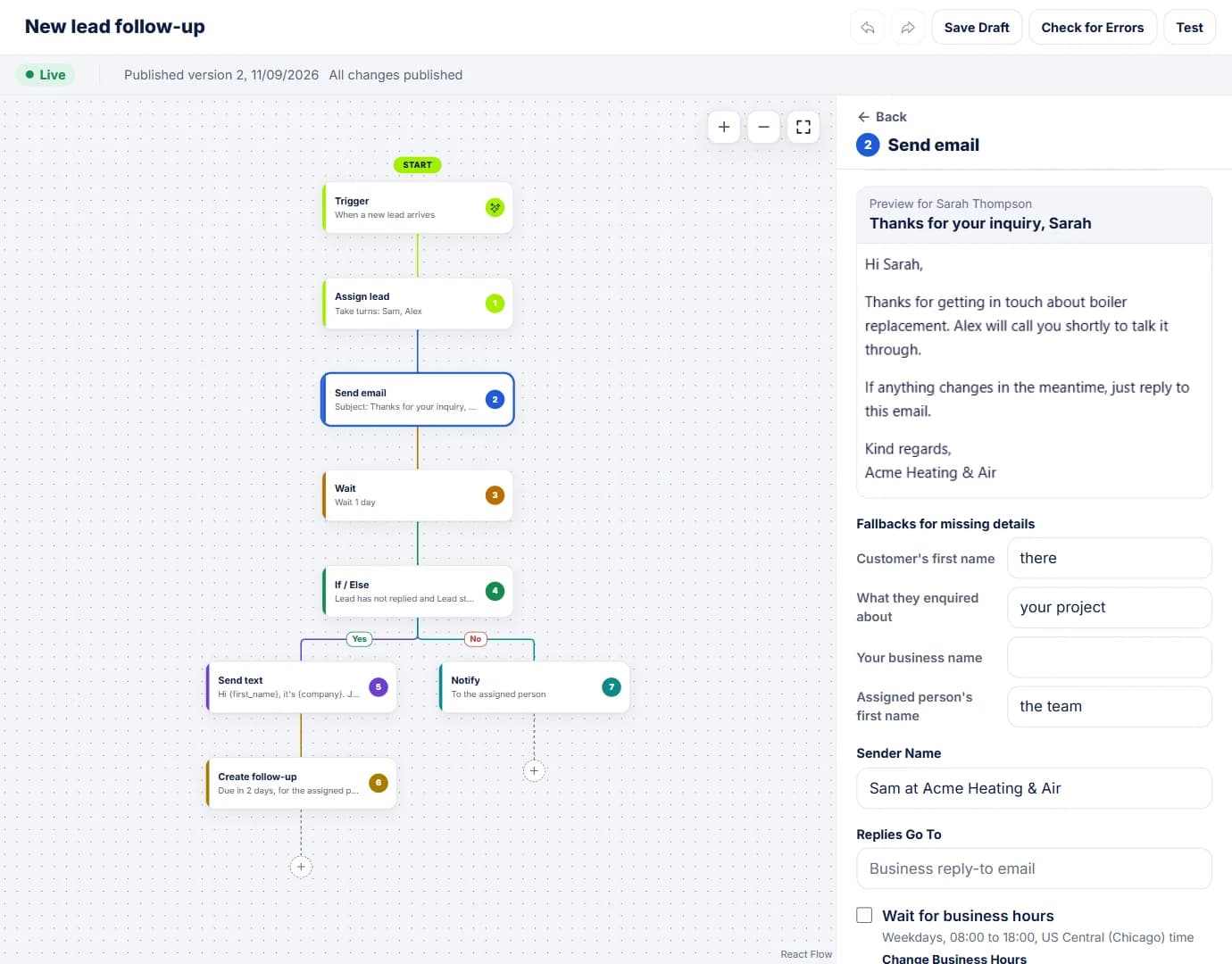
Write the subject and message once, with placeholders such as {first_name}, {service} and {company} for the details that change. The preview shows the email as a real lead would get it.
- Fallbacks fill a gap when a lead hasn't given a detail, so an email never opens with a blank where the name should be.
- Give each email a sender name, such as Sam at your company, and choose where replies go. Leave them blank to use your company name and the reply-to email on Settings > Business.
- Every automated email has an unsubscribe link, and an unsubscribe is respected by every automation on the account.
- Send straight away, or tick Wait for business hours and it goes out during your business hours (Settings > Business).
Texts from your LeadCentre number
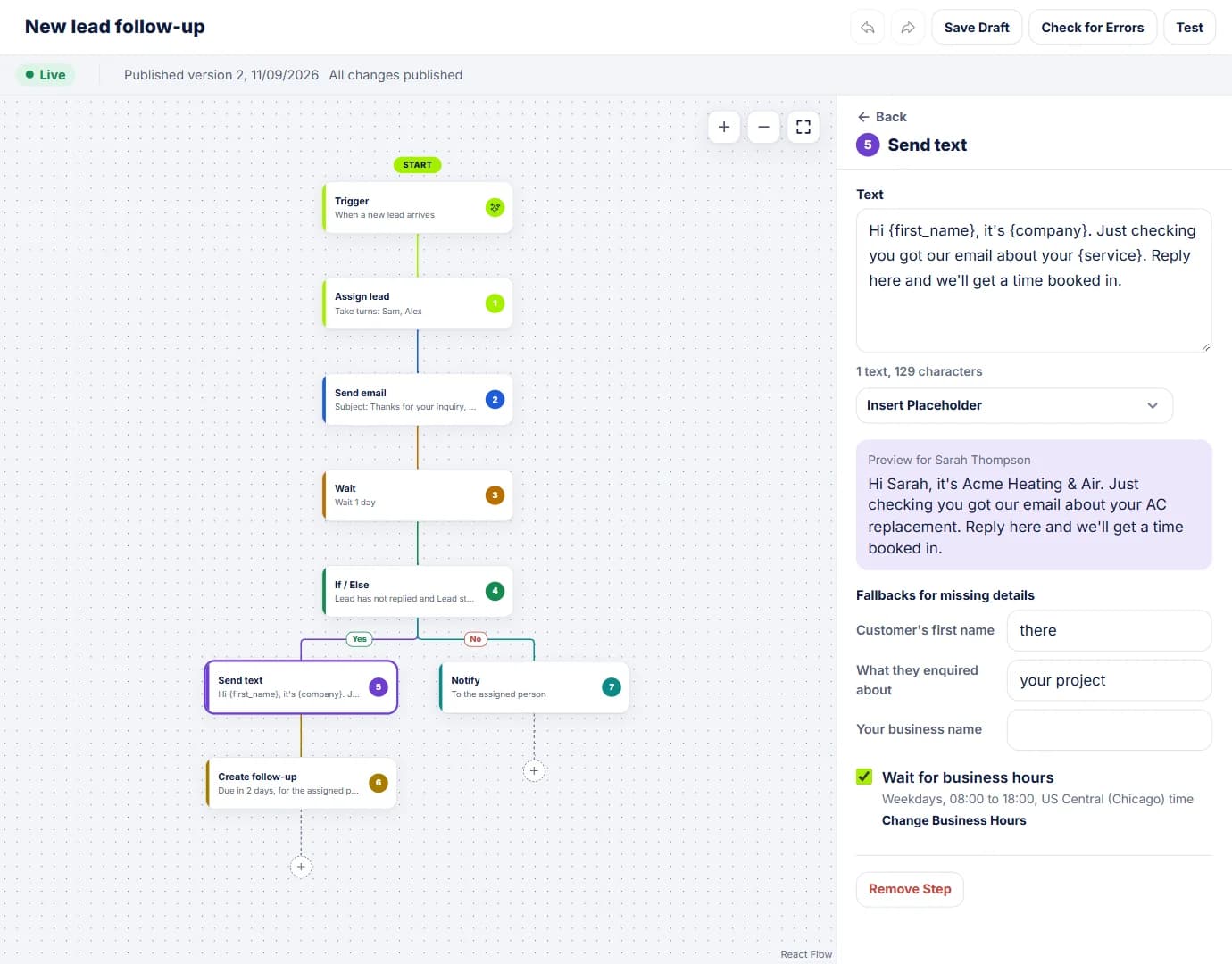
Needs RespondA Send text step texts the lead from the dedicated business number that comes with Respond. If they reply, the conversation is in Messages, ready for you to pick up.
- The same placeholders and preview as email, with a count of characters and texts as you type.
- Tick Wait for business hours and the text goes out during your business hours, so nobody gets one at 11pm.
- A lead who replies leaves the automation, so the next text never goes.
Built-in stops
It knows when to leave a lead alone
An automation that keeps going after someone has answered does more harm than good. These stop it, or hold a message back.
They reply
A lead who answers a text leaves the automation, so nobody is chased after they've replied.
They reach a status you pick
Such as Booked, Won or Lost. Won and Lost are ticked to start with.
The lead is archived
Archiving a lead always takes it out of every automation.
They opt out
Every automated email has an unsubscribe link. A lead who uses it leaves every automation running for them and gets no more automated emails, and replying STOP to a text works the same way.
A person takes over
Once someone on your team texts a lead themselves, automated texts to that lead are skipped.
It's outside your business hours
Emails and texts set to wait go out during your business hours (Settings > Business), when you next open.
Try it before a lead ever sees it
The Steps tab lists every step in reading order, with its branch, so you can move one up, down or to another place without dragging anything.
- Check for ErrorsLists anything that would stop the automation working, such as an email with no subject, before you publish.
- TestRuns it against one of your leads as a preview. Nothing is sent, no lead is changed and no allowance is used.
- Run historyEvery lead that went through, each step's result and, when a step was skipped or stopped, the reason in plain words.
- Drafts and versionsEdit as a draft while the published version keeps running, and see at a glance whether it is live or paused and whether there are unpublished changes. When you publish, you choose what happens to leads already part-way through. The change log shows who published, paused or resumed it, and when.
Each lead's page also lists the automations it has been through, with a Stop Run button for one that's still going.
Templates
Start from a template
Pick one, change it to suit you, and publish when it's right. Nothing runs until you do.
- Instant Text ReplyNeeds RespondTexts every new lead straight away, day or night, to say you've got their inquiry.
- Missed Call Text BackNeeds RespondTexts people straight away when you miss their call to your LeadCentre number, so they can tell you what they need. Added for you, paused, when you switch Respond on.
- Instant Email ReplyEmails every new lead straight away to say you've got their inquiry, with different wording during and outside your business hours.
- Lead RescueFollows up leads that have gone quiet with a short run of emails and texts over two weeks, then asks the assigned person to make one last call. Texts with Respond, and email only without it.
- Assign by serviceGives new leads for one type of inquiry to the person who handles it, and tells them.
- Round-robinShares new leads out in turn between the people you choose, and tells each person when one is theirs.
- Follow-upNeeds RespondEmails every new lead straight away, then sends a text the next day if they haven't replied.
- Uncontacted lead reminderReminds the assigned person when a new lead still hasn't been contacted after two hours.
- Start from scratchAn empty automation. Choose what starts it and add your own steps, in any order.
For agencies
Build it once, use it for every client
Set an automation up in one client's account and copy it to another, or include it in a snapshot for new clients. People and connections belong to one account, so the copy clears them for you to choose the new client's own.
- Choose per client whether its own people can see automations, and whether they can edit them.
- Open any client with Open Workspace to build or check its automations yourself.
- Each client's run history stays in its own account.
Common questions
Do Automations cost extra?
No. Automations are included on every plan, for a single business and for agencies. The only step that needs anything more is Send text, which goes from your LeadCentre number and so needs the Respond add-on.
What can I automate without Respond?
Everything except texts: If / Else, AI Intent, Wait, Assign lead, Update lead, Notify, Create follow-up, Add tag, Remove tag, Send to webhook and Send email. A follow-up automation can email a lead, wait, check whether anything has changed and remind the right person to call them.
What does AI Intent do with a lead's message?
It reads only the text you choose, such as the inquiry message or a form question like "How can we help?", and compares it with the intents you've written. It chooses one branch, or No clear match when nothing fits or two requests are equally clear, and your own steps on that branch do the rest. The lead's name, phone number and other details aren't sent, the AI doesn't write to the customer, and an empty field goes straight to No clear match.
Does AI Intent cost extra?
No. It's part of Automations, included on every plan. A branch that sends a text still needs the Respond add-on, as does starting an automation when a lead texts your LeadCentre number.
What happens to a text step if Respond is switched off?
You can still add Send text to a draft, but the automation can't be published until Respond is on. If Respond is switched off while an automation is running, a lead that reaches a text step waits there marked Needs attention. Switch Respond back on and press Retry.
What is Lead Rescue?
A template for leads that have gone quiet: still at New, Contacted or Quoted with no activity for a set number of days, seven to start with. It sends a short run of messages over about two weeks, alternating email and text, each about the lead's own inquiry. Then it sets a follow-up for the assigned person to make one last call. It stops when the lead replies by text, reaches Booked, Won or Lost, is archived or opts out. Texts need the Respond add-on; without it, Lead Rescue sends emails only. A lead won after going through it is counted as rescued in your reports.
Will a lead get the same message twice?
Each step runs once for a lead on each pass through an automation. If LeadCentre can't confirm that an email went, it marks the step as possibly not delivered rather than send it again. Each person also gets no more than three automated emails a day, however many automations they're in.
Can a lead go through the same automation again?
You choose. In Settings on the builder, a lead can go through an automation once, or again whenever its last run has ended.
Where do I build automations?
In the online dashboard, on a computer, under Automations. What they do shows everywhere: an assigned lead, a follow-up or a status change appears in the app as well.
Can an agency set automations up for its clients?
Yes. Build one in a client's account and copy it to another client, or include it in a snapshot. People and connections belong to one account, so the copy clears them for you to pick the new client's own. For each client you also choose whether its own people can see or edit automations.
Set it up once and let it run
Automations come with every plan. Add Respond when you want them to send texts too.