
Conversion Tracking
Lead conversion tracking from inquiry to customer
Look beyond the number of inquiries you receive. Record which leads become customers, what the sales were worth and why other opportunities were lost. Give your business, or your clients, a clearer view of what happened after the inquiry.
Why record what happens after the inquiry
Record the outcomes that matter
Marking a lead Won asks what the sale was worth, so your figures show customers and their value, as well as how many inquiries came in. Home shows leads, wins, win rate and won value for the time frame you choose.
Understand why inquiries are lost
Marking a lead Lost lets you record a reason, such as Price too high, Not ready yet or Went with another company. Read down your lost leads and you can see whether the problem is price, timing or the inquiries themselves.
Feed supported outcomes back to ad platforms
With conversion feedback set up, the stages you choose go back to Google Ads, Microsoft Ads, Meta, LinkedIn and TikTok, matched by an ID each platform gave the lead. The platforms can then learn which leads become customers. It works for leads that carry that ID, and follows the settings you choose on each platform.
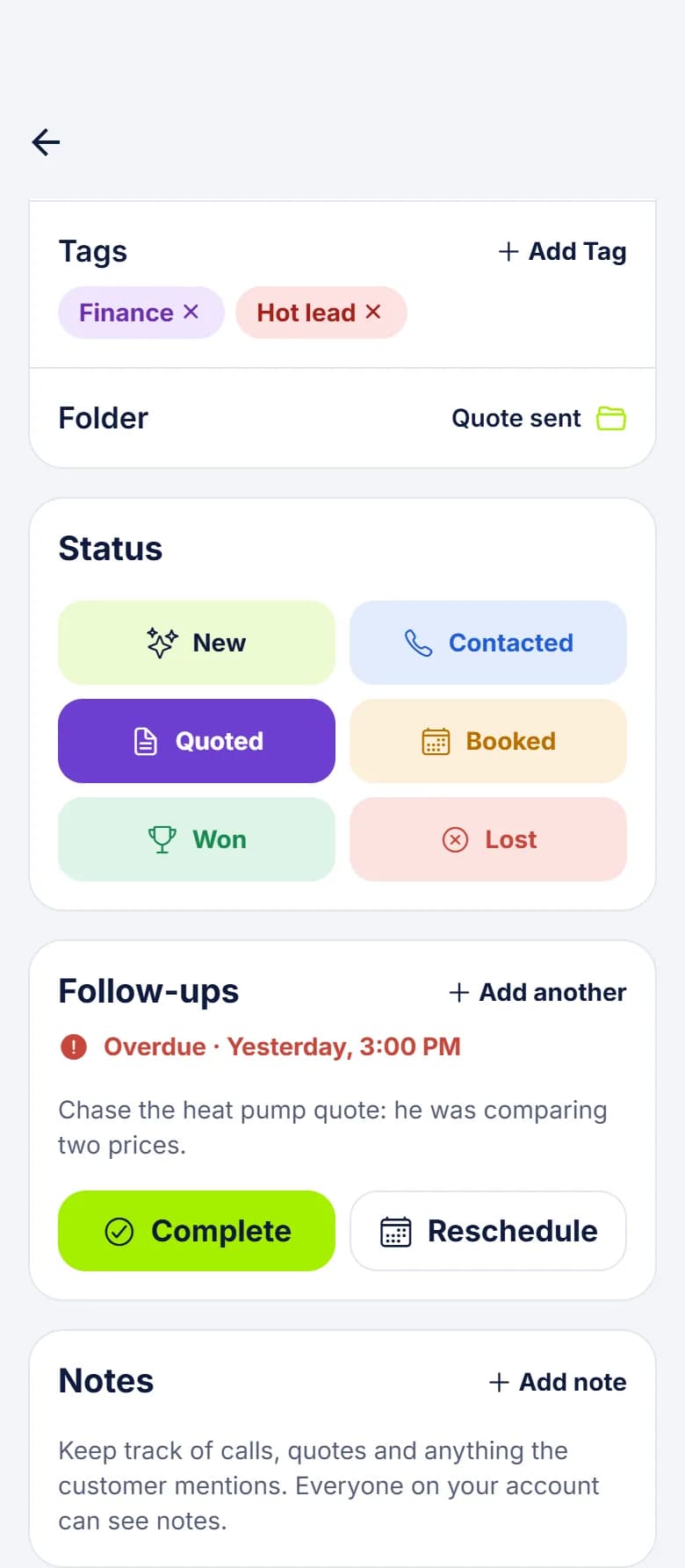
How a lead becomes a conversion
- 1
It arrives with its source
If your connection maps a Lead source field, each lead shows where it came from.
- 2
Your team works it
It moves through Contacted, Quoted and Booked as the work goes on, with each change one tap on the lead.
- 3
Someone marks it Won
You're asked "What was the job worth?" Enter it now or come back to it later. Leaving it blank still counts the win, with no value.
- 4
Home updates
The Won count, win rate and won value change for the period that lead belongs to.
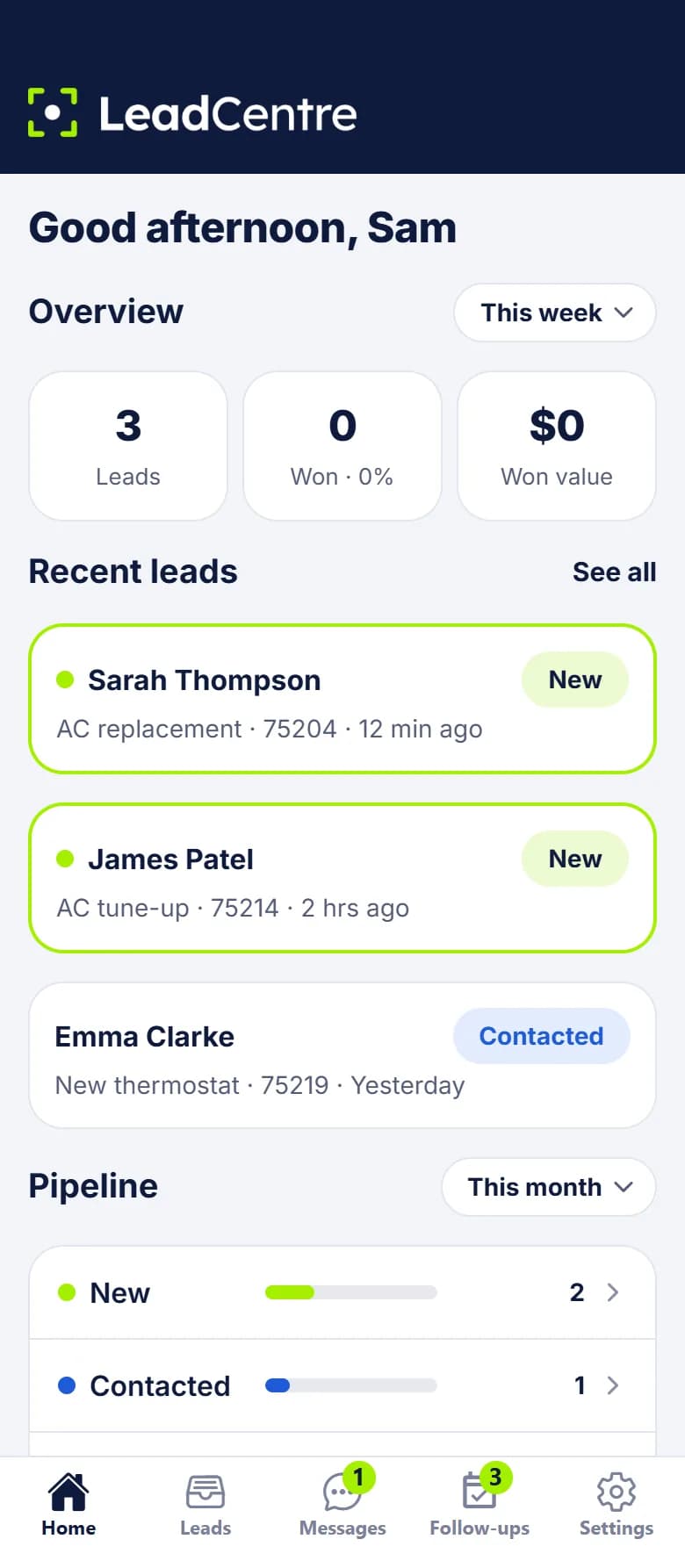
What the figures mean
The overview on Home shows three tiles over a time frame you pick: Today, Yesterday, This week, This month or All time.
- Leads: how many were received in that time frame.
- Won, with win rate: how many of those leads are now marked Won, as a percentage of them.
- Won value: the job values on those won leads added together.
- Everything counts by the date the lead was received, not the date it was won. That keeps a lead and its outcome together, even on a slow sale.
- Archived leads still count.
- Values are totaled in your account's currency. A value entered in another currency is left out.
Why leads were lost
Marking a lead Lost offers a list of reasons: Price too high, Went with another company, No response, Not ready yet, Job canceled, Outside our area, Not a service we offer, Invalid lead and Other. You can skip it and add one later.
The reason is saved on the lead, where anyone who can see the lead can read it. Read down your Lost list to spot a pattern.
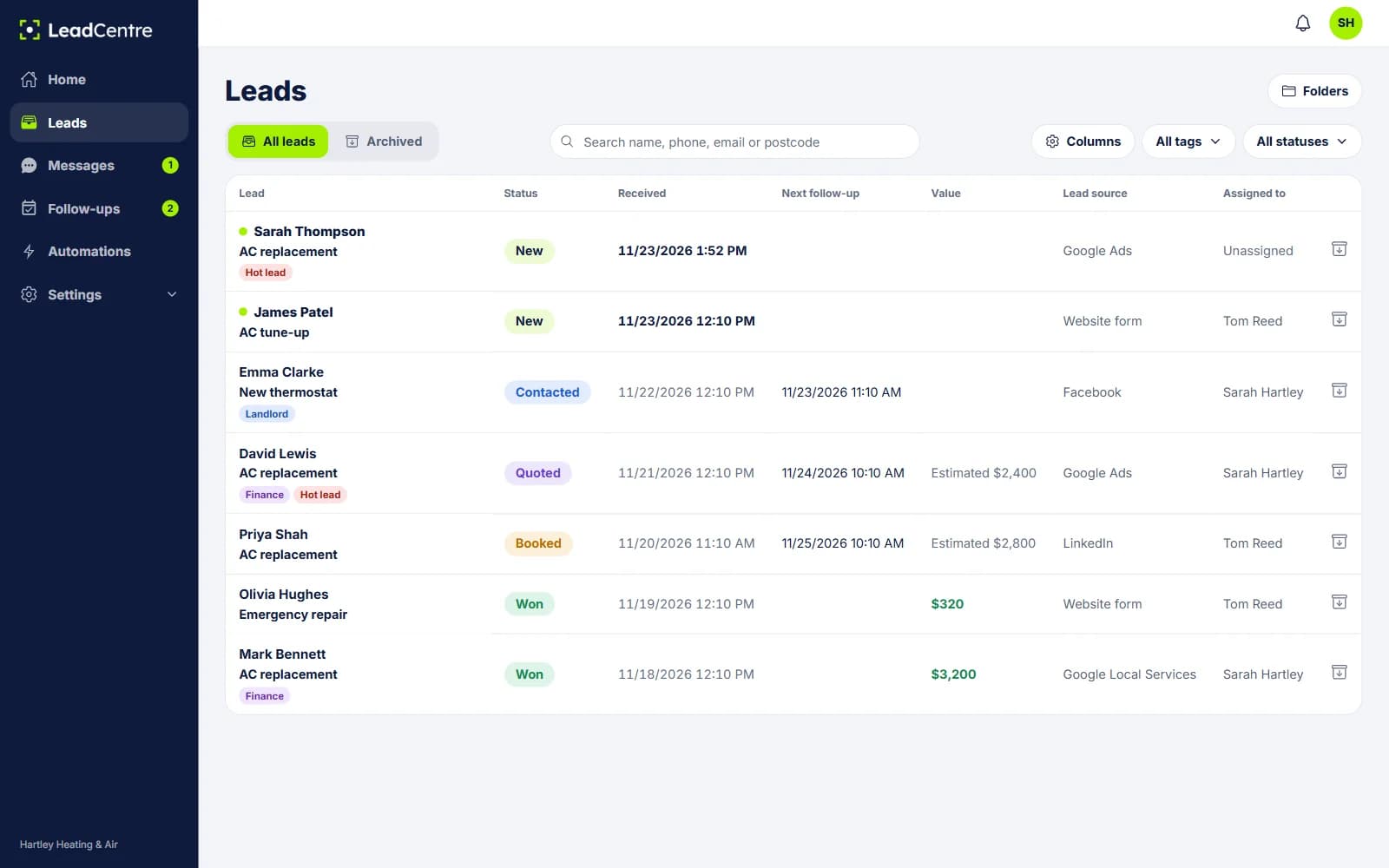
Tying results back to a source
Each lead can carry a Lead source, filled from your connection. It shows on the lead, and the dashboard's lead list has a Source column. In the dashboard, Attribution details on the lead also shows any campaign, ad and UTM tags your connection sent.
To compare sources, open your Won list and read down the Source column, or keep a folder for each one. Our guide to tracking Google Ads leads to sales covers the method.
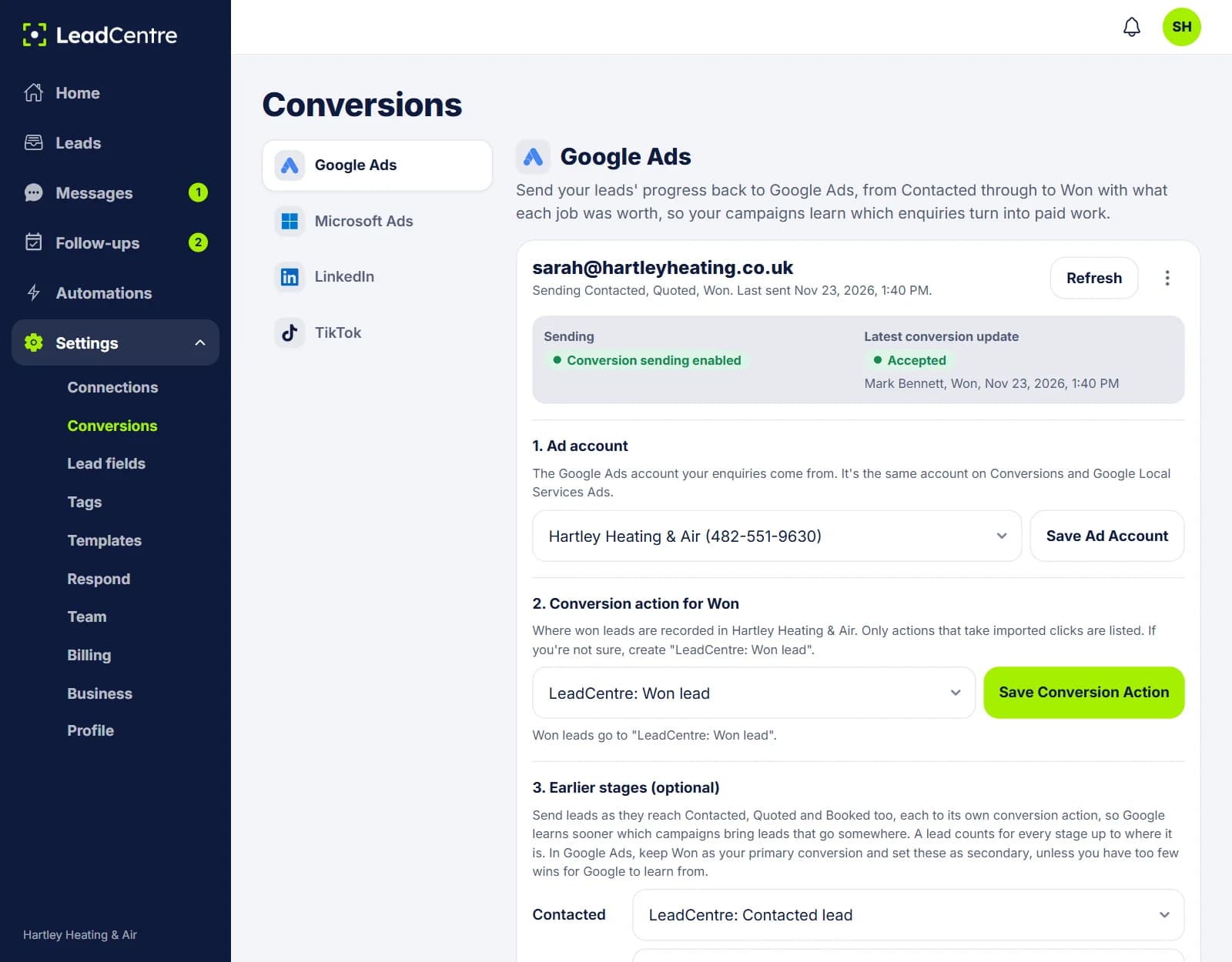
Sending results back to Google, Microsoft Ads, Meta, LinkedIn and TikTok
LeadCentre tells your ad platforms how each lead went, so they can learn which leads become customers. An Admin sets it up once in the dashboard under Settings > Conversions, with a tab for each platform, and it's included on every plan.
Each stage you switch on goes back as its own conversion: Contacted, Quoted, Booked and Won. Won carries the job value, and Quoted and Booked carry the estimate if one is recorded. A lead counts once for each stage it reaches, so one marked Contacted today and Won in two weeks sends both. Leads go within a couple of minutes of reaching a stage.
- Google Ads: sign in with Google, choose the ad account, then choose a conversion action for each stage, or let LeadCentre create one such as "LeadCentre: Won lead". Leads are matched by the Google click ID kept on them (gclid, gbraid or wbraid), and the tab shows whether Google accepted each one.
- Microsoft Ads: sign in with Microsoft, choose the ad account, then choose a conversion goal for each stage, or let LeadCentre create one such as "LeadCentre: Won lead". Leads are matched by the Microsoft click ID kept on them (msclkid), and the tab shows whether Microsoft accepted each one.
- LinkedIn: for each ad account on your LinkedIn Lead Gen connection, press Allow Conversions and choose a conversion for each stage, or let LeadCentre create them, linked to that account's campaigns. Leads from your Lead Gen Forms are matched by their form response.
- Meta: leads from your Instant Forms are matched by the Meta lead ID kept on each one.
- TikTok: press Allow Conversions, choose an event set or let LeadCentre create one, and tick the stages to send. Leads from your TikTok Instant Forms are matched by the TikTok lead ID kept on each one, and Won carries the value.
- Each lead is matched by an ID the ad platform gave it, so no name, email address or phone number is sent.
- Optimize your campaigns for Won, or for an earlier stage while you have too few wins for the platform to learn from.
Agree when a lead counts as Won
A win is recorded when someone on your team marks the lead Won, so agree when that happens and the figures keep up with the work. The same goes for Quoted and Booked if you send them back: the ad platforms learn from what your team records.
Common questions
Does it send conversions back to Google, Microsoft Ads, Meta, LinkedIn or TikTok?
Yes, on every plan. Under Settings > Conversions you choose which stages go back, from Contacted through to Won, and Won carries the job value. Google leads are matched by the Google click ID, Microsoft Ads leads by the Microsoft click ID, Meta leads by the Meta lead ID, LinkedIn leads by their Lead Gen Form response and TikTok leads by the TikTok lead ID.
Are my customers' contact details sent to the ad platforms?
No. Each lead is matched by an ID the ad platform gave it, such as the Google or Microsoft click ID, so no name, email address or phone number goes with it.
Can I see what was sent?
Yes. Each platform's tab under Settings > Conversions lists the latest leads sent, with the stage and value. On Google Ads it also shows whether Google accepted each one, and why not if it didn't.
Can I change a job value later?
Yes. Open the lead and edit the value, or clear it to remove it. The figures follow.
How is the win rate worked out?
It's the number of leads marked Won divided by all leads received in the time frame you've chosen. Leads still in progress count in the total, so a recent period will often look lower until those leads are decided.
Find out which inquiries became paid work
Mark leads Won, add what they were worth and watch the figures build up.