
Custom Fields
Custom lead fields for what your business needs to know
The standard fields cover name, phone, address and enquiry type. Custom fields hold the rest: the answer that decides whether you quote, who goes out or what you say on the first call.
Adding a field
- 1
Go to Settings, then Custom Fields, in the portal
You need to be an Admin on the account. This part is done in the portal, not the app.
- 2
Type a label and tap Add
Something like Roof type, up to 60 characters. That's all the setup there is.
- 3
It appears on every lead
Your new field shows on leads in the portal and the app, ready to fill in by hand.
- 4
Match it to your form, if you want it filled for you
In the connection, point the matching form field at your new custom field.
Filling them from your forms
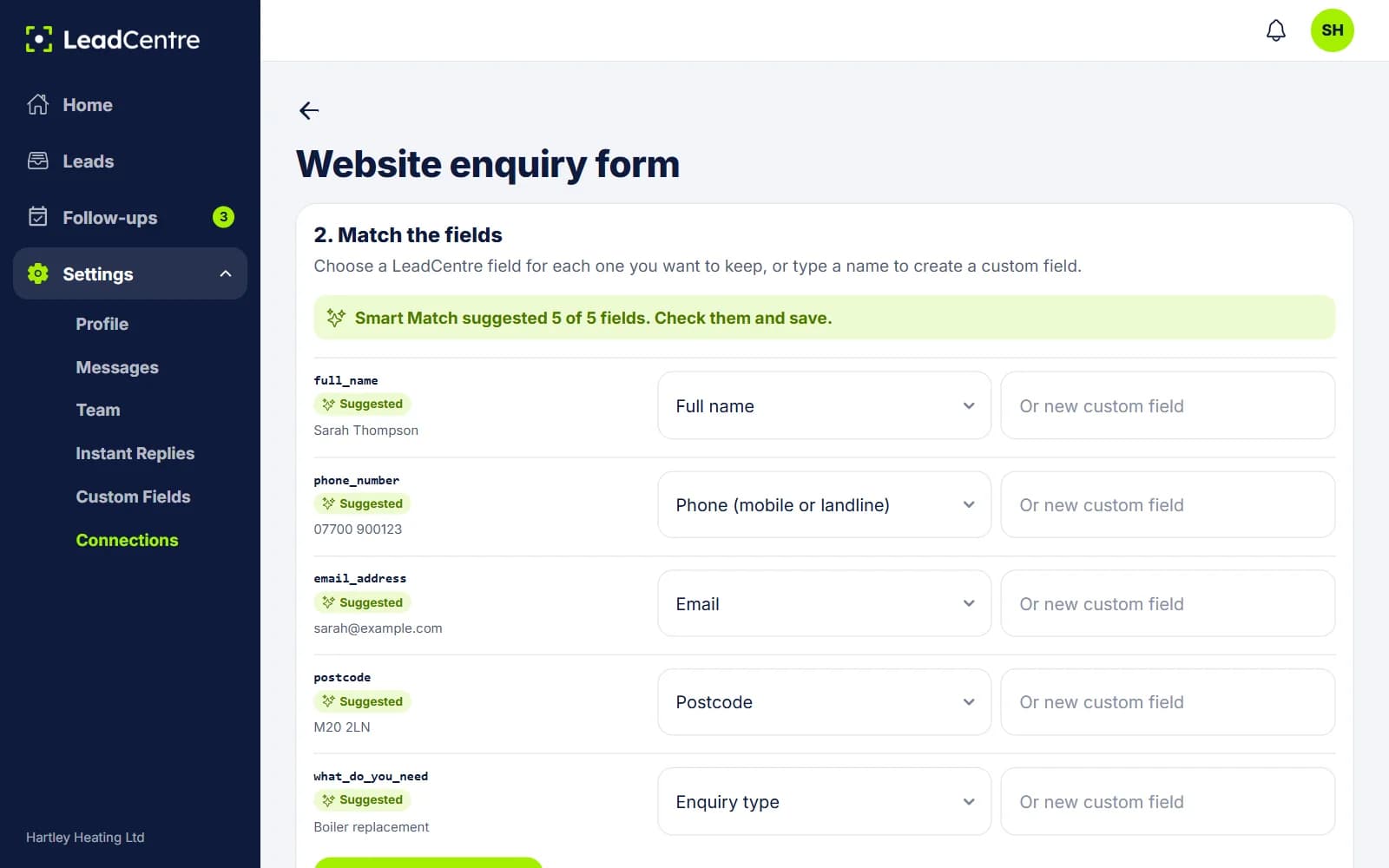
When you set up a webhook connection, you send test data and then match each incoming field to a LeadCentre field. Any custom field you've added appears as a choice, alongside the standard ones. Smart Match suggests the matches, and you can pick Do not use for anything you don't want.
Nested data works too. A field inside a JSON object appears with a dotted name, such as answers.0.text. Zapier and Make post to the same URL, so the same matching applies.
What they look like on a lead
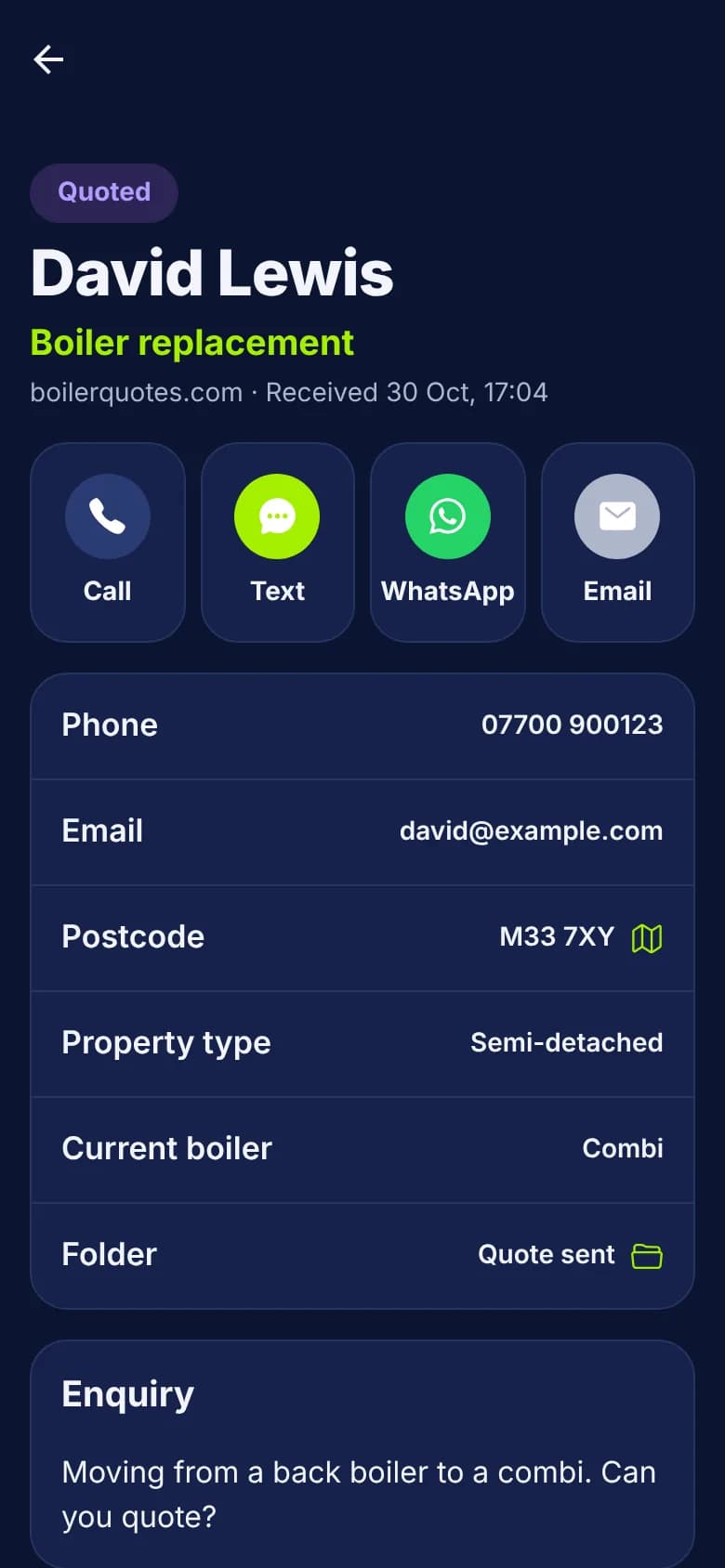
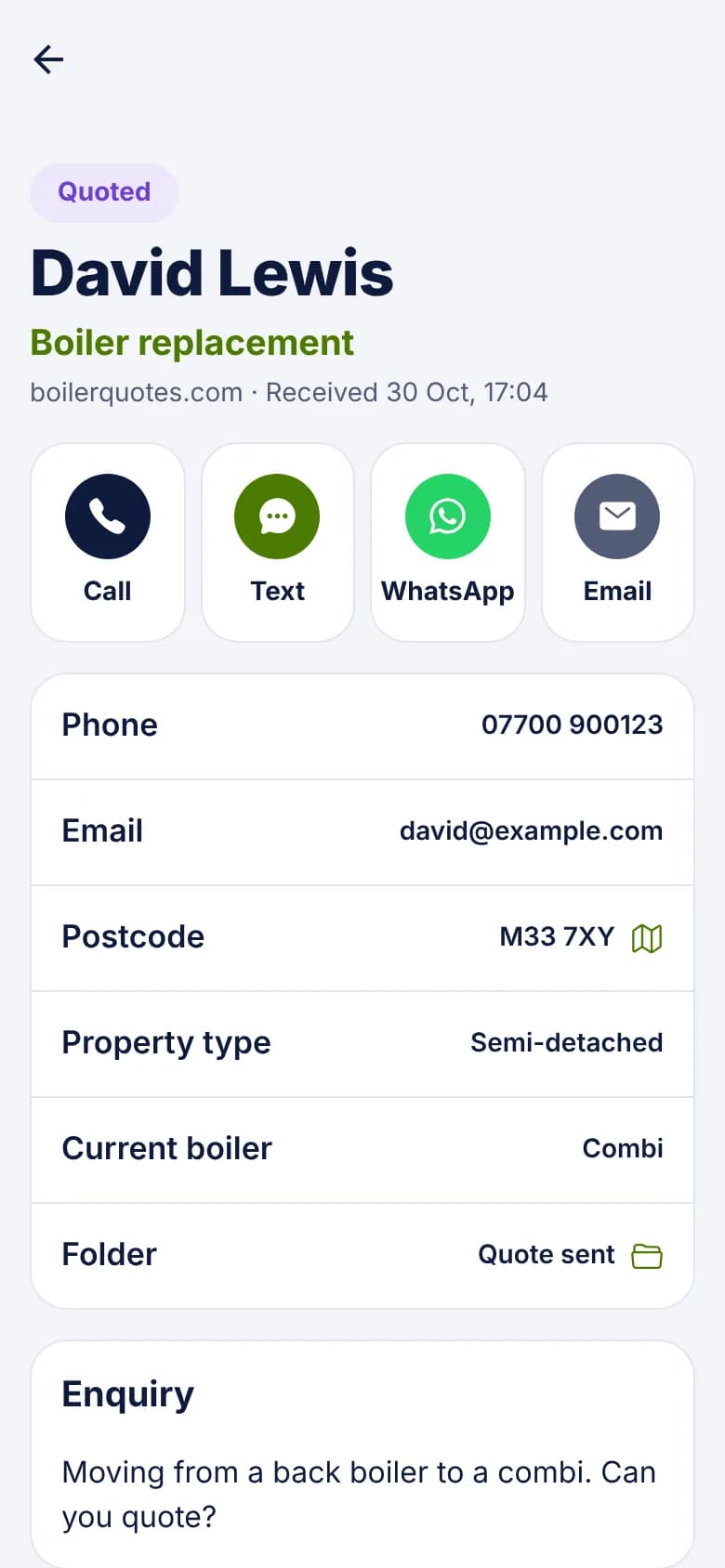
Custom fields appear in the lead's details with the rest of its information. A heating engineer might see Property type: Semi-detached and Current boiler: Combi on the phone before making the call.
Filled-in fields show straight away. Empty ones stay out of the way until you tap the pencil to edit, so short leads stay short.
Field ideas by trade
A good custom field changes what you do next. If nobody would act on the answer, leave it out. See how they fit together for roofers, heating engineers and PPC agencies.
- Roofers: Roof type, Storeys, Leak inside, Insurance claim.
- Plumbers and heating engineers: Boiler make, Fault code, Property type, Homeowner or landlord.
- HVAC: System type, Unit age, Brand, Homeowner or renter.
- Windows, kitchens and bathrooms: Product, Number of windows, Budget range, Finance interest.
- PPC agencies: Campaign, Keyword, Click ID.
How they behave
- All custom fields are free text. There are no dropdowns, number fields or required fields yet.
- Rename a field and the values already on your leads stay with it.
- Delete a field and values already saved on leads are kept, but can no longer be edited.
- There's one list per account, so every lead on that account shows the same fields.
- You can't filter the lead list by a custom field.
- Custom fields can't go in message templates. Those use {first_name}, {name}, {service}, {my_name} and {company}.
- On an agency plan, the agency can stop a client's own people changing custom fields. Existing fields still show on leads, and a snapshot can copy them to a new client.
Before you add ten fields
Common Questions
Can I make a custom field a dropdown?
Not today. Every custom field holds free text. If you need set answers, use a dropdown on your own form and let the chosen answer come through as text.
Who can add or change custom fields?
Admins on the account, in the portal. Anyone who can see a lead can fill its fields in, in the app or portal.
What happens to my data if I delete a field?
Values already saved on leads are kept, but they can no longer be edited.
Can Zapier or Make fill custom fields?
Yes. They post to your LeadCentre URL like any other source, and you match the incoming fields to your custom fields in the same way.
Get the answers you need on the lead
Add your fields, match them to your forms and see them on your phone before you ring.