
Roofers
Lead management for roofers: leaks, surveys and quotes that go quiet
Roofing enquiries come at two speeds: a leak that needs a call today, and a re-roof that takes weeks of surveys and written quotes. LeadCentre helps you sort one from the other and stops quotes going quiet.
- Coming Soon Lead Rescue automated follow-ups
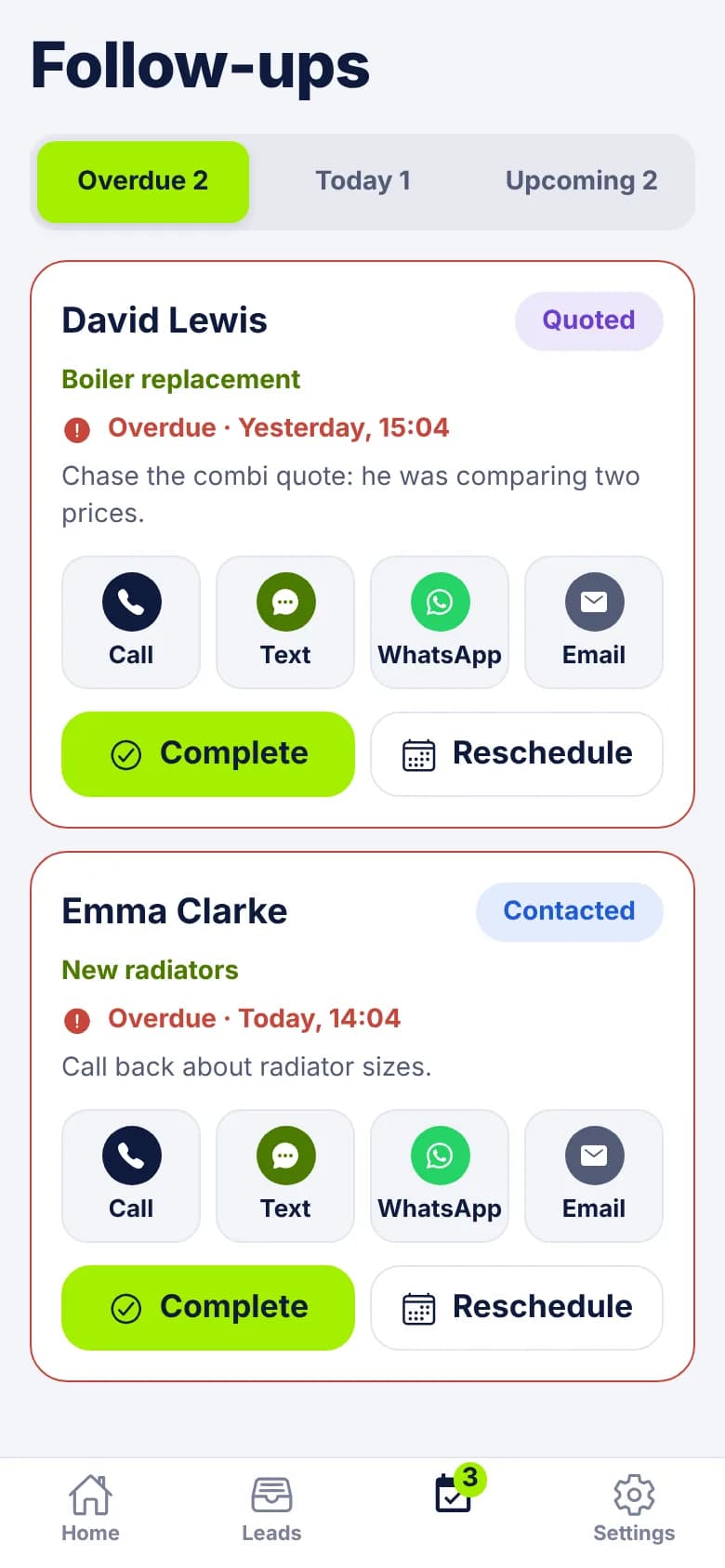
Two kinds of enquiry in one inbox
Trouble usually starts after the first call. Storm enquiries bury the planned ones. A written quote goes out on a Friday and nobody rings to ask about it. The surveyor turns up without knowing it's a flat roof.
- The leak: "Water coming through the bedroom ceiling since last night's rain. Can someone look today?" This needs a call the same day, ideally within the hour. If you don't ring, they'll ring the next roofer on the list.
- The planned job: "Looking for a price to re-roof a 1930s semi. A few slates have slipped." This needs a call within a day or two, a survey within a week or so, a written quote, and then patience.
- The small repair: "Ridge tiles loose, fascia coming away." Often priced from photos, and easy to forget when you're busy.
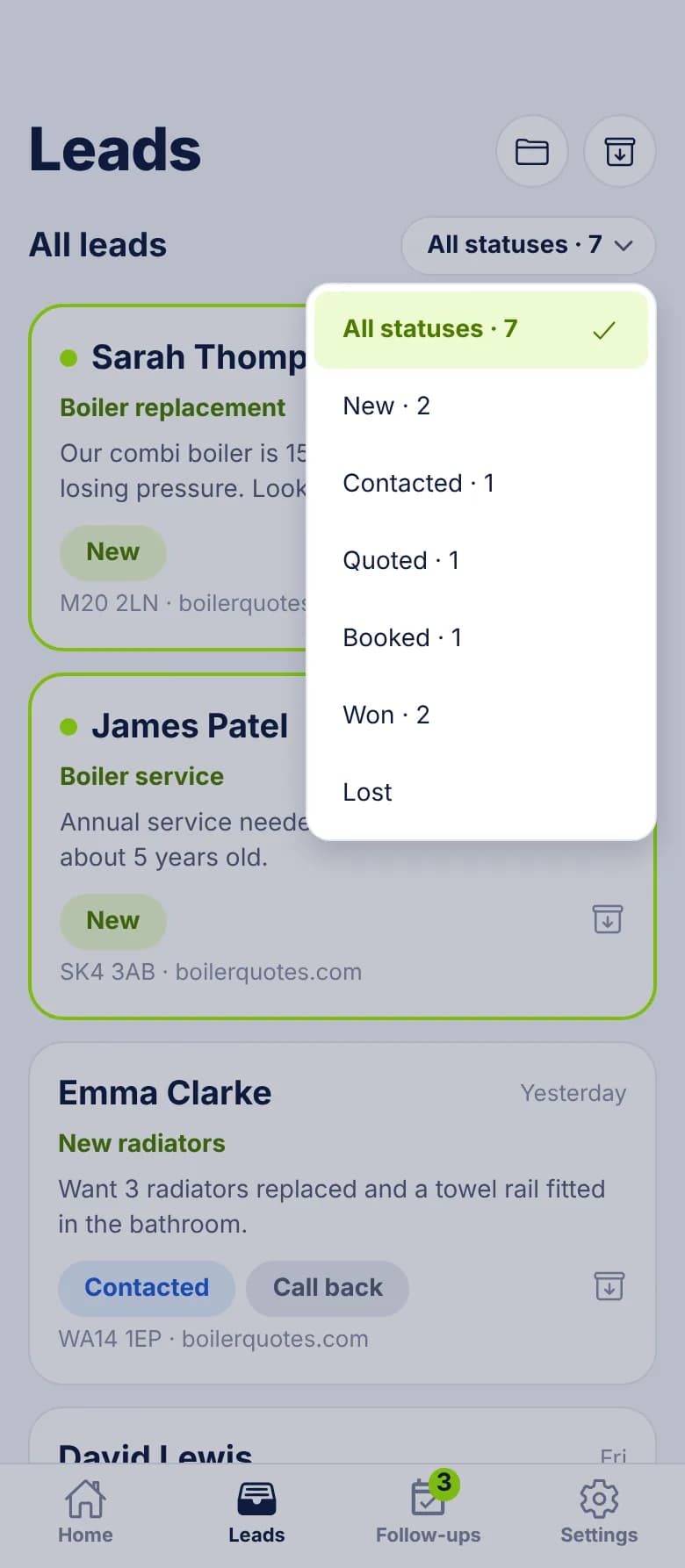
When the weather turns
A bad night can bring a week's enquiries by morning. You can't ring everyone at once, but you can stop leaks waiting behind quote requests.
- 1
Filter to New and read
The start of each enquiry is on the list, so you can pick out "water coming in" from "thinking about a new roof".
- 2
Put the leaks in one folder
A folder called Storm leaks gives you a list to work through, with a count on it.
- 3
Ring, and let the status follow
Tap Call on each one. A New lead moves to Contacted when you do.
- 4
Hand out the visits
Assign a lead to a roofer and they get an alert, with the address and Open in Maps on the lead.
- 5
Park the planned work properly
Give each a follow-up for Next week with a note such as "Re-roof, not urgent, told them after the storm work". Then it comes back by itself.
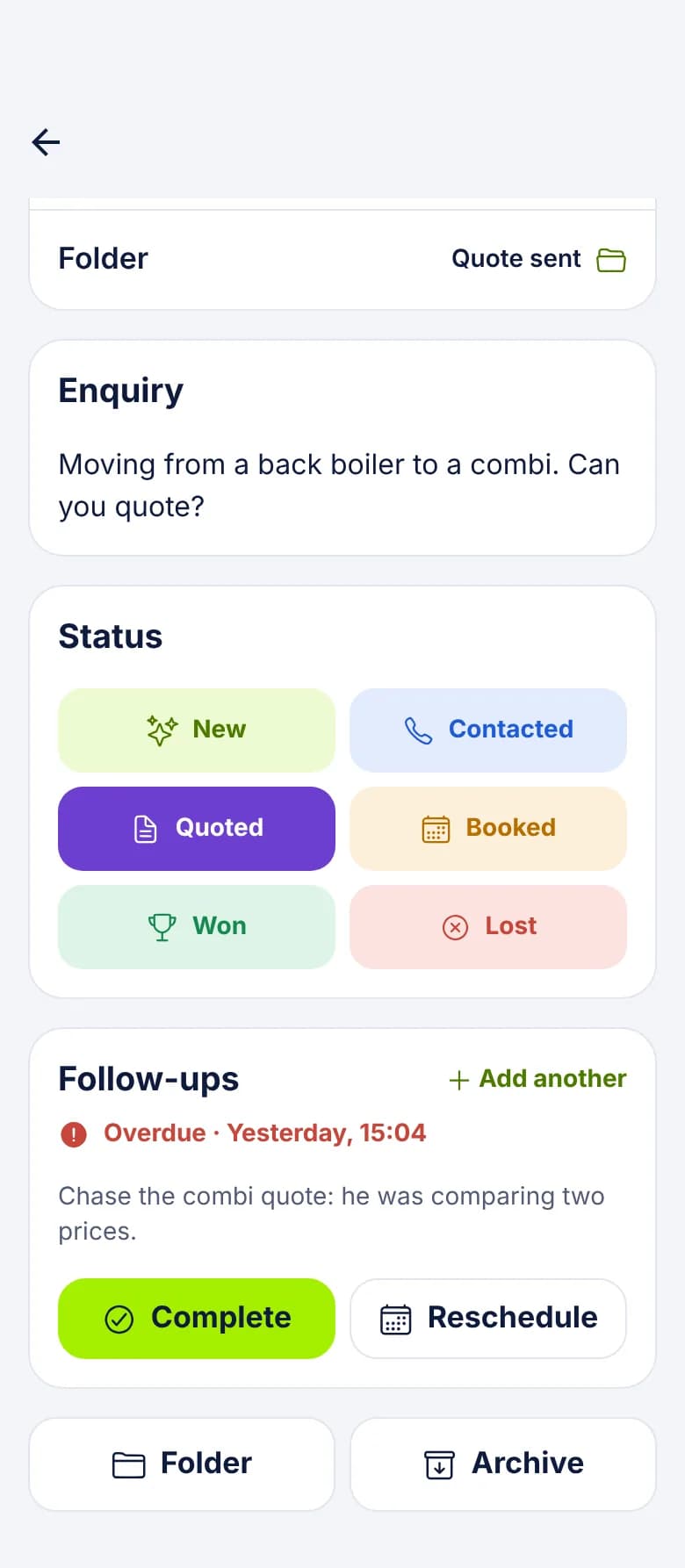
From survey to written quote
The six statuses are fixed, and a survey doesn't get its own one. This way of using them keeps things clear:
- Contacted, in a folder called Surveys booked: you've spoken and the survey is in the diary.
- Quoted, in a folder called Quotes out: the written quote has gone. Enter the price as the Estimated value so it's on the lead.
- Booked: the customer has said yes and the start date is agreed.
- Won: enter the job value. Agree between you whether Won means accepted, deposit paid or finished, and stick to it.
- Lost: Price too high and Went with another company tell you different things. So does Not ready yet, which may be worth a follow-up next year.
A worked example
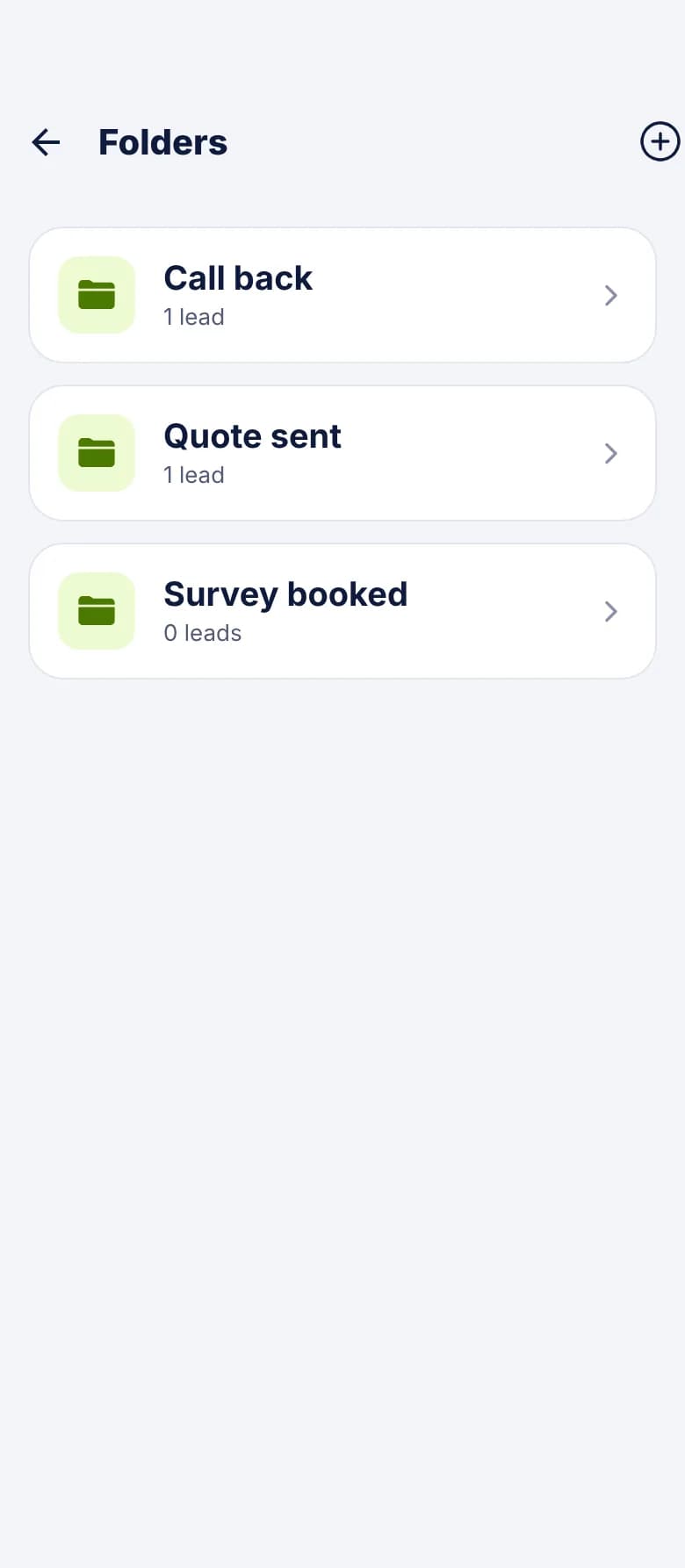
Fields and folders that fit a roofing firm
Add these as custom fields, then match them to your website form so they're on the lead before anyone rings. Anything you don't ask on the form can be filled in on the phone during the first call.
- Custom fields: Roof type (slate, tile, flat, felt), Storeys, Leak inside, Age of roof, Insurance claim, Access or parking.
- Folders: Storm leaks, Surveys booked, Quotes out, Insurance work, Flat roofs.
- A lead sits in one folder at a time. So move it along as it progresses, and use a custom field for anything that stays true, such as Insurance claim.
What it won't do
- It doesn't write or send your quotes. Keep using what you use now, then mark the lead Quoted.
- It won't chase a quiet quote without you. Follow-ups remind a person. Automated follow-ups, called Lead Rescue, are Coming Soon.
- It doesn't read enquiries and sort them by urgency. You or someone in your office does that.
- It doesn't capture phone calls by itself. If people ring in the storm, those calls stay on your phone unless a call tracking service posts them to your webhook.
Common Questions
Can LeadCentre send my written quote?
No. Send it the way you do now, then mark the lead Quoted and set a follow-up. The Email button can open a pre-written message, but it won't attach or produce a quote.
Can it chase quotes automatically?
Not today. It reminds you when to chase, and the contact buttons are right there on the reminder. Automated follow-ups are Coming Soon.
Can my surveyor see only their own leads?
Yes. Make them a User and assign leads to them. They'll see their own plus anything unassigned. You, as an Admin, see everything.
How do I keep insurance work separate?
Use a folder if you want a list to work through, or a custom field if you want it to stay on the lead as it moves through other folders.
Stop written quotes going quiet
Sort the leaks from the re-roofs, and put a date on every quote you send.