
Organisation
Organise sales leads with folders, archive and assignment
Status says how far a lead has got. Folders, archive and assignment answer three other questions: what kind of lead is this, am I finished with it, and whose is it?
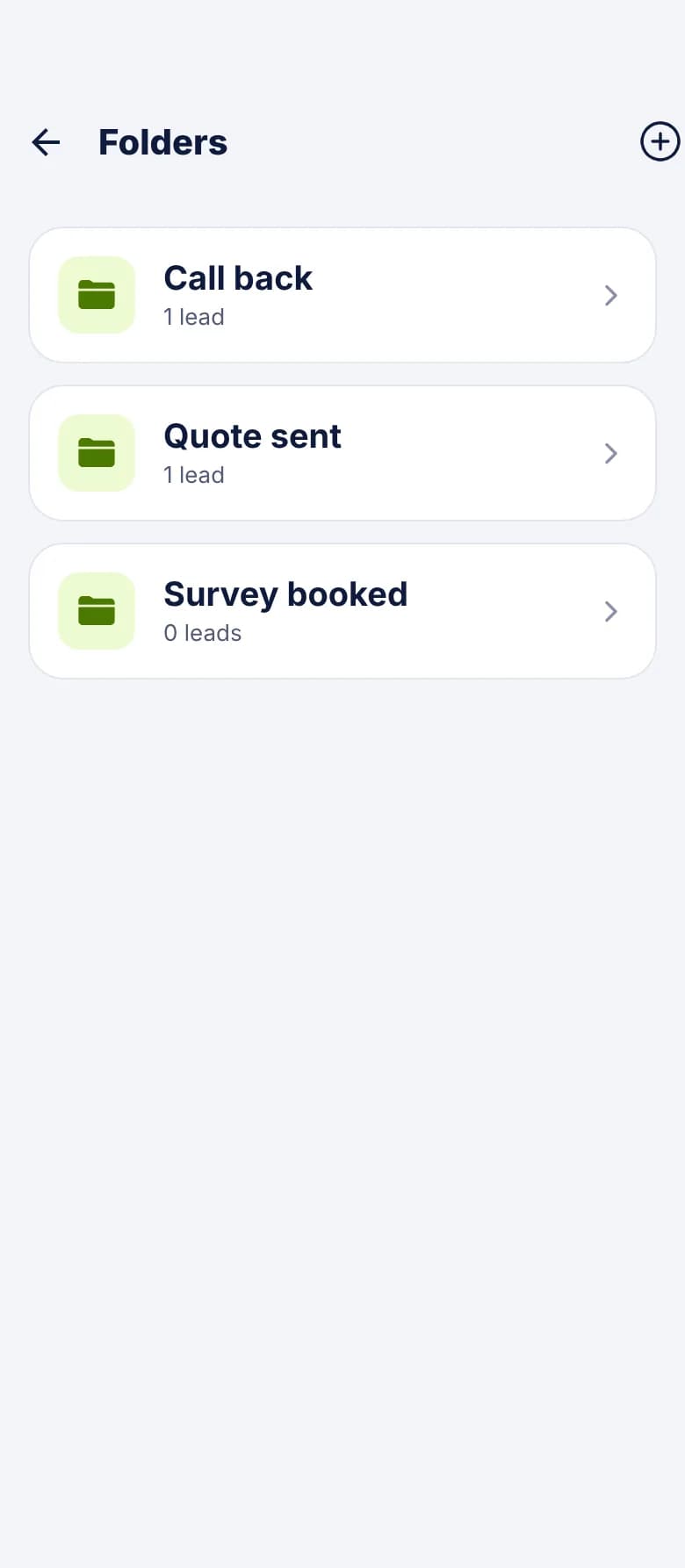
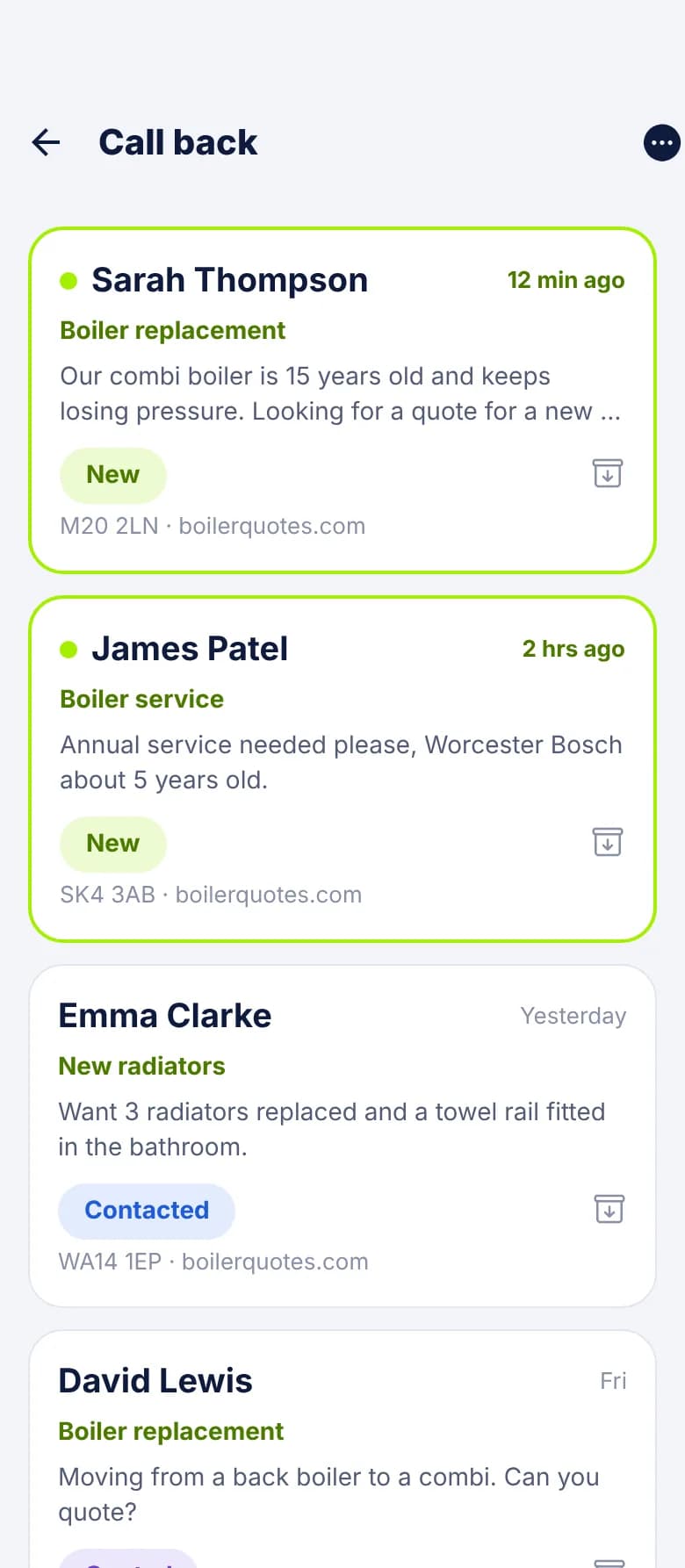
Folders: what kind of lead is this?
Folders are yours to name, such as Call back, Quote sent or Survey booked. Each shows how many leads it holds. Open a lead, tap Folder and pick one, or create a new one.
- A lead sits in one folder at a time. Moving it replaces the old folder.
- Folders don't change a lead's status, and status doesn't change its folder.
- Everyone on the account can create, rename and delete folders.
- Delete a folder and its leads stay in your list. They just aren't in a folder any more.
- Leads don't file themselves. Someone moves them by hand.
Archive: am I finished with it?
Every lead has an archive button, on its card and on the lead itself. Archiving takes the lead out of your working list and puts it in Archived, one tap from the top of the Leads screen.
- Nothing is deleted. You can restore an archived lead any time.
- Archived leads still count on Home and in the pipeline, so archiving a won job doesn't lower your figures.
- Archiving doesn't cancel the lead's follow-ups. If one is still open, you'll still be reminded.
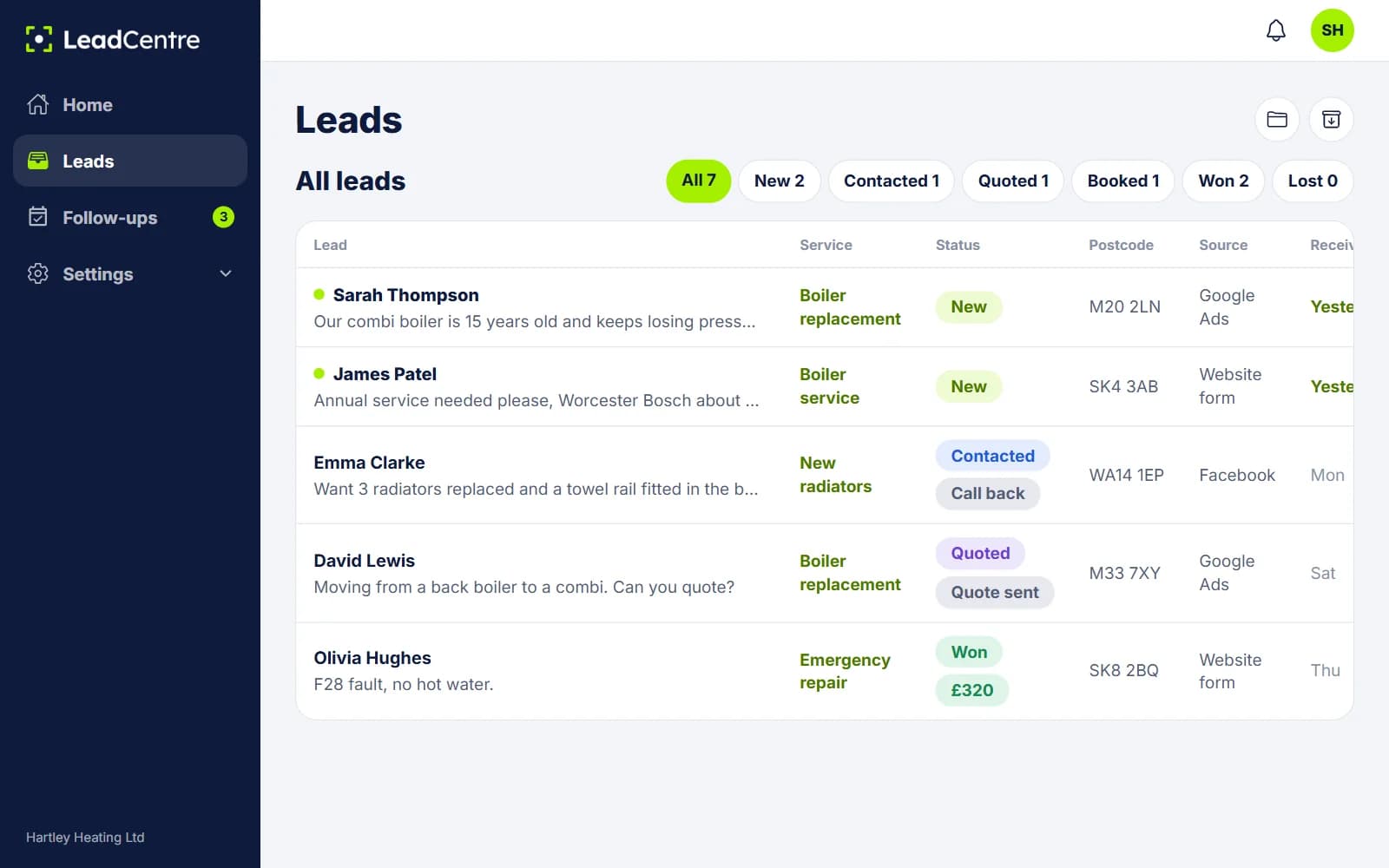
Assignment: whose is it?
Assignment is what stops two people ringing the same customer, and it decides who sees what. New leads arrive unassigned. Assigning is done by hand on the lead: tap the pencil, choose Assigned to, and pick a person or Unassigned.
- 1
An Admin sees everything
Admins see every lead on the account, whoever it's assigned to. They can also add people and change settings.
- 2
A User sees their own, plus unassigned
Users work leads. They can see leads assigned to them and leads nobody has taken yet. They can't see leads assigned to colleagues.
- 3
The new person is told
They get a push in the app, plus a bell notice and an email from the portal. If you take a lead yourself, there's no alert.
- 4
Follow-ups go with the lead
Open follow-ups and their reminders move to the new person.
- 5
A User who passes a lead on loses sight of it
The app tells them it's no longer in their list. An Admin can still see it.
Three people, three kinds of work
Folder or status?
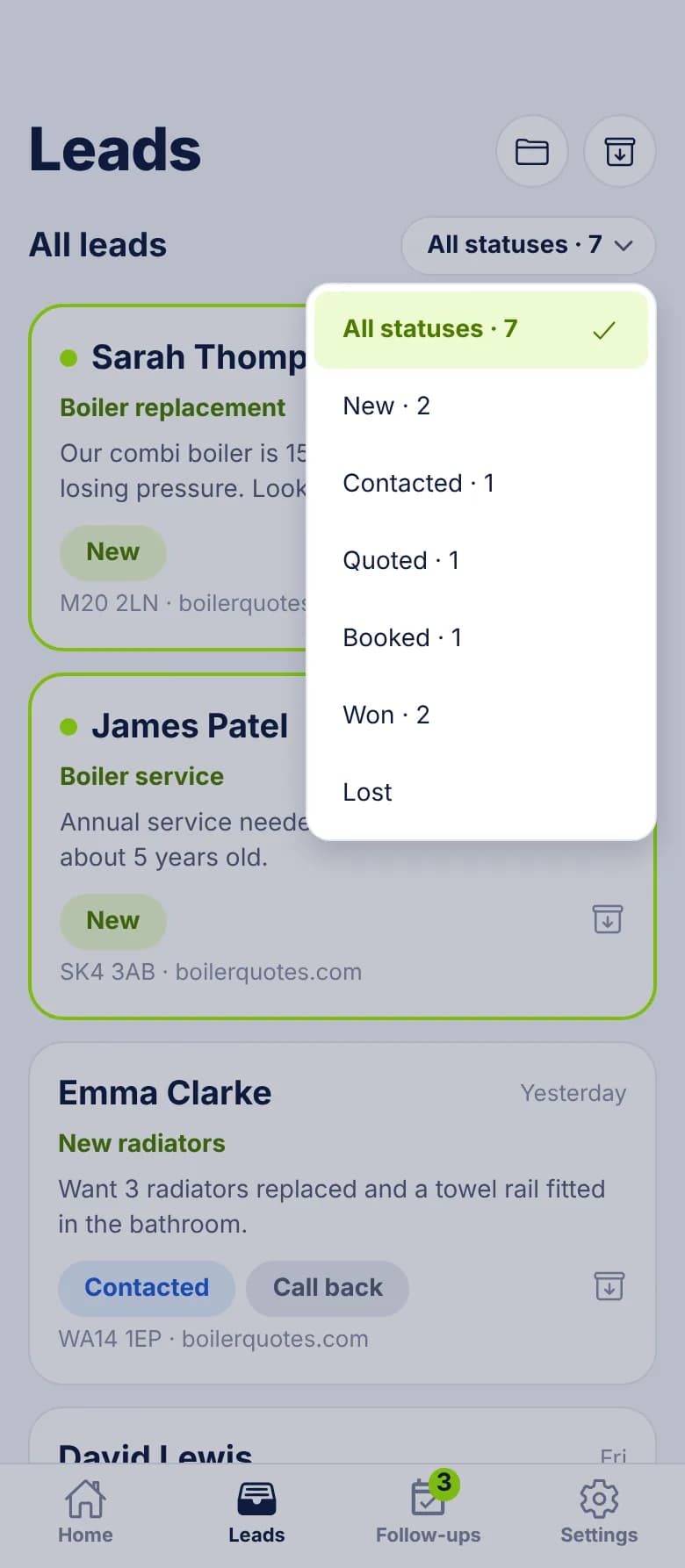
If a folder only repeats a status, you don't need it. A folder called Won tells you nothing that the status filter doesn't. Use folders for things the six statuses can't say: the type of work, the area, or something you're waiting on. There's more on this in stop prospects falling through the cracks.
What it doesn't do
- There are no automatic assignment rules, such as round robin or by area. A person assigns each lead.
- New leads aren't filed into folders automatically by source or type.
- Folders are one level deep, with no folders inside folders.
- A User can't be given access to one colleague's leads. They see their own and unassigned ones, or they're made an Admin and see everything.
Common Questions
Can a lead be in two folders?
No, one at a time. If you need to record something else about it, use a custom field or a note.
Does archiving delete a lead?
No. It moves the lead to Archived, where you can restore it any time. It still counts in your figures.
Can my staff see each other's leads?
Not if they're Users. A User sees leads assigned to them and unassigned ones. Admins see everything.
What happens when someone leaves?
An Admin can reassign their leads to someone else. The open follow-ups move with each lead.
Can new leads be assigned automatically?
Not today. They arrive unassigned, everyone can see them, and someone assigns them by hand.
Keep every lead with the right person
See how many users each plan includes.