
Lead Management
Lead management software without the CRM project
Enquiries from your website, ad forms and other sources land in one list, on your phone and in the online portal. You open a lead, contact them and move it on from the same screen.
- Coming Soon CSV imports
What the lead list shows
Open Leads in the app or at my.leadcentre.com and every enquiry you're allowed to see is there.
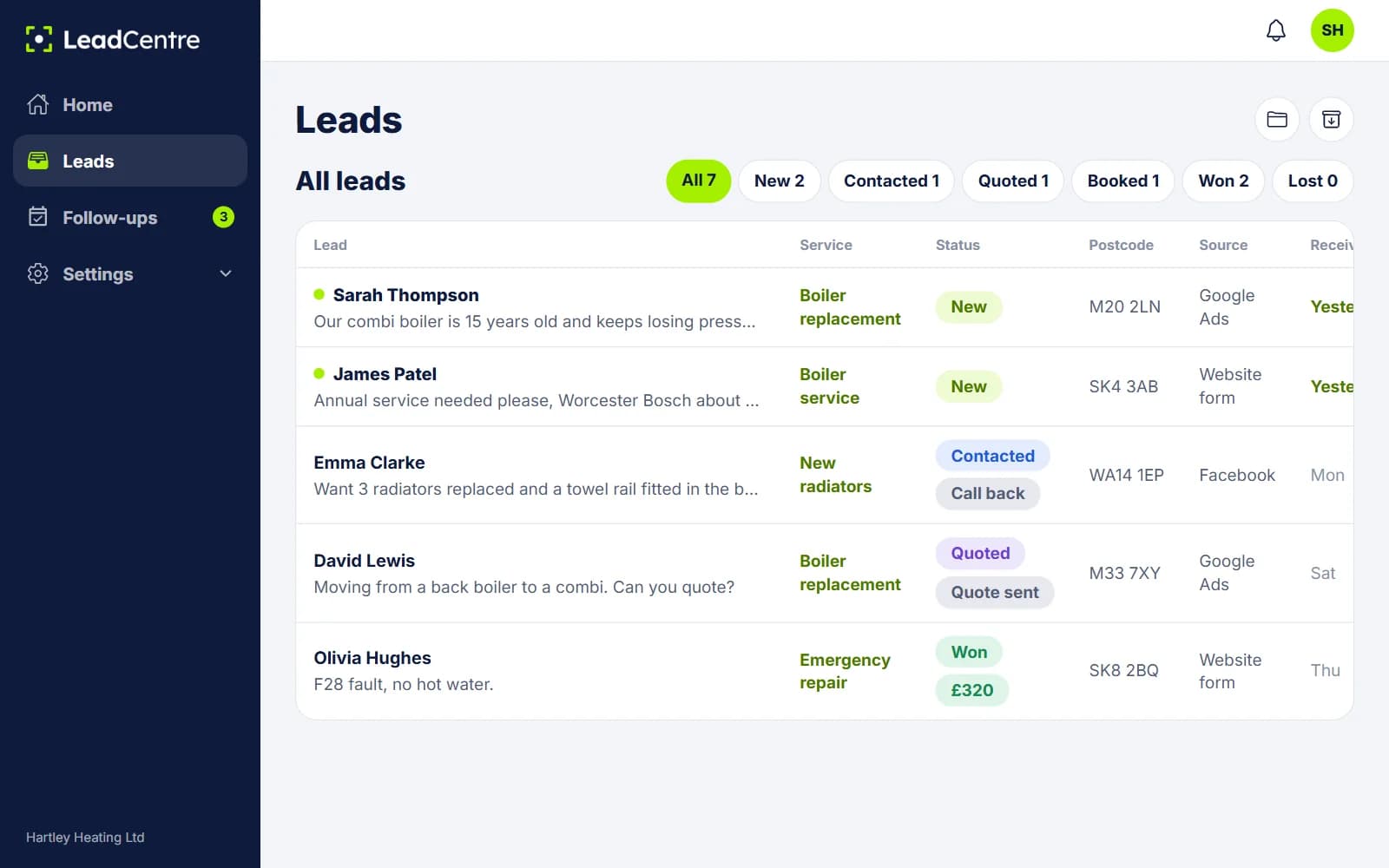
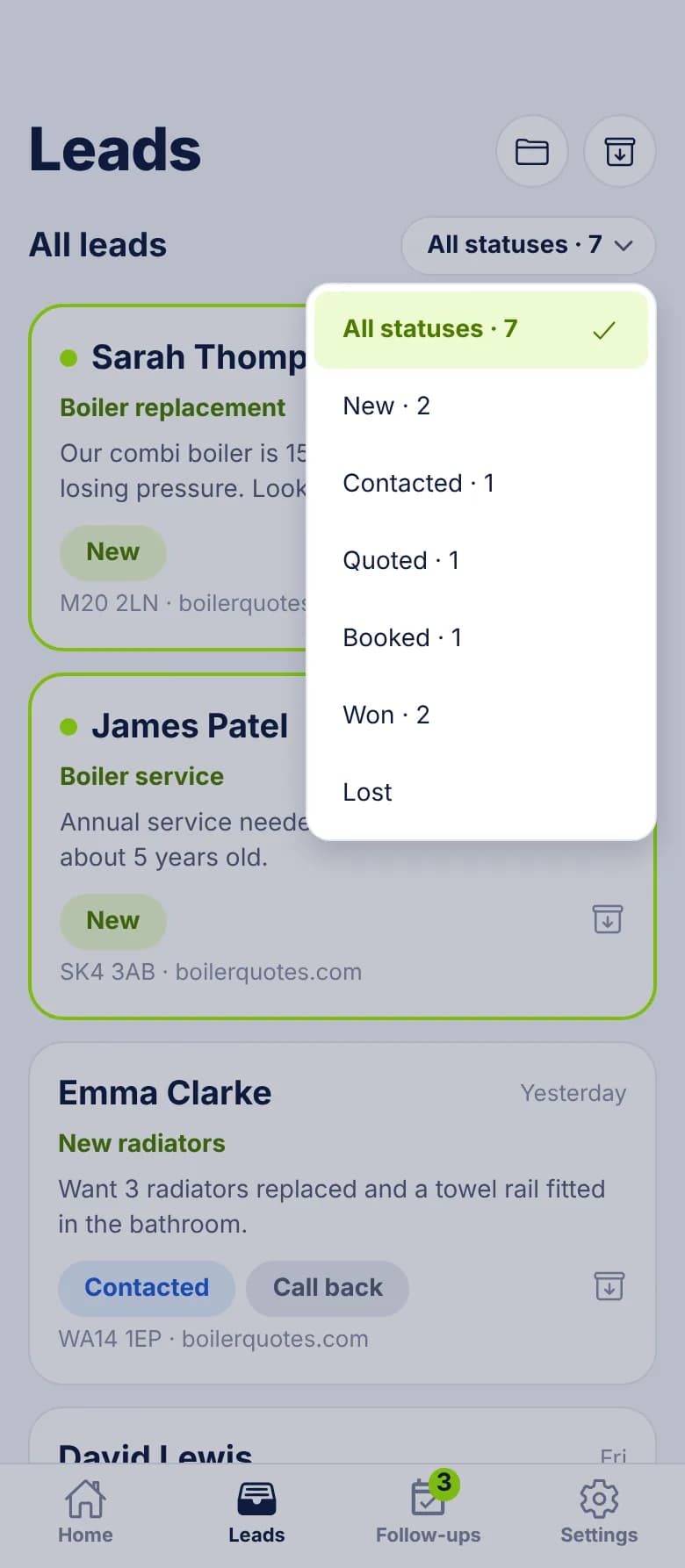
- Unread leads have a lime border and a dot, so you can see what nobody has opened yet.
- Each lead shows the name, enquiry type, start of the message, status, folder, postcode and source.
- A status filter gives you the count for each status. Tap Quoted and you see only quoted leads.
- Folders and Archived are one tap away at the top of the list.
- On a larger screen, the portal lays the same list out as a table with Lead, Service, Status, Postcode, Source and Received columns.
What's inside a lead
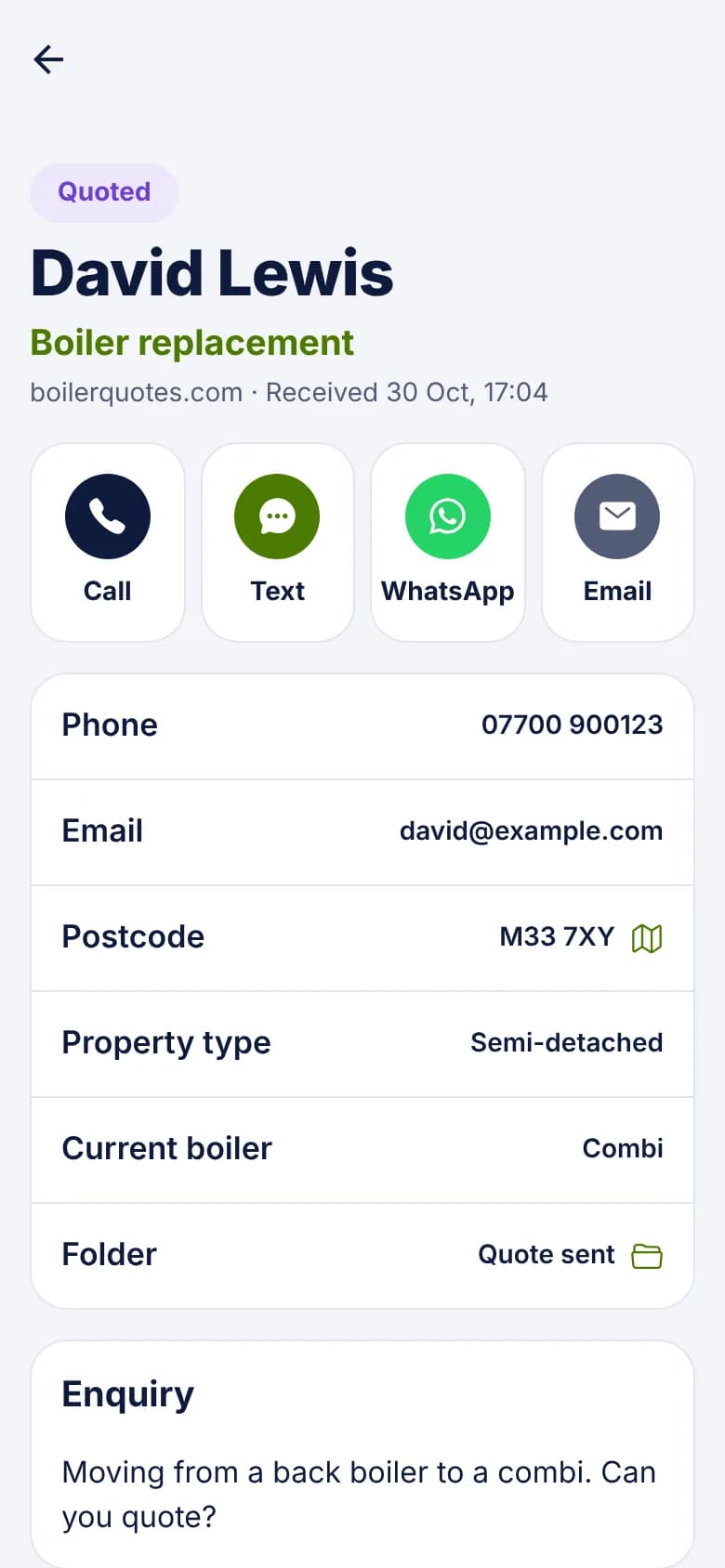
A lead opens on its Call, Text, WhatsApp and Email buttons. Below those you'll find the contact details, the enquiry, the status picker, follow-ups, job value, folder and archive.
Forms send wrong and missing details, so you can correct them. The standard fields are first name, last name, mobile, phone, email, company, house number, street, district, town or city, county, state or region, country, postcode, enquiry type, best time to call and preferred contact. For anything else, add custom fields.
- Empty fields stay out of the way until you tap the pencil to edit.
- Call, Text and WhatsApp only appear if the lead has a usable phone number. Email only appears if it has an email address.
- If the lead has an address, Open in Maps takes you to it.
- Anyone who can see the lead can add a note. Only the author can change or delete their own note.
- The portal lists changes to details, status and job value as the lead's history.
Who can see which leads
On an account with more than one person, what each person sees depends on their role and on assignment.
- An Admin sees every lead on the account.
- A User sees leads assigned to them, plus unassigned ones. They don't see leads assigned to colleagues.
- New leads arrive unassigned, so a User can see each one until it's assigned to someone else.
- If a User passes a lead to a colleague, it leaves their list.
- Agency staff managing the account see all of its leads.
After a weekend away
How leads get in
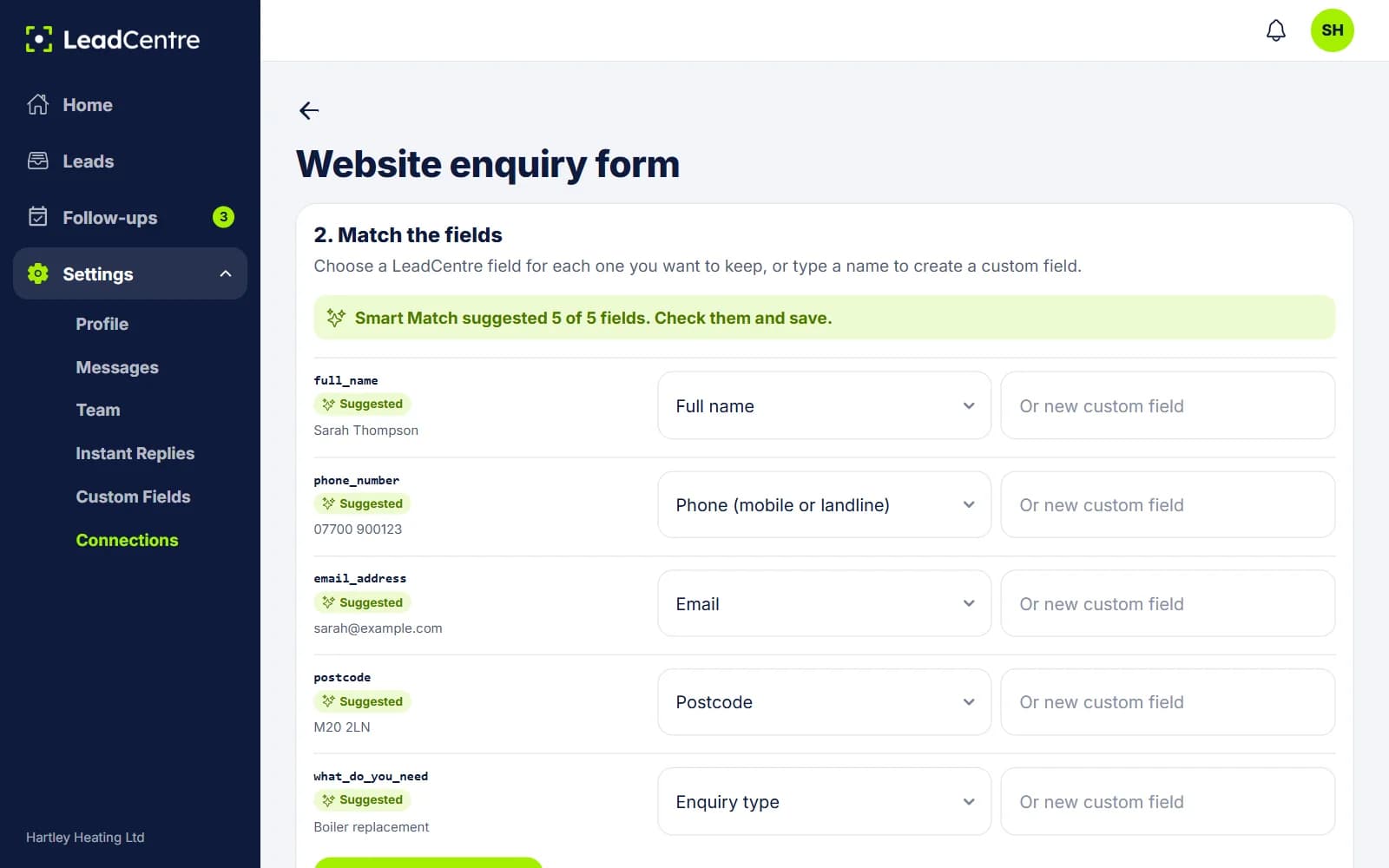
Leads arrive through connections. Website forms and Google Ads lead forms post to your webhook URL. Facebook and Instagram Instant Forms go through Zapier or Make for now. Each source is set up once:
- 1
Send test data
In Settings, then Connections, the key listens while your form or tool sends a test. Test data never becomes a lead.
- 2
Match the fields
Point each incoming field at a LeadCentre field, or choose Do not use. Smart Match suggests the matches for you.
- 3
Save field matching
From here on, each post becomes a lead. Anything sent before you saved is held, and becomes a lead now.
- 4
Map a Unique ID if your source has one
That stops the same lead arriving twice.
What it leaves out
LeadCentre covers the stretch from first enquiry to won or lost, and keeps it simple on purpose. If you're weighing it against a bigger system, read lead management software vs CRM.
- It doesn't replace a CRM. There's no quoting, invoicing or job scheduling.
- There's no button to type a lead in by hand. A phoned-in enquiry only reaches LeadCentre if something posts it to your webhook, such as a call tracking service or a simple form of your own.
- CSV import is Coming Soon, so an old spreadsheet can't be uploaded today.
- The list filters by status. It has no search box or source filter yet.
Common Questions
Is LeadCentre a CRM?
No. It handles enquiries from arrival to won or lost: alerts, contact, follow-ups and job values. If you need quoting, invoicing or a long-term customer database, keep your existing system for that.
Can I correct a lead's phone number or add an address?
Yes. Tap the pencil on the lead in the app, or edit it in the portal. Empty fields appear while you're editing so you can fill them in.
Can I bring my old leads across?
Not by upload, because CSV import is Coming Soon. You could post older records to your webhook URL, but each would arrive as a new lead and send an alert, so it's usually better to start with new enquiries.
Can I add an enquiry that came in by phone?
Not by typing it into the app or portal. Call tracking services that can post to a webhook will create a lead, and so will any simple form of your own that posts to your URL.
Do my staff see all the leads?
Admins do. Users see leads assigned to them and unassigned ones. So if you want someone to see only their own work, make them a User and assign leads to them.
Put every enquiry in one list
See what's included and which plan fits your business.