
Automations
Lead automations that follow up for you
Decide once what should happen when a lead arrives or moves on, and LeadCentre does it every time: who gets the lead, the email it's sent, how long to wait, and what to do if they haven't replied.
- Included on every plan
- Text steps with Respond
- Included on every planBusiness, Agency Starter and Agency Scale all come with Automations, at no extra cost.
- The same every timeEvery new lead gets the same quick start, whether it lands at 2pm on a Tuesday or 9pm on a Sunday.
- Texts with RespondSend text steps go from your own LeadCentre number, which comes with the Respond add-on.About Respond
The builder
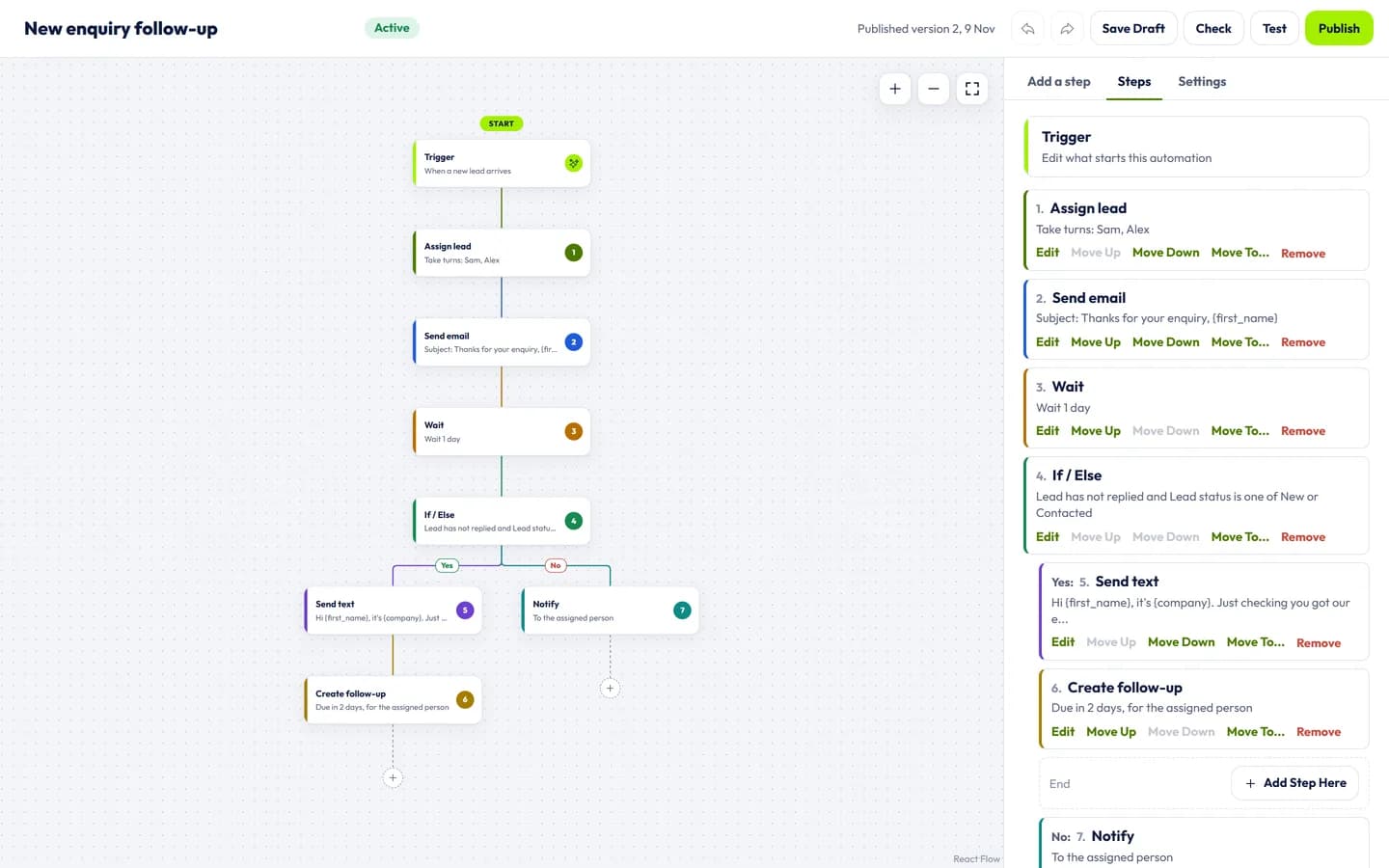
Every step on one screen
An automation reads from top to bottom, and each kind of step has its own colour, so you can tell an email from a wait at a glance. Click a step in the panel to add it at the end, or drag it onto a + in the chart.
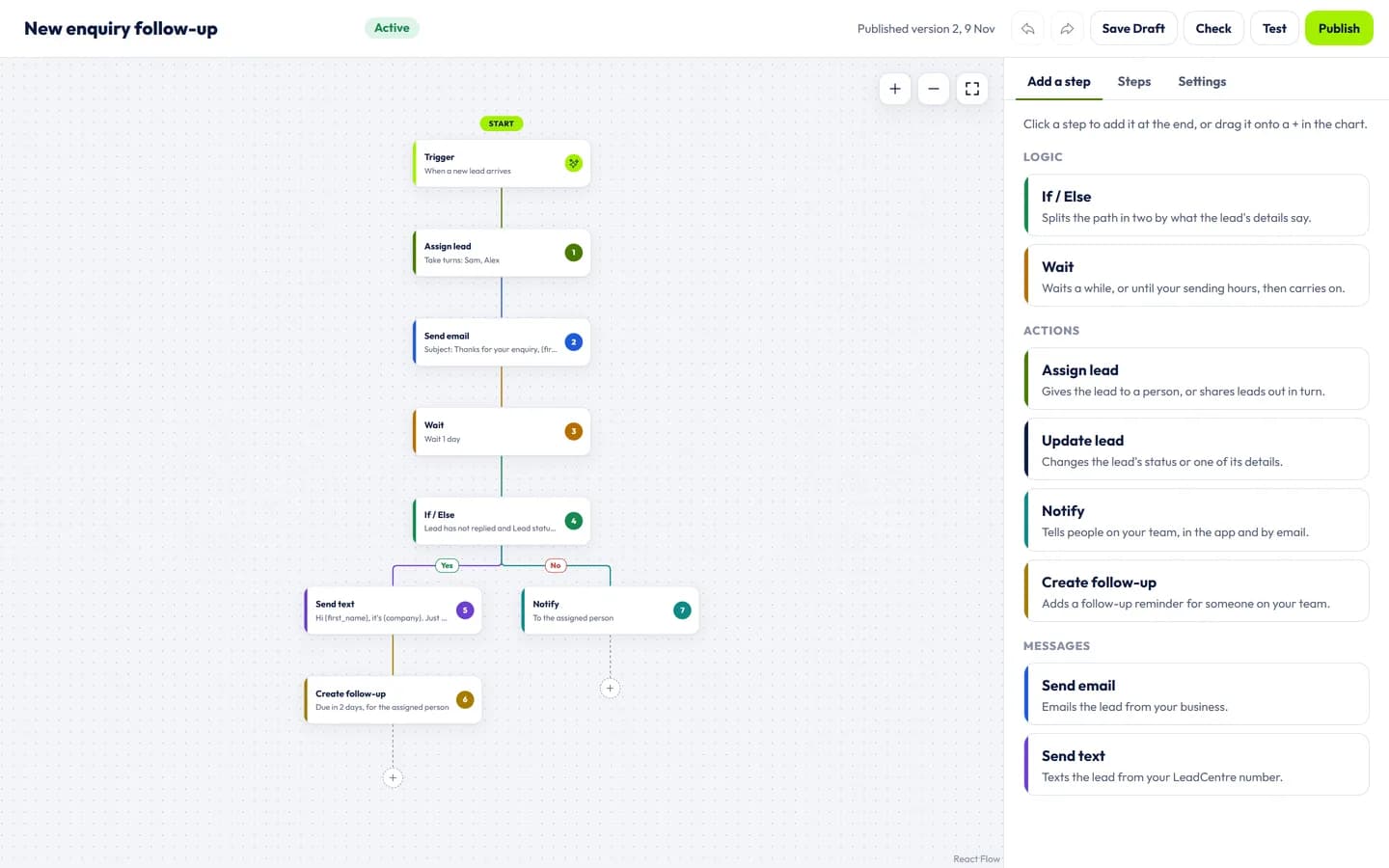
- 1Save DraftKeeps your changes without starting anything.
- 2CheckFinds anything that needs fixing before it goes live.
- 3PublishStarts it for the next lead that matches.
Triggers
What starts an automation
Each automation has one trigger. Add a filter and it only runs for the leads you mean, such as boiler enquiries or one postcode area.
- A new lead arrivesFrom any of your connections. Imported leads only start it if you tick the box for them.
- A lead's status changesTo any status, or only the ones you pick, such as Quoted.
- A lead is assigned or unassignedUseful for telling the new owner, or setting them a follow-up.
- A lead's details changePick the details to watch, such as the enquiry type or postcode.
Steps
Eight steps, each with its own colour
Mix them in any order. Only Send text needs anything beyond your plan.
- LogicIf / ElseSplits the path in two by what the lead's details say.
- LogicWaitWaits minutes, hours or days, or until your sending hours, then carries on.
- ActionsAssign leadGives the lead to a person, or shares leads out in turn.
- ActionsUpdate leadChanges the lead's status or one of its details.
- ActionsNotifyTells people on your team, in the app and by email.
- ActionsCreate follow-upAdds a follow-up reminder for someone on your team.
- MessagesSend emailEmails the lead from your business, in your own words.
- MessagesSend textTexts the lead from your LeadCentre number.Needs Respond
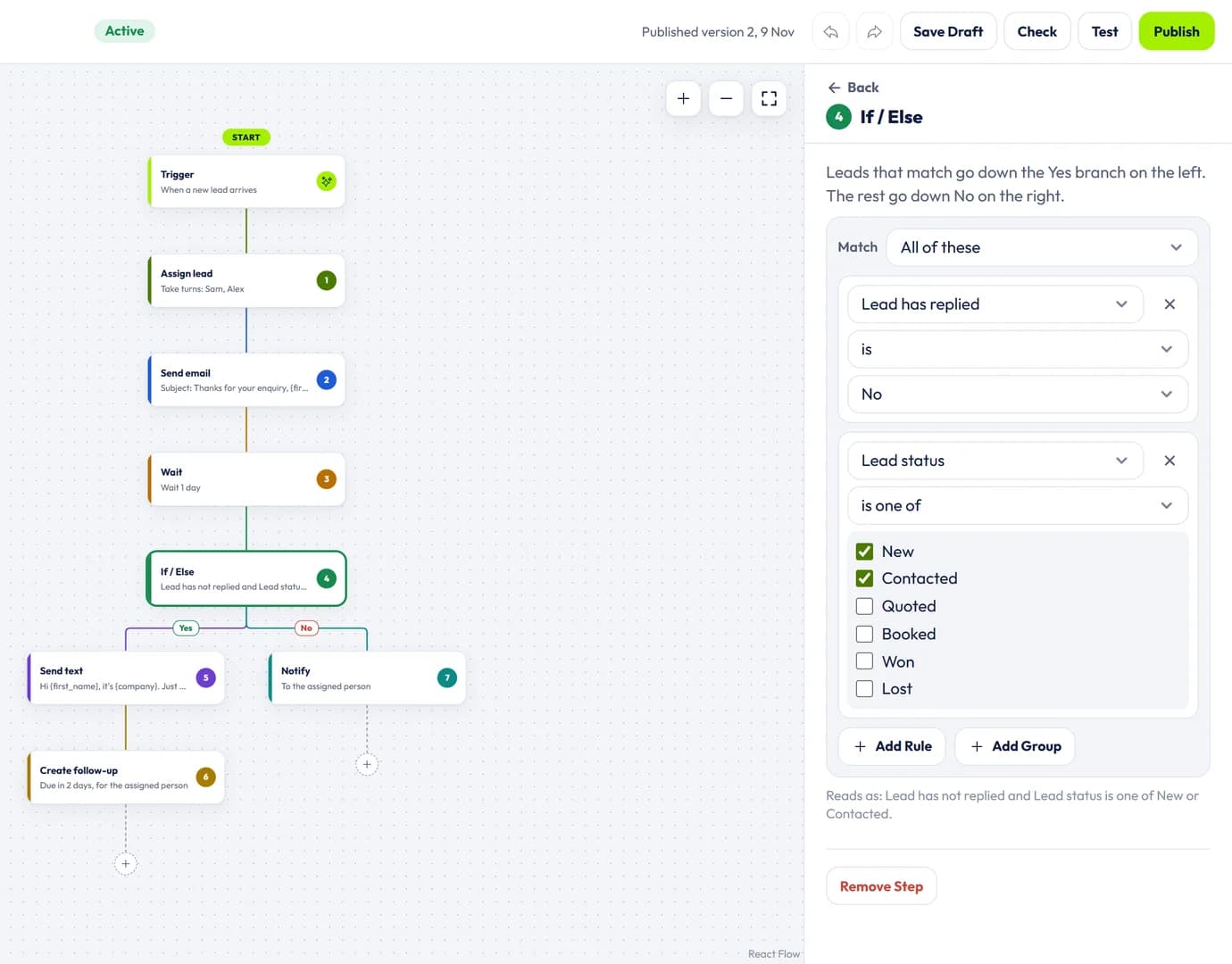
If / Else: one path for leads that match, another for the rest
Build a rule from anything on the lead: its status, enquiry type, postcode, where it came from, any of your custom fields, or whether the lead has replied. Match all of your rules or any of them, and put rules in groups for the trickier cases.
- Leads that match go down the Yes branch on the left, and the rest go down No on the right.
- Under the rules, the step reads them back in a plain sentence, so you can check it says what you meant.
- Each branch can carry on with its own steps, and its own If / Else.
Emails in your own words
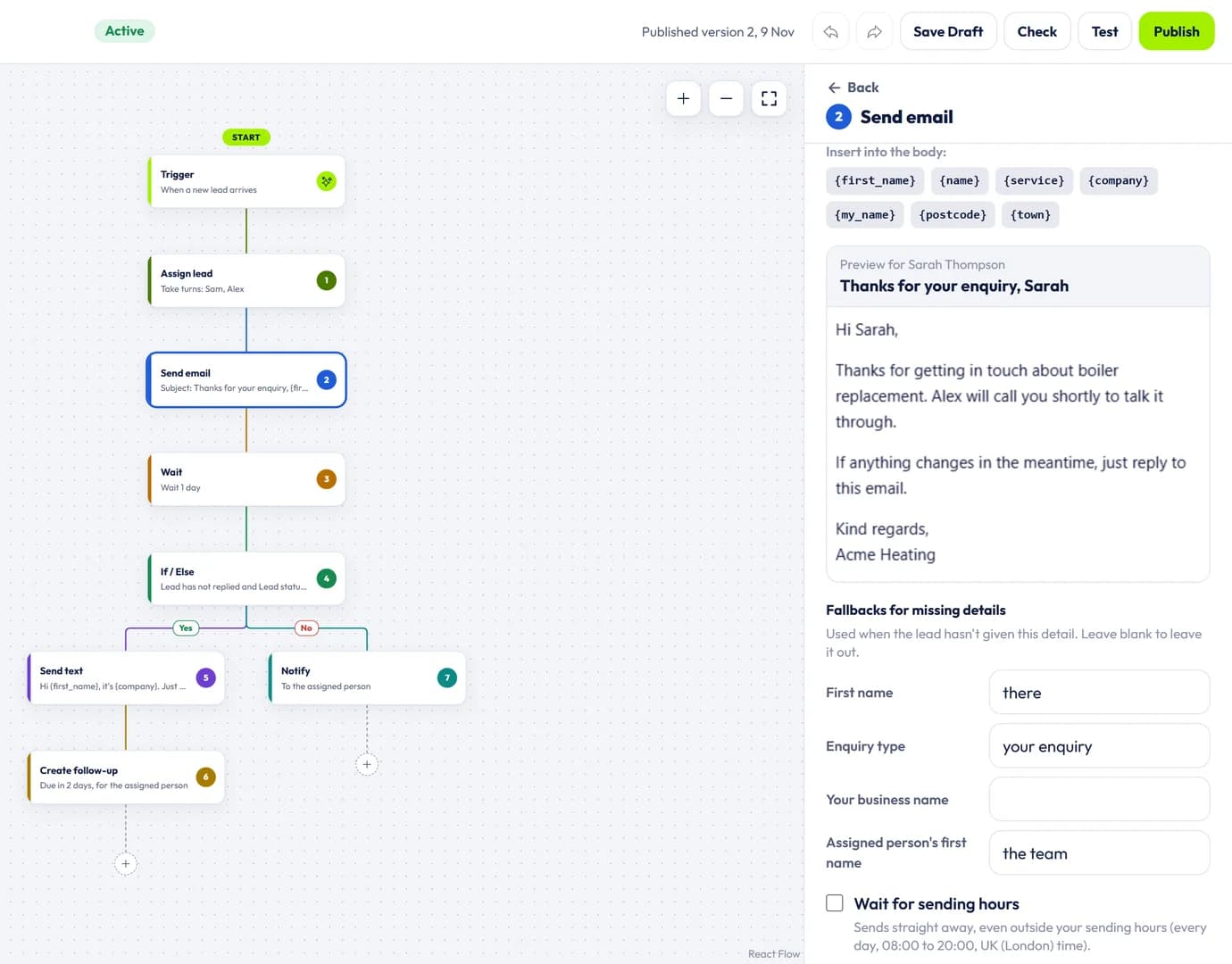
Write the subject and message once, with placeholders such as {first_name}, {service} and {company} for the details that change. The preview shows the email as a real lead would get it.
- Fallbacks fill a gap when a lead hasn't given a detail, so an email never opens with a blank where the name should be.
- Every automated email has an unsubscribe link, and an unsubscribe is respected by every automation on the account.
- Send straight away, or tick Wait for sending hours.
Texts from your LeadCentre number
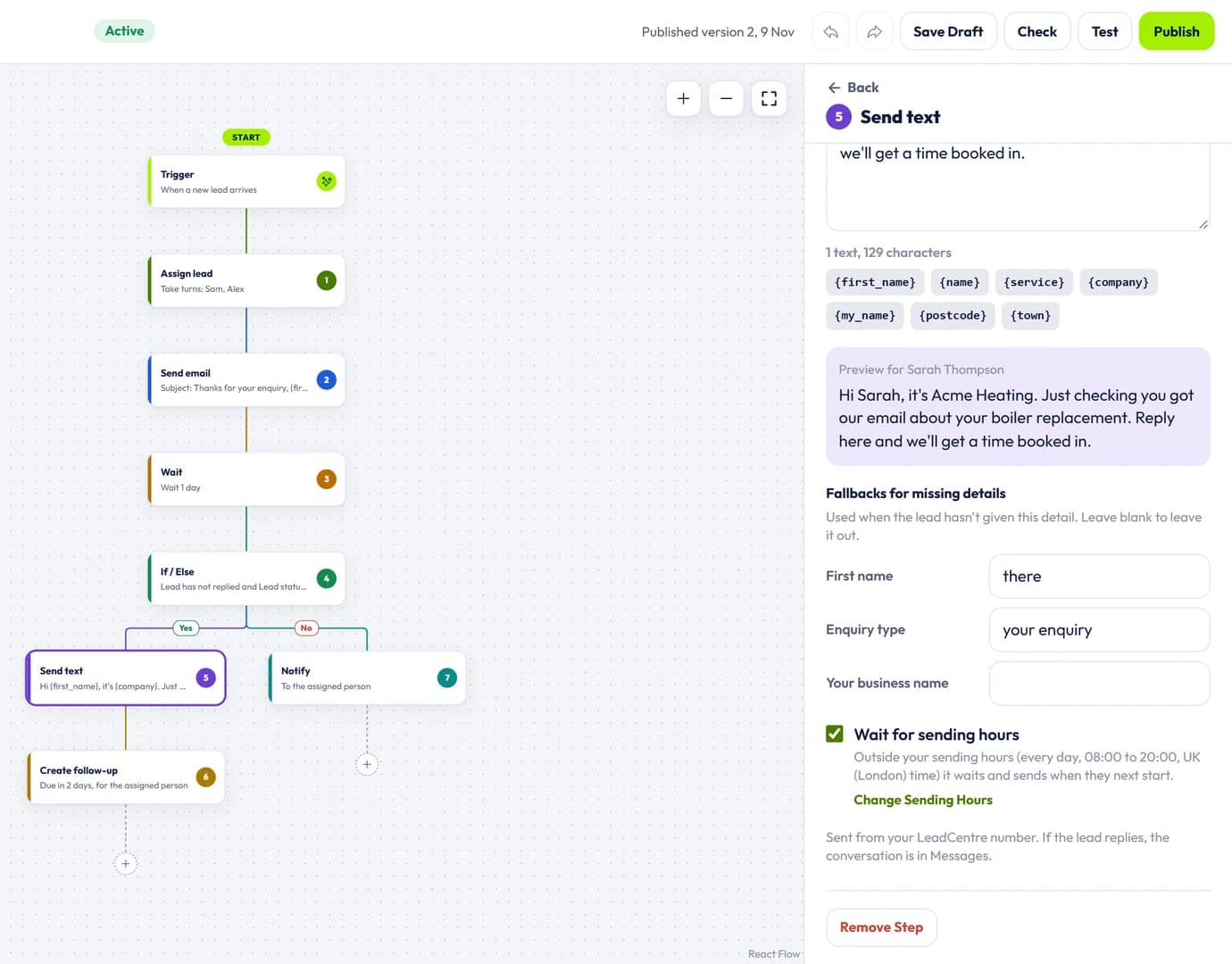
Needs RespondA Send text step texts the lead from the dedicated business number that comes with Respond. If they reply, the conversation is in Messages, ready for you to pick up.
- The same placeholders and preview as email, with a count of characters and texts as you type.
- Tick Wait for sending hours and nobody gets a text at 11pm.
- A lead who replies leaves the automation, so the next text never goes.
Built-in stops
It knows when to leave a lead alone
An automation that keeps going after someone has answered does more harm than good. These stop it, or hold a message back.
They reply
A lead who answers a text leaves the automation, so nobody is chased after they've replied.
They reach a status you pick
Such as Booked, Won or Lost. Won and Lost are ticked to start with.
The lead is archived
Archiving a lead always takes it out of every automation.
They opt out
Every automated email has an unsubscribe link. A lead who uses it leaves every automation running for them and gets no more automated emails, and replying STOP to a text works the same way.
A person takes over
Once someone on your team texts a lead themselves, automated texts to that lead are skipped.
It's outside your sending hours
Emails and texts can wait for your sending hours, and go when you next open.
Try it before a lead ever sees it
The Steps tab lists every step in reading order, with its branch, so you can move one up, down or to another place without dragging anything.
- CheckLists anything that would stop the automation working, such as an email with no subject, before you publish.
- TestRuns it against one of your leads as a preview. Nothing is sent, no lead is changed and no allowance is used.
- Run historyEvery lead that went through, each step's result and, when a step was skipped or stopped, the reason in plain words.
- Drafts and versionsEdit as a draft while the published version keeps running. When you publish, you choose what happens to leads already part-way through.
Each lead's page also lists the automations it has been through, with a Stop Run button for one that's still going.
Templates
Start from a template
Pick one, change it to suit you, and publish when it's right. Nothing runs until you do.
- Lead RescueFollows up leads that have gone quiet with a short run of emails and texts over two weeks, then asks the assigned person to make one last call. Texts with Respond, and email only without it.
- Assign by serviceGives new leads for one type of enquiry to the person who handles it, and tells them.
- Round-robinShares new leads out in turn between the people you choose, and tells each person when one is theirs.
- Follow-upNeeds RespondEmails every new lead straight away, then sends a text the next day if they haven't replied.
- Uncontacted lead reminderReminds the assigned person when a new lead still hasn't been contacted after two hours.
- Start from scratchAn empty automation. Choose what starts it and add your own steps, in any order.
For agencies
Build it once, use it for every client
Set an automation up in one client's account and copy it to another, or include it in a snapshot for new clients. People and connections belong to one account, so the copy clears them for you to choose the new client's own.
- Choose per client whether its own people can see automations, and whether they can edit them.
- Open any client with Manage to build or check its automations yourself.
- Each client's run history stays in its own account.
Common questions
Do Automations cost extra?
No. Automations are included on every plan, for a single business and for agencies. The only step that needs anything more is Send text, which goes from your LeadCentre number and so needs the Respond add-on.
What can I automate without Respond?
Everything except texts: If / Else, Wait, Assign lead, Update lead, Notify, Create follow-up and Send email. A follow-up automation can email a lead, wait, check whether anything has changed and remind the right person to ring them.
What happens to a text step if Respond is switched off?
You can still add Send text to a draft, but the automation can't be published until Respond is on. If Respond is switched off while an automation is running, a lead that reaches a text step waits there marked Needs attention. Switch Respond back on and press Retry.
What is Lead Rescue?
A template for leads that have gone quiet: still at New, Contacted or Quoted with no activity for a set number of days, seven to start with. It sends a short run of messages over about two weeks, alternating email and text, each about the lead's own enquiry. Then it sets a follow-up for the assigned person to make one last call. It stops when the lead replies by text, reaches Booked, Won or Lost, is archived or opts out. Texts need the Respond add-on; without it, Lead Rescue sends emails only. A lead won after going through it is counted as rescued in your reports.
Will a lead get the same message twice?
Each step runs once for a lead on each pass through an automation. If LeadCentre can't confirm that an email went, it marks the step as possibly not delivered rather than send it again. Each person also gets no more than three automated emails a day, however many automations they're in.
Can a lead go through the same automation again?
You choose. In Settings on the builder, a lead can go through an automation once, or again whenever its last run has ended.
Where do I build automations?
In the online portal, on a computer, under Automations. What they do shows everywhere: an assigned lead, a follow-up or a status change appears in the app as well.
Can an agency set automations up for its clients?
Yes. Build one in a client's account and copy it to another client, or include it in a snapshot. People and connections belong to one account, so the copy clears them for you to pick the new client's own. For each client you also choose whether its own people can see or edit automations.
Set it up once and let it run
Automations come with every plan. Add Respond when you want them to send texts too.