
Agency Reporting
Agency lead reporting that shows what happens after the enquiry
Show clients what happened after the enquiry. Review lead progress, recorded wins and sales value, then use the detail to discuss follow-up and future improvements. Cross-client reporting helps your agency see which accounts need attention.
What it helps your agency do
Review results across clients
On both agency plans, the cross-client report shows each client's leads, won jobs, win rate and won value side by side over a time frame you choose, so you can see which accounts need attention first.
Bring individual enquiries into client reviews
Open a client to see its pipeline, follow-ups and leads, each with its status, value, source and any lost reason. Specific enquiries give a client review something concrete to discuss, alongside the totals.
Find where follow-up needs attention
The client follow-up report shows leads still marked New after one working day, the time to a first recorded contact attempt, lost leads by reason and wins by source. It points you to where a client's follow-up could improve, and gives you something useful to suggest.
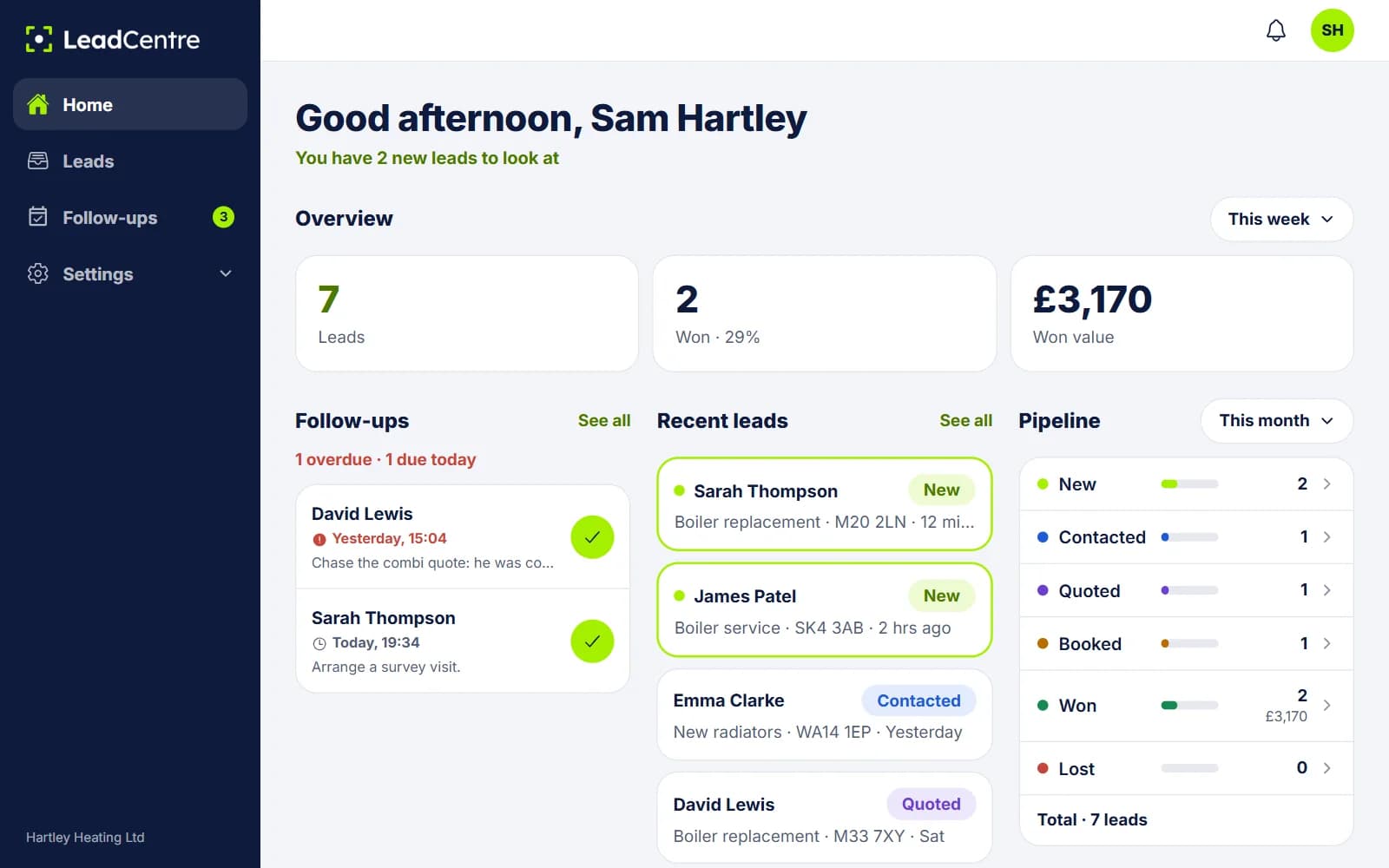
What you can see for one client
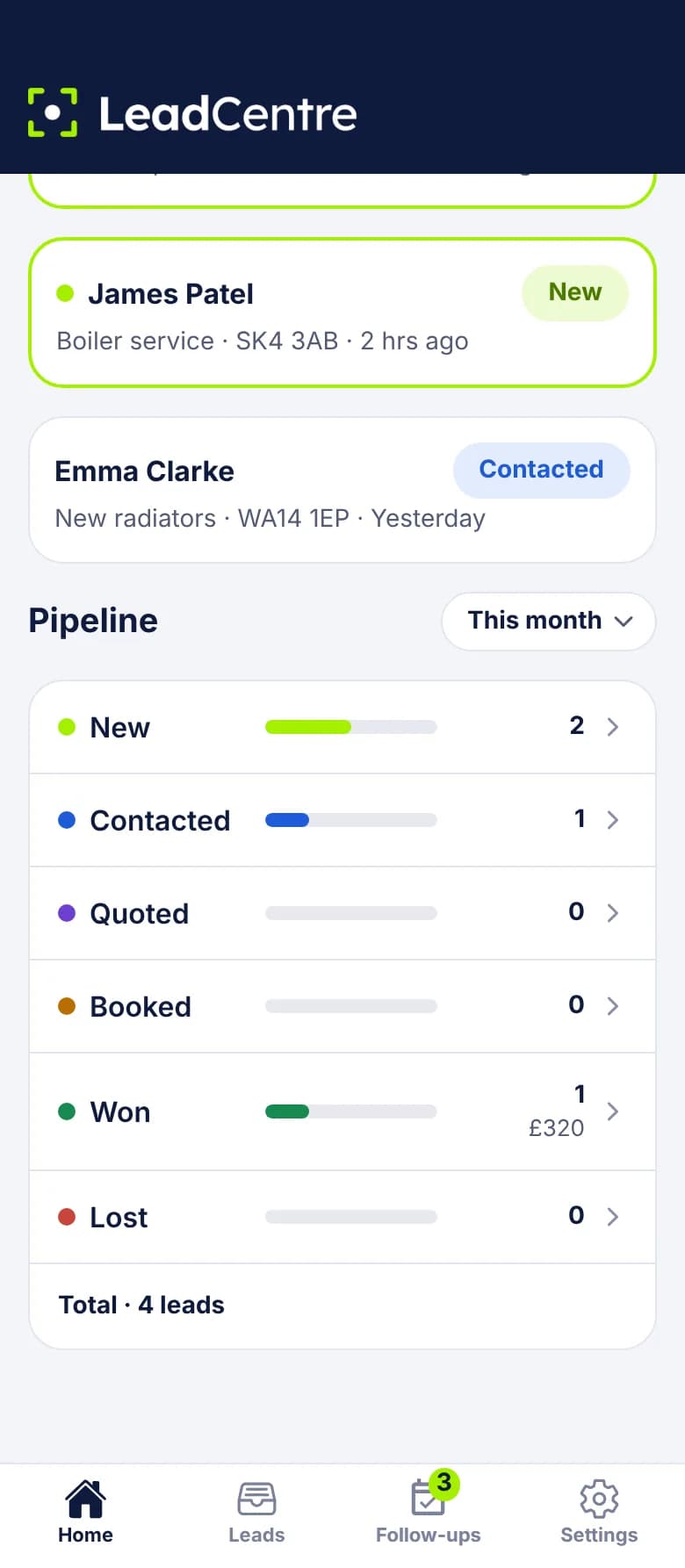
Open a client and you see the same screens they do, with all of that client's leads.
- Overview: leads, won with win rate, and won value, over Today, Yesterday, This week, This month or All time.
- Pipeline: lead counts for each status and the value of won jobs, for This month, Last month, This year or Last year.
- Follow-ups: what's Overdue, due Today and Upcoming.
- Leads: each lead with its status, job value, folder and source. A lost lead shows the reason if one was recorded.
Opening a client's figures
- 1
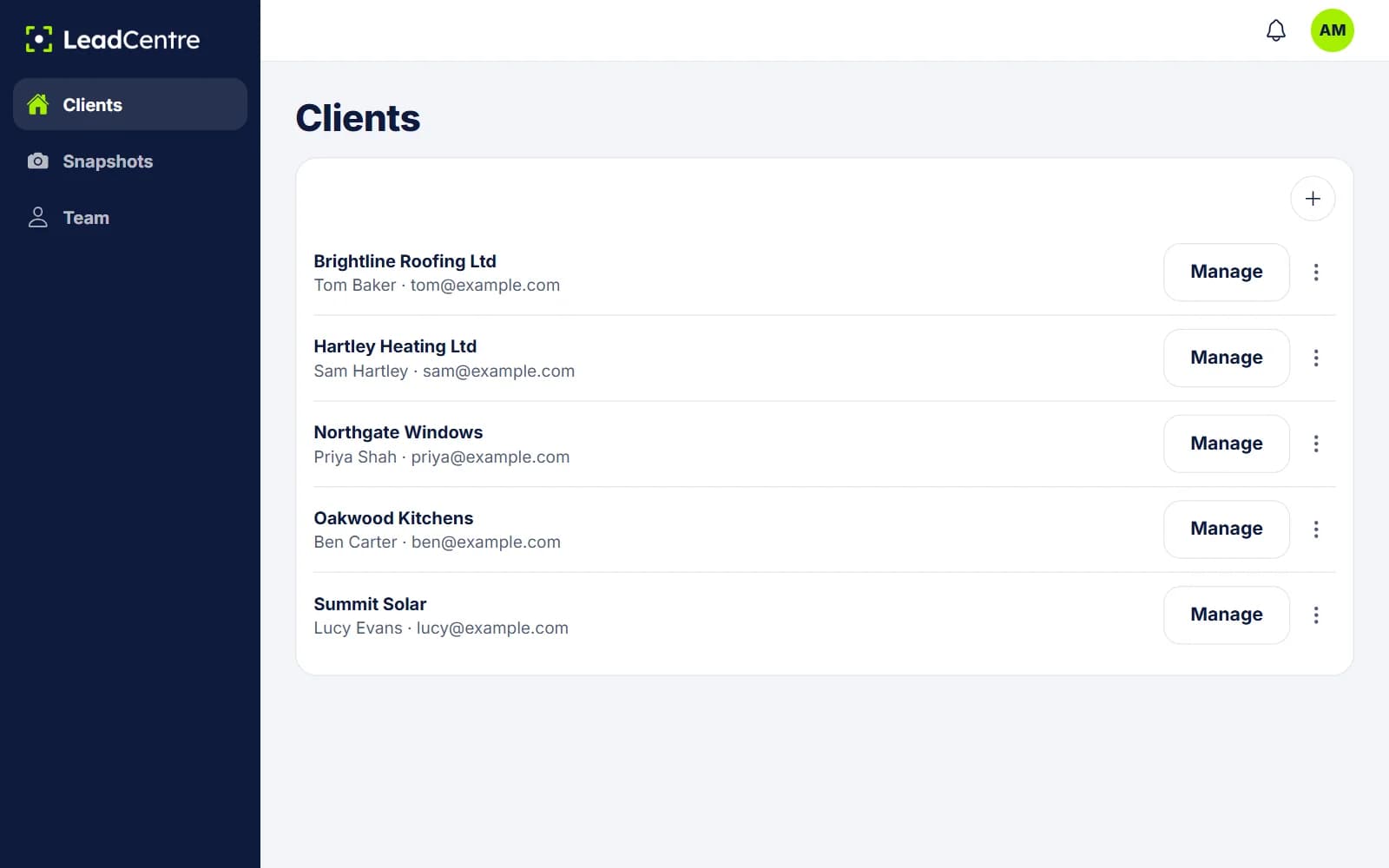
Open the agency dashboard
You see a list of your clients with their company, contact and email.
- 2
Press Open Workspace on a client
You're now inside that client's account. An Agency Admin can open any client. An Agency User can only open clients assigned to them.
- 3
Read Home
The overview and pipeline are there. Tap a status to see the leads behind the number. Read the list before opening an unread lead: opening one from here marks it as seen for the client too.
- 4
Move to the next client
Go back to the list and press Open Workspace on the next one.
How much each status tells you
Statuses record what someone did in LeadCentre, and they differ in how much they prove. Read them that way before you put them in front of a client. A lead's History tab in the dashboard shows each status change, who made it and when.
- New: nobody has moved it. The client may still have rung from their own phone or from the dashboard, where the status is changed by hand, so treat it as a question to ask.
- Contacted: someone tapped Call, Text, WhatsApp or Email on the lead in the app, or set the status by hand. The tap opens the call or message and moves the status, whether or not the person answered.
- Quoted and Booked: a person chose these, which makes them a firmer signal than Contacted.
- Won, with a value: the client's own statement of what the job was worth.
- Lost: the reason is whatever someone picked, and they can skip it.
One report across all your clients
On both agency plans, one report covers every client you can reach. It shows leads, won jobs, win rate and won value over a time frame you choose, client by client. An Agency User sees only the clients assigned to them. Opening a client still shows its own dashboard.
With conversion feedback set up, each lead's progress also goes back to Google Ads, Microsoft Ads, LinkedIn and Meta, including won jobs and their values, matched by the Google click ID, the Microsoft click ID, the LinkedIn Lead Gen Form response or the Meta lead ID kept on the lead. The ad platforms can then learn which of your clients' leads become customers. This is included on every plan.
A monthly client review
The report shows you every client at once, and each client's own screens give you the detail for a useful conversation. Our guide on how agencies can improve client lead conversion has more on what to raise.
For one client at a time, the client follow-up report brings four things onto one page:
- Still marked New after one working day. A backlog count right now, using the client's working days and time zone, with the rule shown beside it.
- Time to first contact attempt. The median time from a lead arriving to someone tapping its Call, Text, WhatsApp or Email button, or sending a text from Messages, with how many leads had an attempt (for example, 18 of 30). Automatic emails, texts and reminders don't count, and a tap shows someone tried, not that the customer answered. It's measured for leads received from 10 November 2026.
- Lost leads by reason, with any lost lead that has no reason shown as Reason not recorded.
- Won jobs and won value by source, with an Unknown source group, counted the same way as the cross-client report so the totals match.
From each part you can open the client's New, Lost or Won leads. A lead still marked New may have been contacted outside LeadCentre, so use the figures to start the conversation with your client.
Agree the habits with each client
The results depend on what each client records: contact attempts, status changes and won values. If a client never marks a lead Won, the won value stays at zero and the lead keeps its old status. That can look like poor lead quality when it's really a gap in the record.
It's worth agreeing one rule with each client when you set them up: mark Won or Lost when you know, and enter the job value then. You can also go in with Open Workspace and update leads for them, if that's part of your service.
Won value is the value of the sales a client has recorded. To work out a return on advertising, take the client's ad spend from the ad platforms and put it beside the won value for the same period.
Common questions
Is there a report across all my clients?
Yes. On both agency plans, one report covers every client you can reach, with leads, won jobs, win rate and won value over a time frame you choose, client by client. An Agency User sees only the clients assigned to them.
Can my client see the same figures?
Yes. When your client signs in, Home shows them the overview and pipeline for their own account. A User on that account only sees the leads they're allowed to see.
Can one client see another's figures?
No. Each client account is separate, with its own leads, users, connections, pipeline and figures.
Can I limit which clients my staff can see?
Yes. Agency Users only see the clients assigned to them. Agency Admins can reach all of them.
Show clients what happened after the enquiry
Give each client their own account, then open any of them to see what they've won and where you can help.