
Follow-ups
Lead follow-up software with reminders on your phone
Stay in touch when a sale takes more than one conversation. Keep callbacks, proposals and future opportunities on track with follow-up reminders linked to each lead, so your team knows who to contact and why.
Why follow-ups matter
Keep proposals and callbacks moving
Plenty of sales need more than one conversation: a quote to chase, a proposal to talk through, a customer who asked you to ring back next month. A follow-up puts a date, a time and a note on the lead, and a reminder on the phone of the person handling it. A B2B company might set one to check in after the buyer's internal meeting. A professional services firm might set one to send a proposal after a first consultation.
Pick up the conversation with context
The reminder shows the lead's name and your note, and opens the lead with its details and contact buttons ready. You know why you're calling before you make the call.
See overdue follow-ups before they build up
Overdue, Today and Upcoming show what's late, what's due and what's coming, in the app and the online dashboard. A missed reminder waits on Overdue until someone completes or reschedules it.
Setting a follow-up
- 1
Open the lead and tap Set follow-up
A lead can have several. Use Add another if there's more than one thing to chase.
- 2
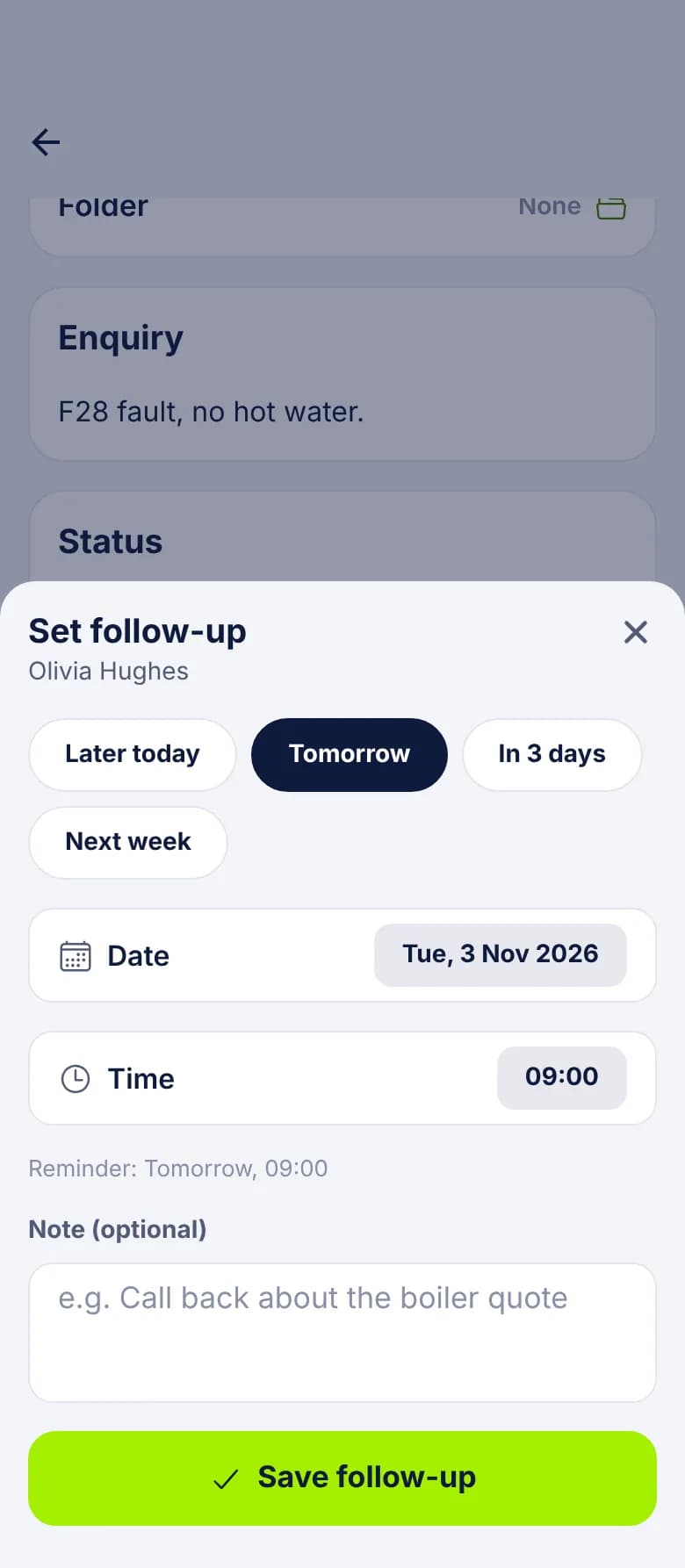
Pick a time
Tap Later today, Tomorrow, In 3 days or Next week, or choose your own date and time. Later today means about two hours from now. The other three are set for 9am. The screen shows when the reminder will go off.
- 3
Add a note if it helps
It's optional and can run to 500 characters, and it's what you'll read when the reminder arrives. "Chase the combi quote: he was comparing two prices" beats a bare reminder.
- 4
Save
The follow-up appears on the lead and on the Follow-ups tab. The lead's status and folder stay as they were.
The Follow-ups tab
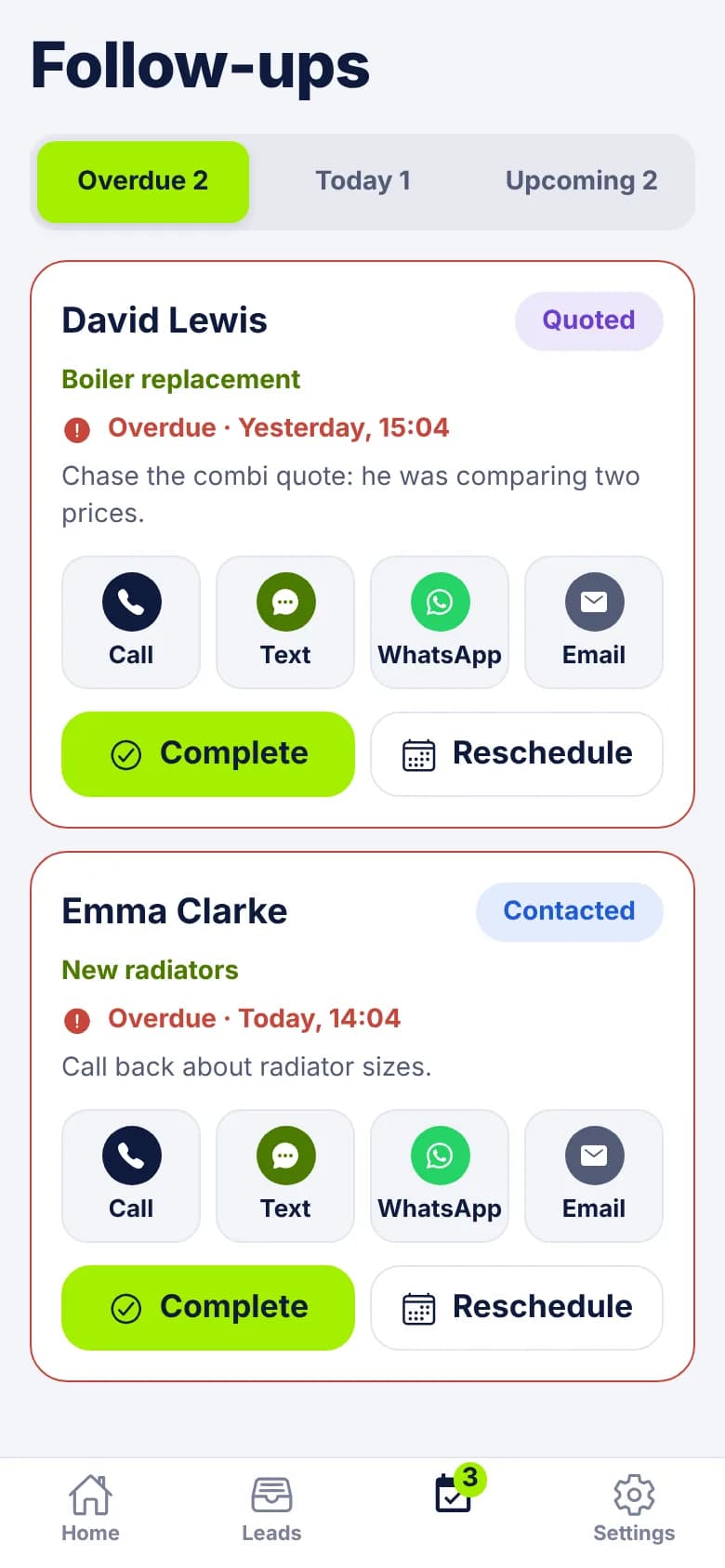
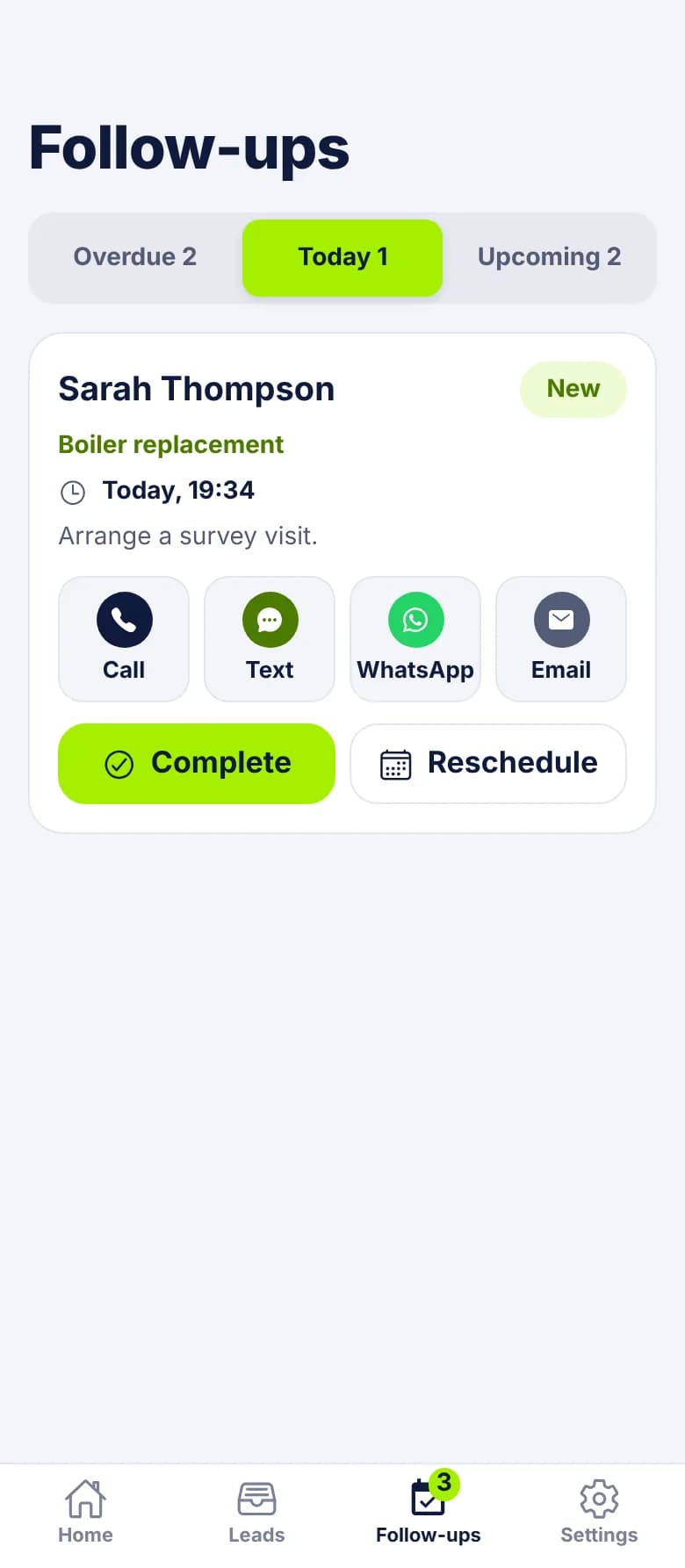
Three lists, in the app and in the dashboard: Overdue, Today and Upcoming. A badge on the app's tab counts what's overdue or due today.
Each card shows the lead's name, status, enquiry type, the due time and your note, with Call, Text, WhatsApp and Email buttons. Below those are Complete and Reschedule, which means you can make the call and tick it off from the card without opening the lead.
What happens when it's due, and when it's overdue
When a follow-up falls due, the person it's assigned to gets one push reminder. It says "Follow-up reminder", with the lead's name and your note. Tap it and the lead opens.
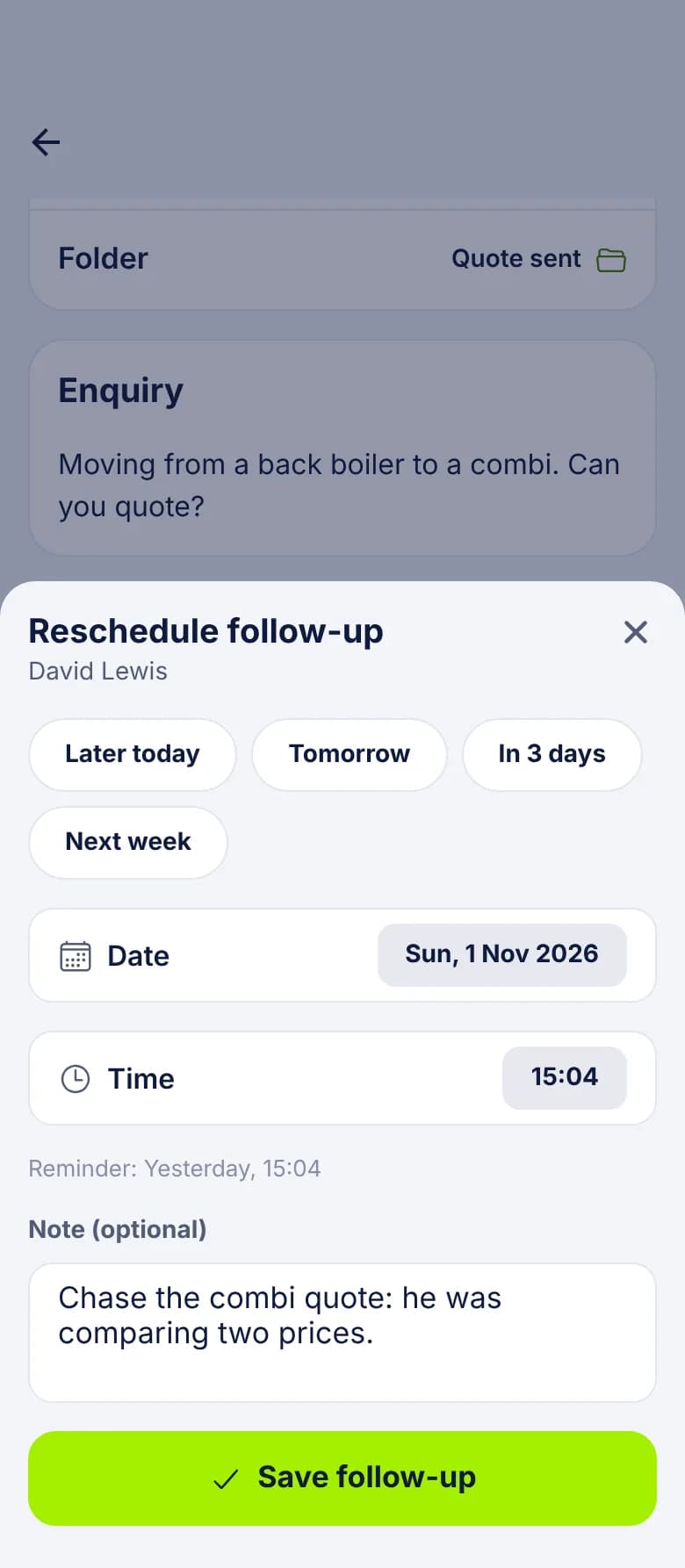
Once the due time has passed, the follow-up sits in Overdue, in red, until someone completes or reschedules it. A reminder you saw on Friday morning and meant to deal with at lunchtime will still be there on Monday.
- You get one reminder, and Overdue is where a missed one waits. It's worth opening first thing each day.
- The lead's status stays as it is.
- Reschedule to a new time and you get a new reminder at that time.
One emailed quote, followed up twice
Who owns a follow-up, and what happens to it later
- A new follow-up belongs to whoever set it. If the lead is then assigned to someone else, its open follow-ups and their reminders go with it.
- When you mark a lead Won or Lost with follow-ups still open, you're asked whether to keep or cancel them. They're never cancelled without asking.
- Keeping one on a lost lead makes sense when the answer was "not this year", which can still become a job next year.
- An archived lead keeps its follow-ups, so the reminder still arrives.
- Anyone who can see a lead can see its follow-ups. An Admin sees them across the account, and a User sees them on the leads they can see.
- Completed follow-ups stay on the lead as history.
It reminds you, and you make the contact
A follow-up opens your own phone or messaging app when you tap a button, and you make the contact. To have the follow-up set for you, add a Create follow-up step to one of your Automations, which come with every plan. The Lead Rescue template follows up leads that have gone quiet by email, then sets a follow-up for one last call. With the Respond add-on it sends texts too, and new leads can get an automatic SMS reply. For habits that make reminders work, read our lead follow-up best practices.
Common questions
What if I miss a reminder?
It stays on the Overdue list until someone completes or reschedules it. You only get one push per follow-up, and the badge on the Follow-ups tab keeps count.
Can I set a follow-up for a colleague?
A follow-up starts with the person who sets it. To pass the work on, assign the lead to your colleague. The lead's open follow-ups and their reminders move to them.
How far ahead can I set one?
As far as you need. The time just has to be in the future, so "Ring first week of September" or a service reminder 11 months out both work.
Can I use follow-ups without the app?
You can set, complete and reschedule them in the dashboard. The push reminder needs the app.
Put a date on your next call back
Give each quote and call back a date, a note and a reminder on your phone.