
Organisation
Organise sales leads with folders, tags, archive and assignment
Give your team a clearer way to share the workload. Assign each enquiry, organise leads in useful folders, tag what matters and keep completed opportunities out of the working list, while retaining their records and results.
Why organising leads helps
Give each enquiry an owner
Assign a lead to the person handling it and they get a push in the app, plus a bell notice and an email from the online dashboard. Users see their own leads and unassigned ones, so two people don't chase the same enquiry and nobody has to ask whose it is.
Organise leads around your business
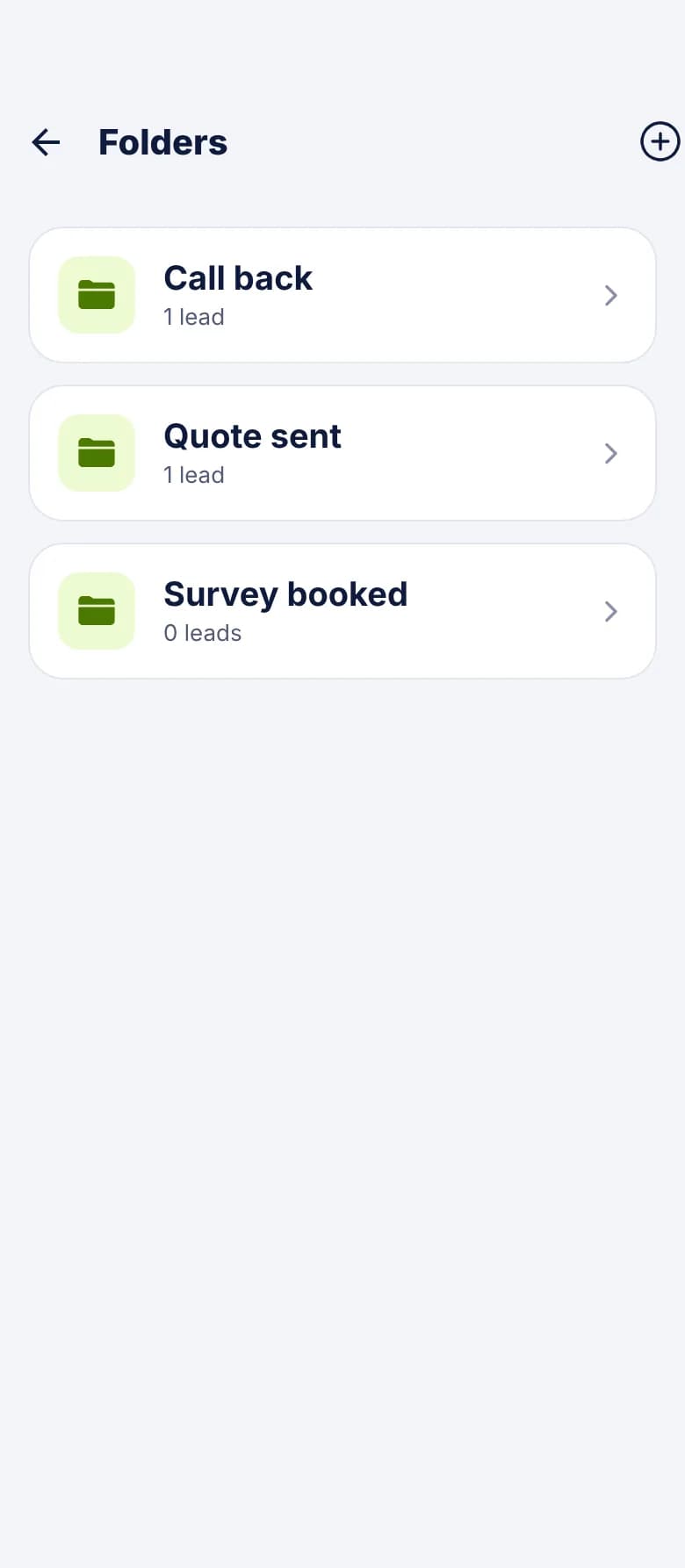
Folders are yours to name, so you can group leads by service category, region or referral partner. Each folder shows how many leads it holds, and the status still shows how far each lead has got. Tags add anything else worth knowing at a glance, such as Hot lead or Spring offer.
Keep the working list focused
Archive a lead when you've finished with it. It leaves your working list but keeps its details, follow-ups and results, and still counts in your figures.
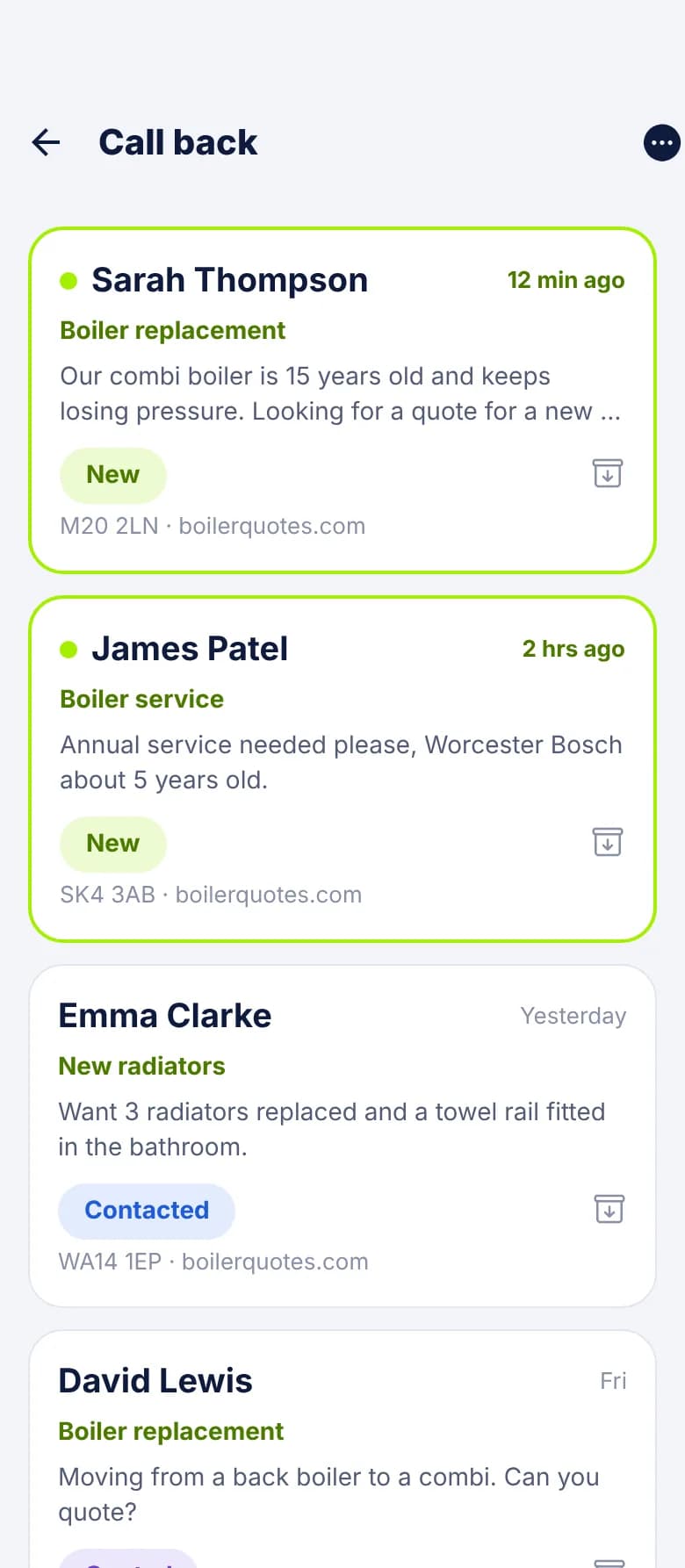
Folders: what kind of lead is this?
Folders are yours to name, such as Managed IT, North West or Referred by accountants: a service category, a region or a referral partner. Each shows how many leads it holds. Open a lead, tap Folder and pick one, or create a new one.
- A lead sits in one folder at a time. Moving it replaces the old folder. To record something else about it, use a tag, a custom field or a note.
- Folders and statuses work side by side: changing one leaves the other as it is.
- Everyone on the account can create, rename and delete folders.
- Delete a folder and its leads stay in your list, no longer in a folder.
Tags: what else should we know?
A lead sits in one folder, but it can carry several tags, such as Hot lead, Spring offer or Needs survey. Each tag has a name and a colour, and shows as a coloured chip on the lead and in the Leads list, and on lead and follow-up cards in the app. Open a lead and press Add Tag to pick one, or type a new name to create it there and then.
- Anyone who can work a lead can tag it and create new tags. Admins rename, recolour and delete tags under Settings > Tags, which shows how many leads have each one.
- Filter the Leads list by tag, on the dashboard and in the app.
- Renaming a tag keeps it on its leads. Deleting one asks you to confirm and takes it off those leads.
- Connections can tag leads as they arrive, and [automations](/features/automations) can start when a tag is added or removed, check for a tag, or add and remove tags themselves.
- A lead can carry up to 20 tags.
Archive: am I finished with it?
Each lead has an archive button, on its card and on the lead itself. Archiving takes the lead out of your working list and puts it in Archived, one tap from the top of the Leads screen.
- Nothing is deleted. You can restore an archived lead any time.
- Archived leads still count on Home and in the pipeline, so archiving a won job doesn't lower your figures.
- An archived lead keeps its follow-ups. If one is still open, you'll still be reminded.
Assignment: whose is it?
Assignment is what stops two people ringing the same customer, and it decides who sees what. New leads arrive unassigned. To assign one, open the lead, tap the pencil, choose Assigned to, and pick a person or Unassigned.
- 1
An Admin sees everything
Admins see all the leads on the account, whoever they're assigned to. They can also add people and change settings.
- 2
A User sees their own, plus unassigned
Users work leads. They see leads assigned to them and leads nobody has taken yet. Leads assigned to colleagues stay with those colleagues.
- 3
The new person is told
They get a push in the app, plus a bell notice and an email from the dashboard. If you take a lead yourself, there's no alert.
- 4
Follow-ups go with the lead
Open follow-ups and their reminders move to the new person.
- 5
A User who passes a lead on loses sight of it
The app tells them it's no longer in their list. An Admin can still see it.
Three people, three kinds of work
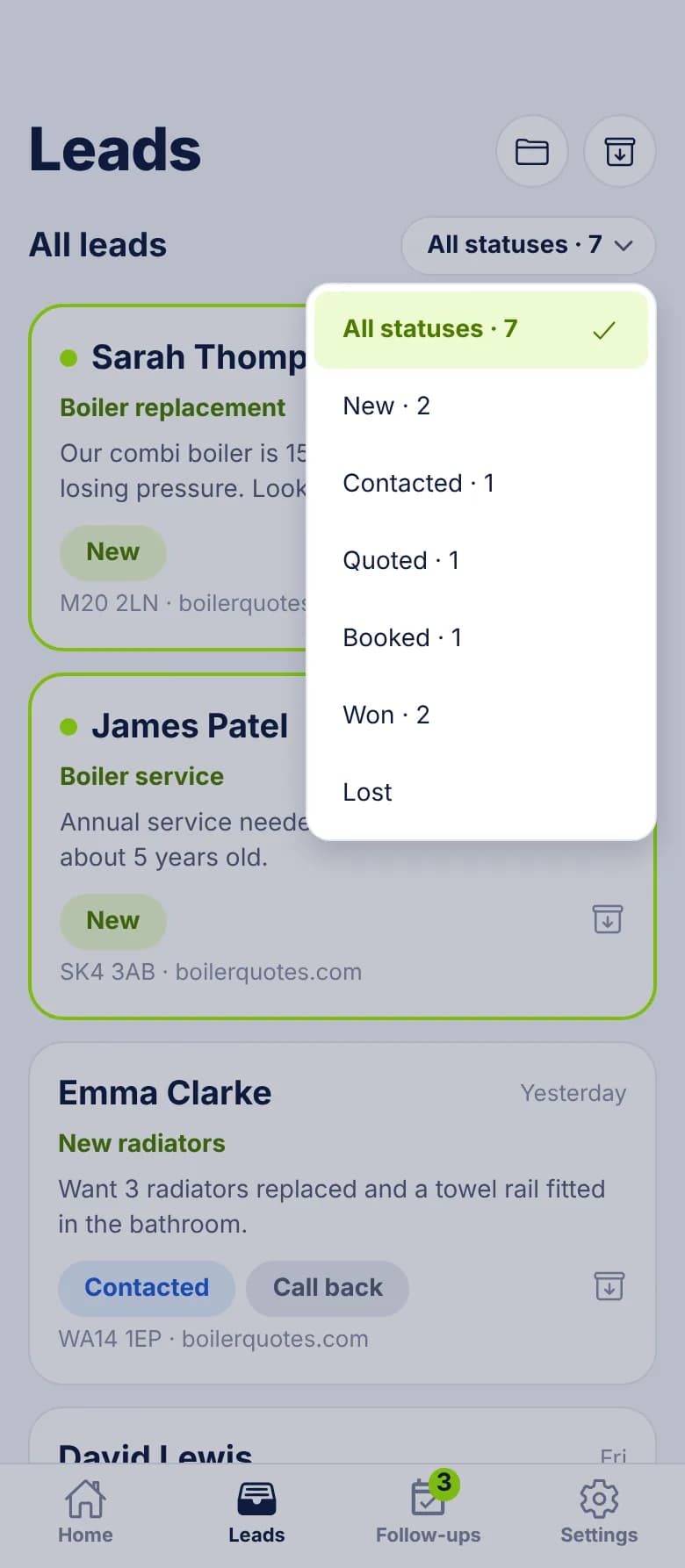
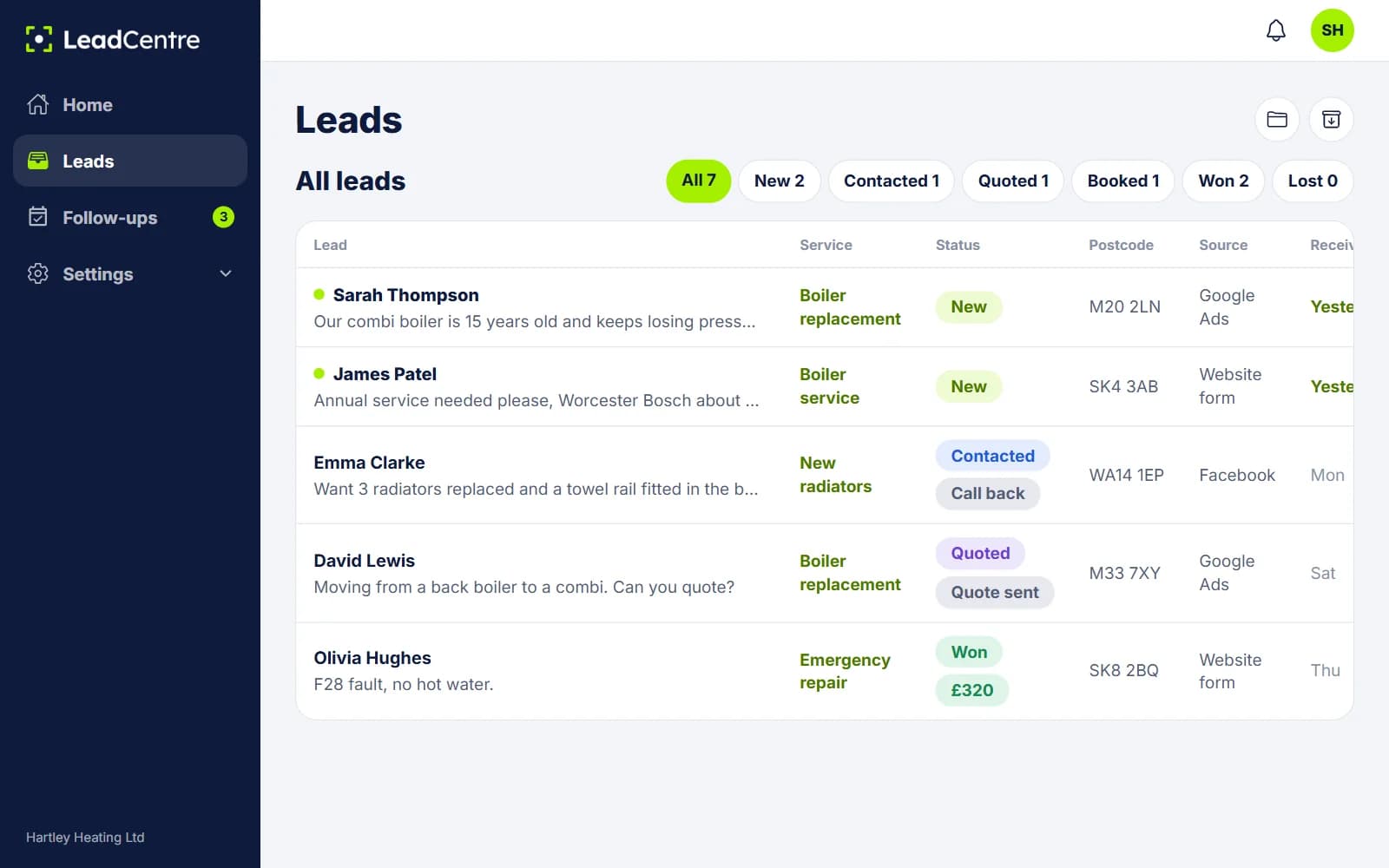
Folder or status?
If a folder only repeats a status, you don't need it. A folder called Quoted or Booked tells you nothing the status filter doesn't already show. Use folders for the things a status doesn't record: the service category, the region or the referral partner. Use tags for anything a lead can have several of, or that changes as you go, such as Hot lead or Awaiting photos. There's more on this in our guide to keeping track of prospects.
Common questions
What's the difference between a folder and a tag?
A lead sits in one folder at a time, so folders suit things like the service or the region. A lead can have several tags, each in its own colour, so tags suit anything else you want to spot or filter by, such as Hot lead or Spring offer.
Does archiving delete a lead?
No. It moves the lead to Archived, where you can restore it any time. It still counts in your figures.
Can my staff see each other's leads?
Admins see everything. A User sees leads assigned to them and unassigned ones, so their colleagues' leads stay with those colleagues.
What happens when someone leaves?
An Admin can reassign their leads to someone else. The open follow-ups move with each lead.
Give each lead an owner
See how many users each plan includes.