
Mobile App
A mobile lead management app for people who aren't at a desk
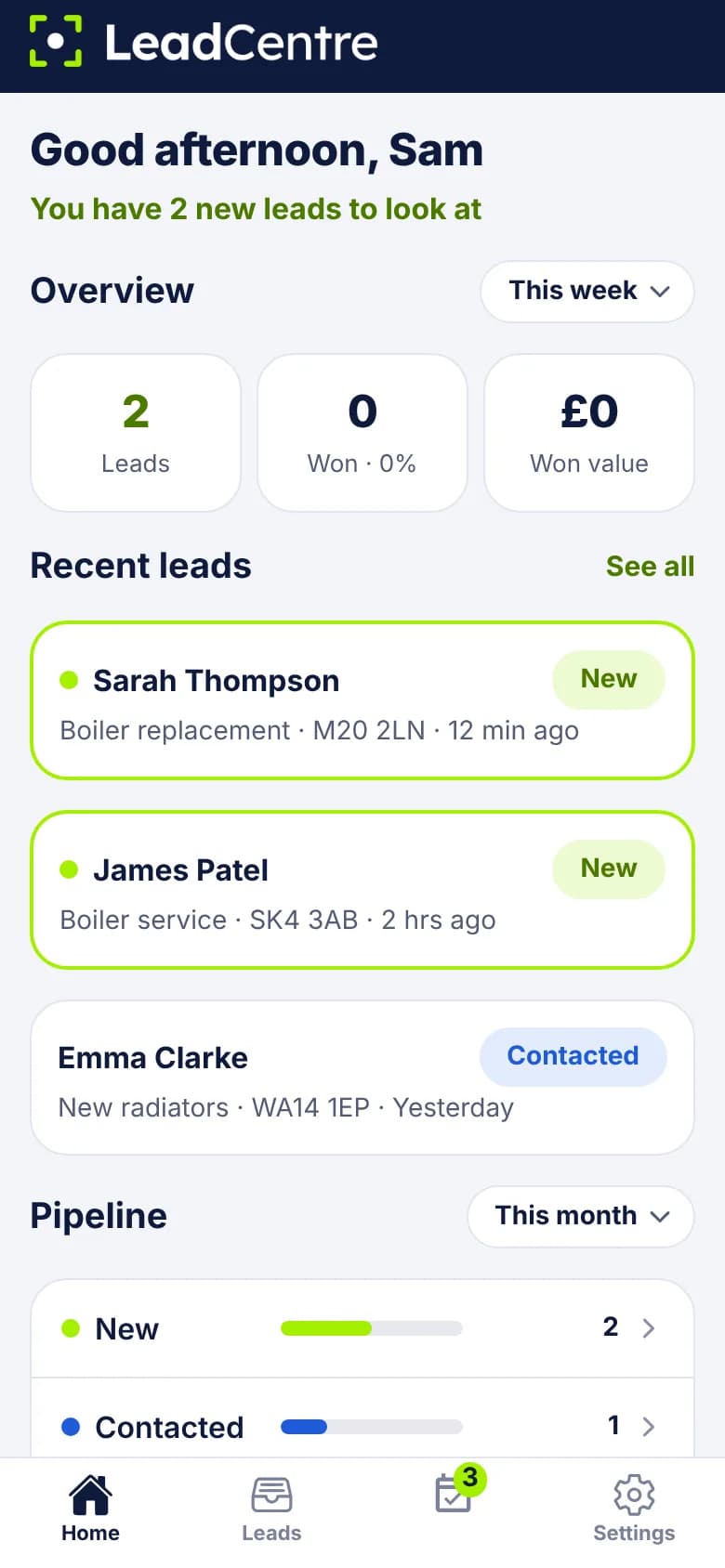
Keep sales conversations moving wherever you work. The LeadCentre mobile app puts enquiries, contact shortcuts and follow-up reminders close at hand, so you can take the next step without waiting to get back to your desk.
Why it helps when you're away from your desk
Respond between appointments
A new lead alert opens the lead with Call, Text, WhatsApp and Email ready, so you can get back to someone between meetings, site visits or appointments, rather than at the end of the day. The app is on the App Store and Google Play, and you sign in with your dashboard login.
Keep your follow-ups close at hand
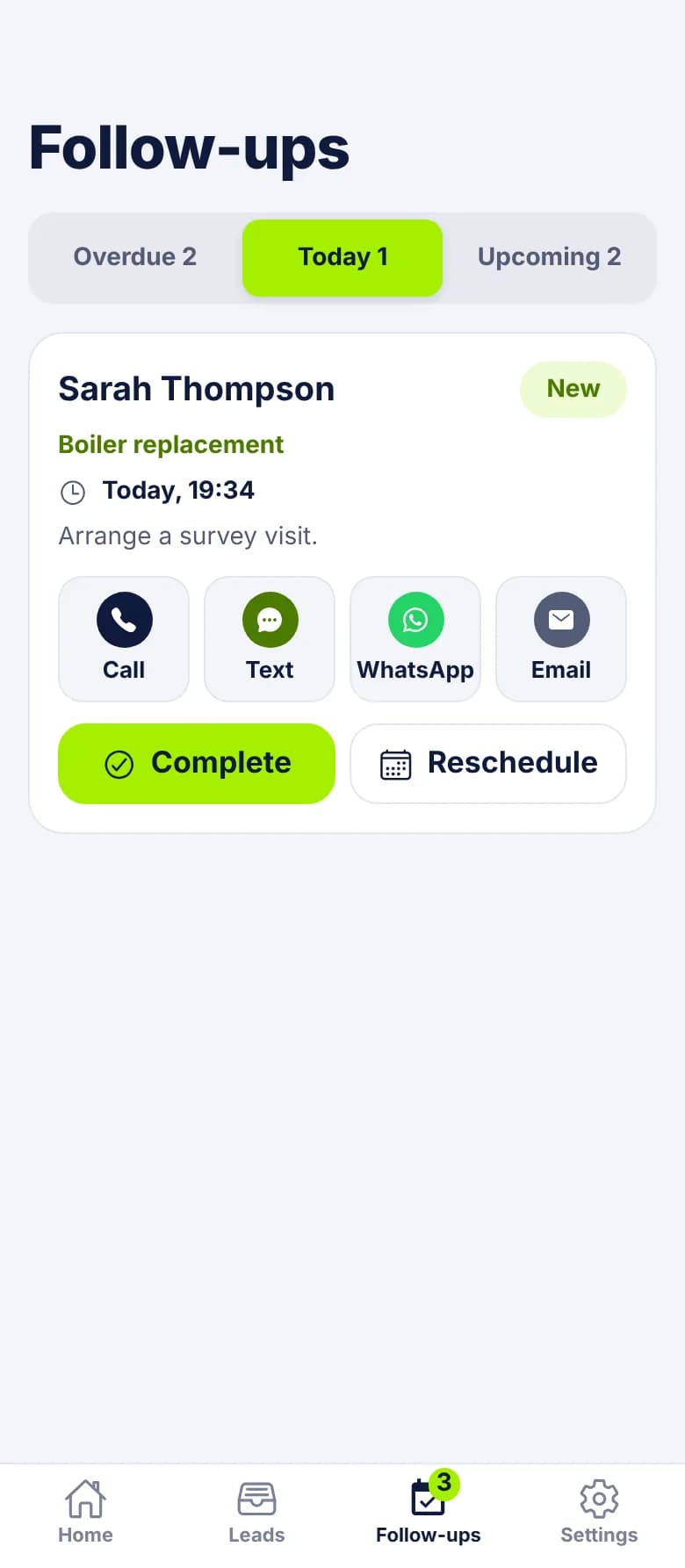
The Follow-ups tab shows what's overdue, due today and coming up, each with its contact buttons, and a reminder arrives on your phone when one falls due.
Keep the office and mobile team working from the same records
The app and the online dashboard share the same leads. A status, follow-up or value recorded on a phone shows on the dashboard too, so the office and the people out of it work from one record.
The five tabs
- Home: a greeting, three tiles (leads, won with win rate, won value) over a time frame you pick, your recent leads with new ones in a lime border, and the pipeline by status.
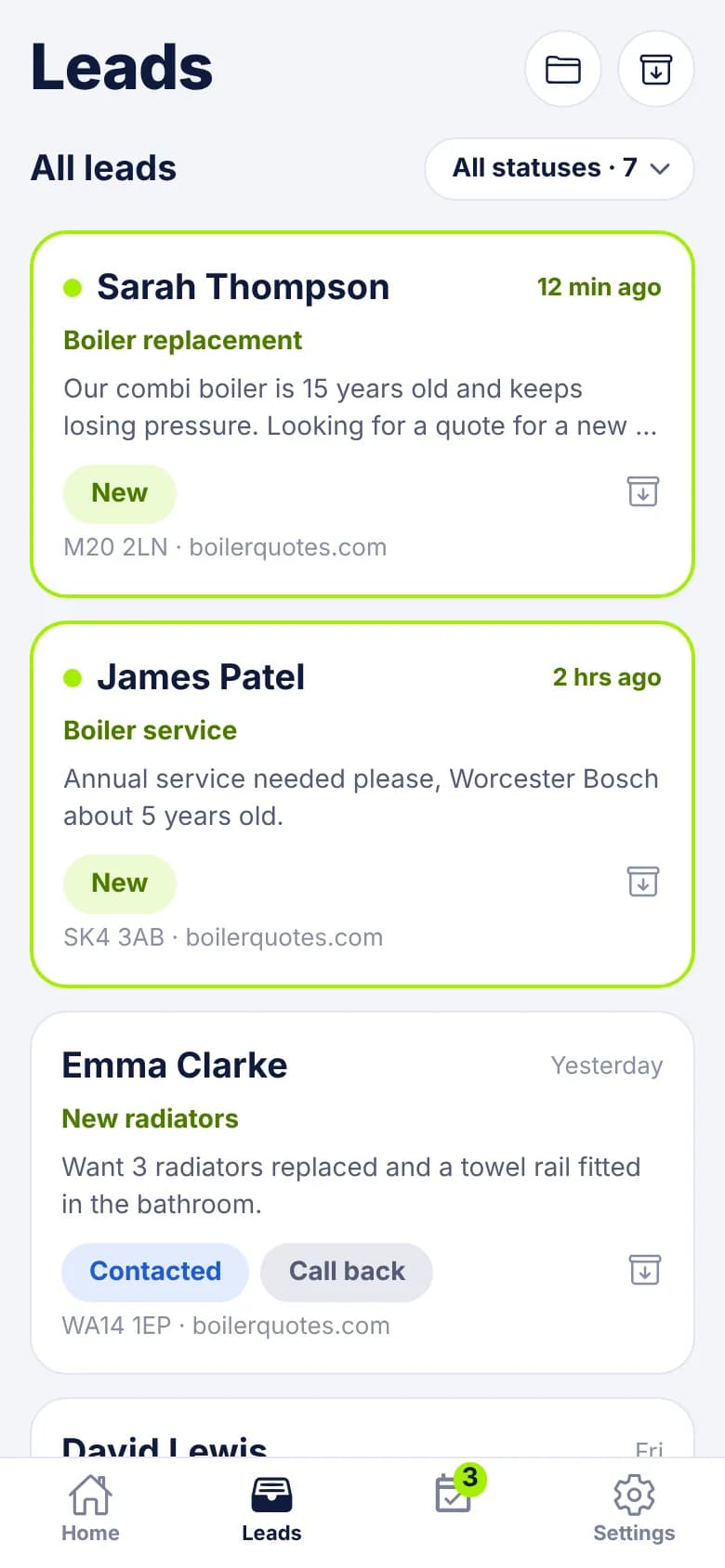
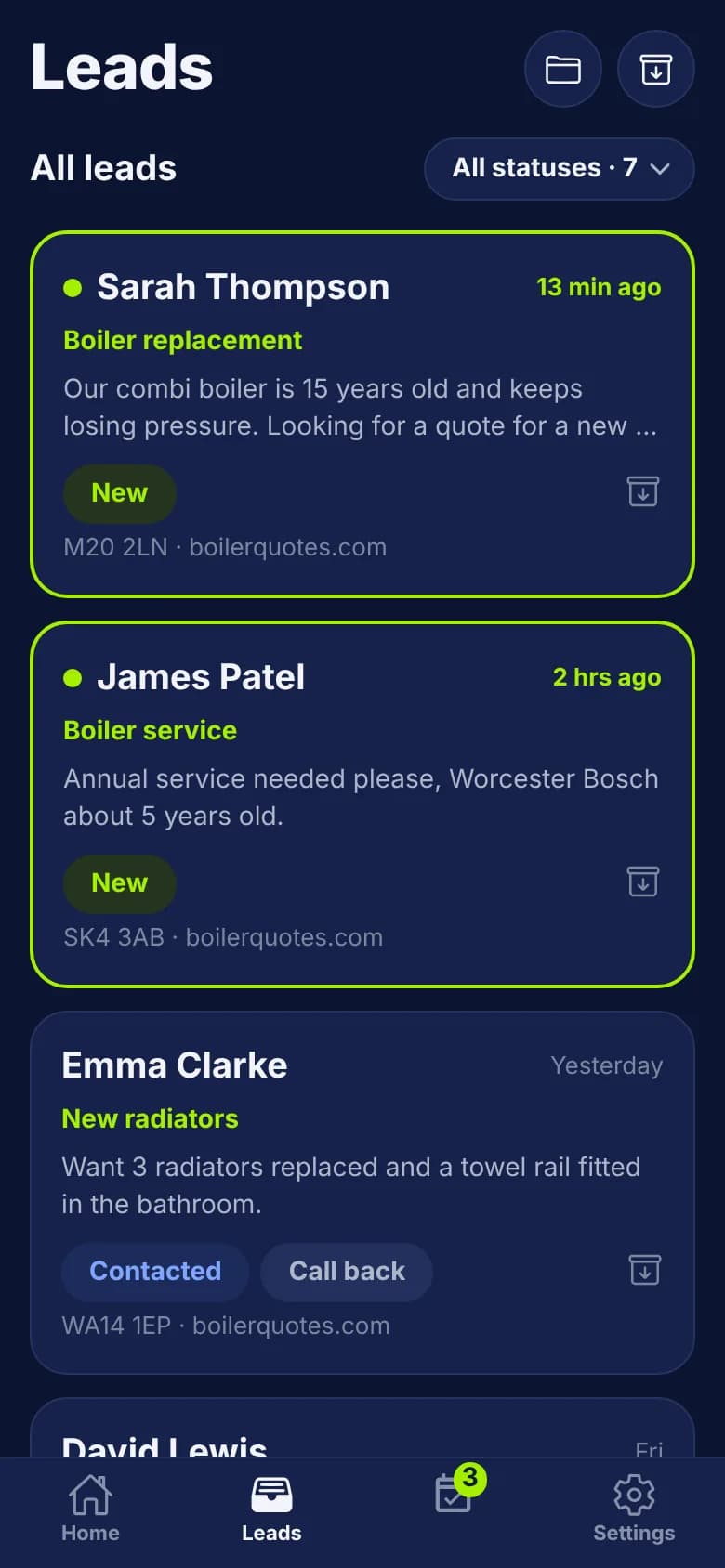
- Leads: the full list with a status filter and counts, and a tag filter. Unread leads have a lime border and dot, and each card shows its tags. Folders and Archived are at the top.
- Messages: your text conversations with leads, with search, All, Unread and Needs attention filters, and AI handling, Assigned to me and Closed under More filters. A badge on the tab counts unread messages. Messages is part of the Respond add-on.
- Follow-ups: Overdue, Today and Upcoming, with contact buttons on every card. A badge on the tab counts what's overdue or due today.
- Settings: your name and photo, light or dark mode, new lead alerts on this phone, your password and Sign Out. Business details, hours and message templates are set on the dashboard.
What the buttons on a lead do
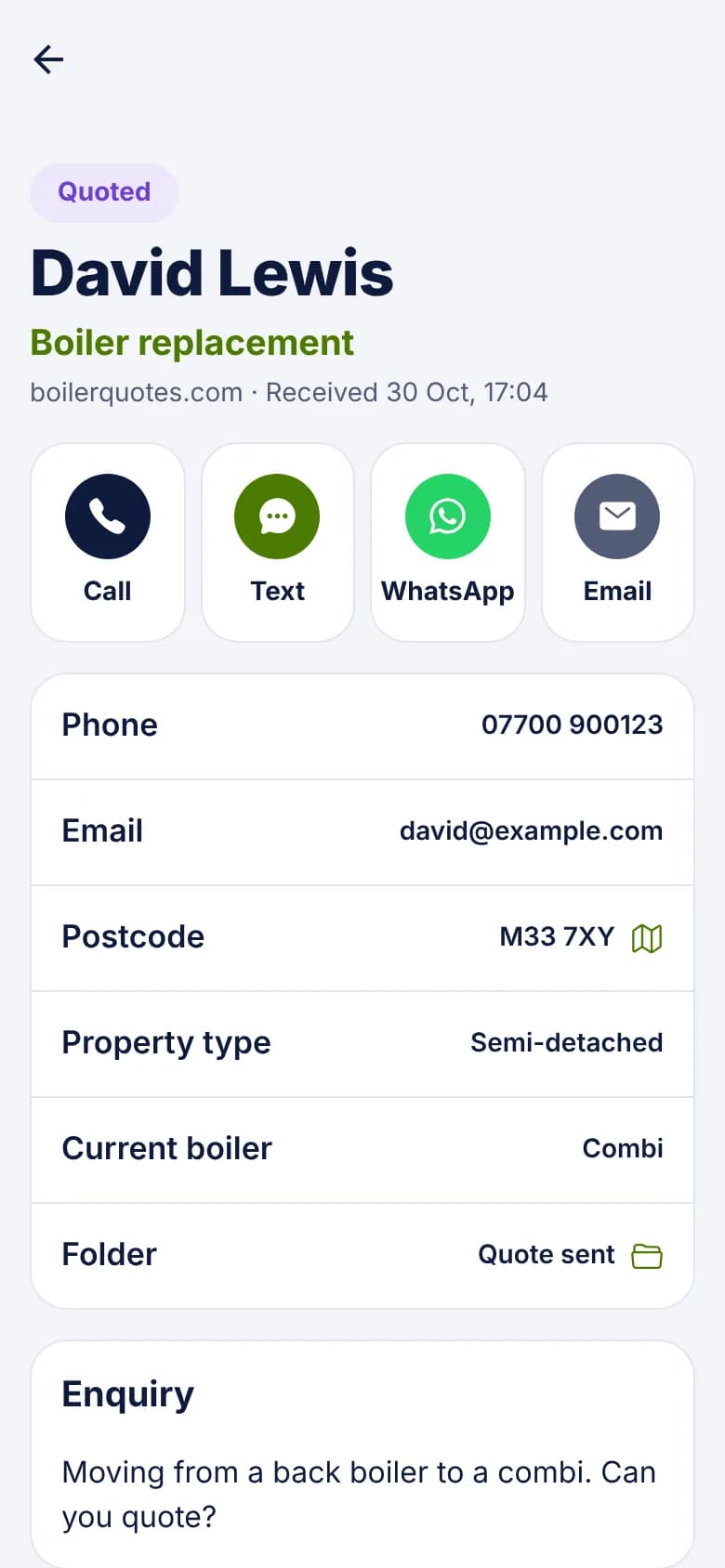
Call, Text, WhatsApp and Email hand you over to the apps already on your phone. Your customer sees your number or your email address, and there's no separate inbox to check.
- 1
Call
Opens your phone's dialler with the number filled in.
- 2
Text and WhatsApp
Open your messaging app with a pre-written message from your templates. Placeholders such as {first_name} and {service} are already filled in, and you check it and press send.
- 3
Email
Opens your email app with the subject and message written.
- 4
The status moves for you
The first time you tap any of them on a New lead's screen, it moves to Contacted. That records the tap, not whether you got through. Buttons only appear when the lead has a usable phone number or email address.
Phone or online dashboard: which does what
Day-to-day work happens in both. Setting things up happens in the online dashboard, usually once.
- In both: leads, statuses, job values, follow-ups, tags, folders and archive.
- Only in the app: push notifications for new leads, due follow-ups and assigned leads.
- Only on the dashboard: connections, custom fields setup, renaming and deleting tags, business details and hours, message templates, team and roles, automations, and the agency platform.
- The status only moves for you in the app. The dashboard's contact buttons open the call or message, and you change the status yourself.
Between two meetings
Small things that matter on a phone
- Light and dark mode, or follow your phone's setting.
- Job values use your account's currency, set on the dashboard under Settings > Business.
- Outside your business hours, the buttons use your out-of-hours wording.
- If the lead has an address, Open in Maps takes you to it.
Common questions
Do I need a separate login for the app?
No. You sign in with the same email and password you use at dashboard.leadcentre.com.
Do customers see my personal number?
The buttons use your own phone, so a call or text comes from your number and a WhatsApp from your WhatsApp account. If that's a problem, use a work phone for the app.
Does the app cost extra?
No. The app and the online dashboard come with every plan. The pricing page shows what each plan includes.
Run your leads from anywhere
Get LeadCentre, set up your Connections and sign in to the app with your dashboard login.