
PPC Agencies
For PPC agencies: help clients get more customers from the same ad spend
Connect the enquiries your campaigns generate with the outcomes your clients record. Help their teams respond and follow up, review which leads became customers and send supported conversion feedback to Google, Microsoft Ads, Meta, LinkedIn and TikTok.
Your client's reply time is part of your ROAS
By the time a lead arrives, the click has been paid for. If your client rings it that evening, they've paid full price for an enquiry that may already have gone cold. There's more on speed to lead on our agency page.
An example: CPL stays at £30, and a client goes from converting 10% of their leads to 20%. Their cost per won job halves from £300 to £150, with no change to the account. The figures are an example, but they show why the reply can matter as much as the bid.
- Instant lead notifications put each new enquiry on your client's phone.
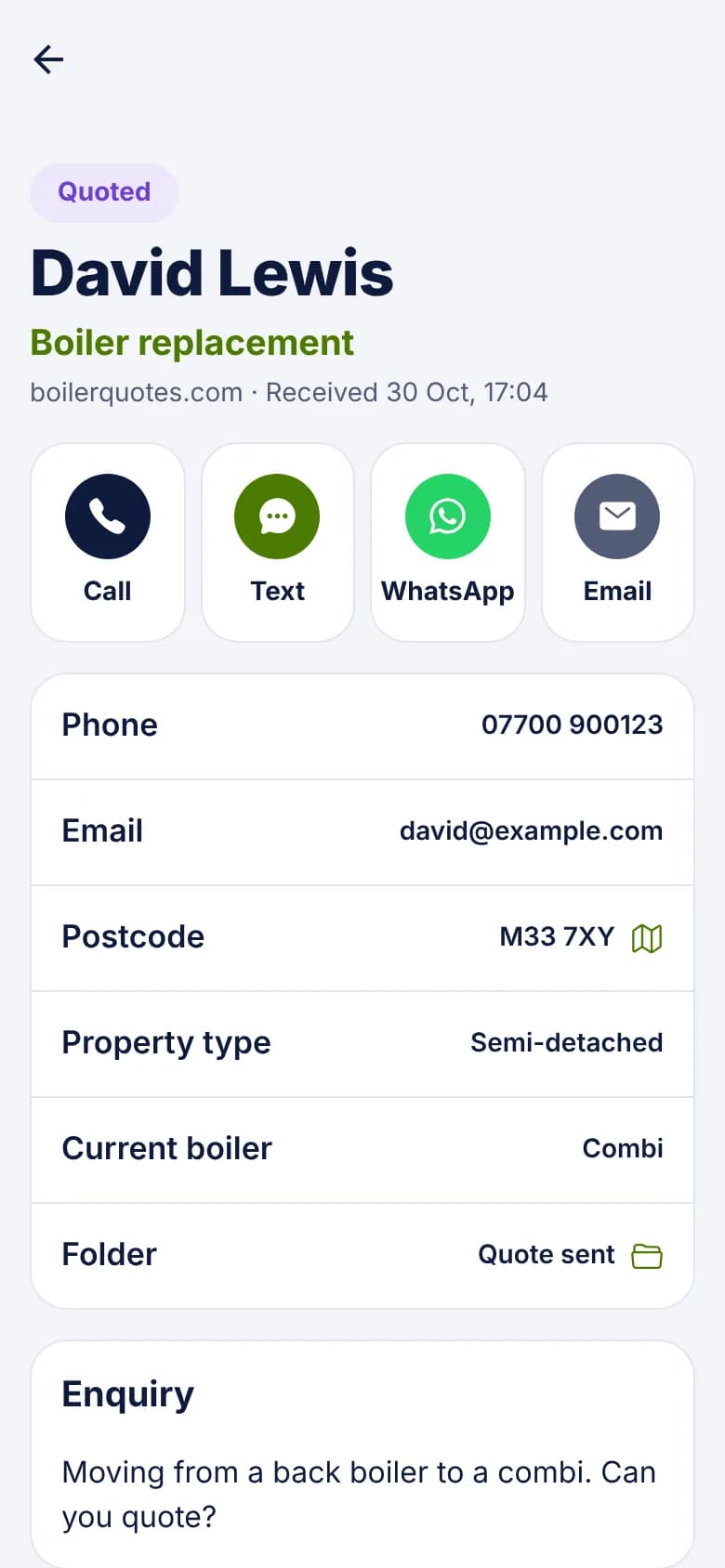
- One tap to call, text, WhatsApp or email, with a message already written.
- A follow-up reminder if they don't get through first time.
What happens to a lead in an account with no CRM
When enquiries are spread across inboxes, spreadsheets and individual phones, it is difficult to connect campaign activity with sales. Your client may know a lead arrived, while the outcome stays with the person who handled the conversation. LeadCentre gives both sides a shared record to review.
Getting campaign data onto each lead
Keep the source and available campaign details with the enquiry, so your review starts with context. Supported connections can bring across tracking information, while the setup guide explains which fields and identifiers are needed for each source.
Every client account has its own webhook URL, with named keys. Google Ads lead forms and landing page forms post to it directly. Meta Lead Ads have their own connection: in Settings > Connections, press Add New Connection and choose Meta Instant Forms, then press Connect Meta Account, sign in with Facebook and choose the Pages to share, then add the Instant Forms you want and match their questions. Zapier and Make work too. For a webhook key, the setup runs like this:
- 1
Create a key for the source
Use the Website form key, or add named ones such as Google Ads or Landing page. The secret shows once, so copy it then.
- 2
Send test data
The key listens while you send a test, and test data never becomes a lead. You can check the post without alerting your client.
- 3
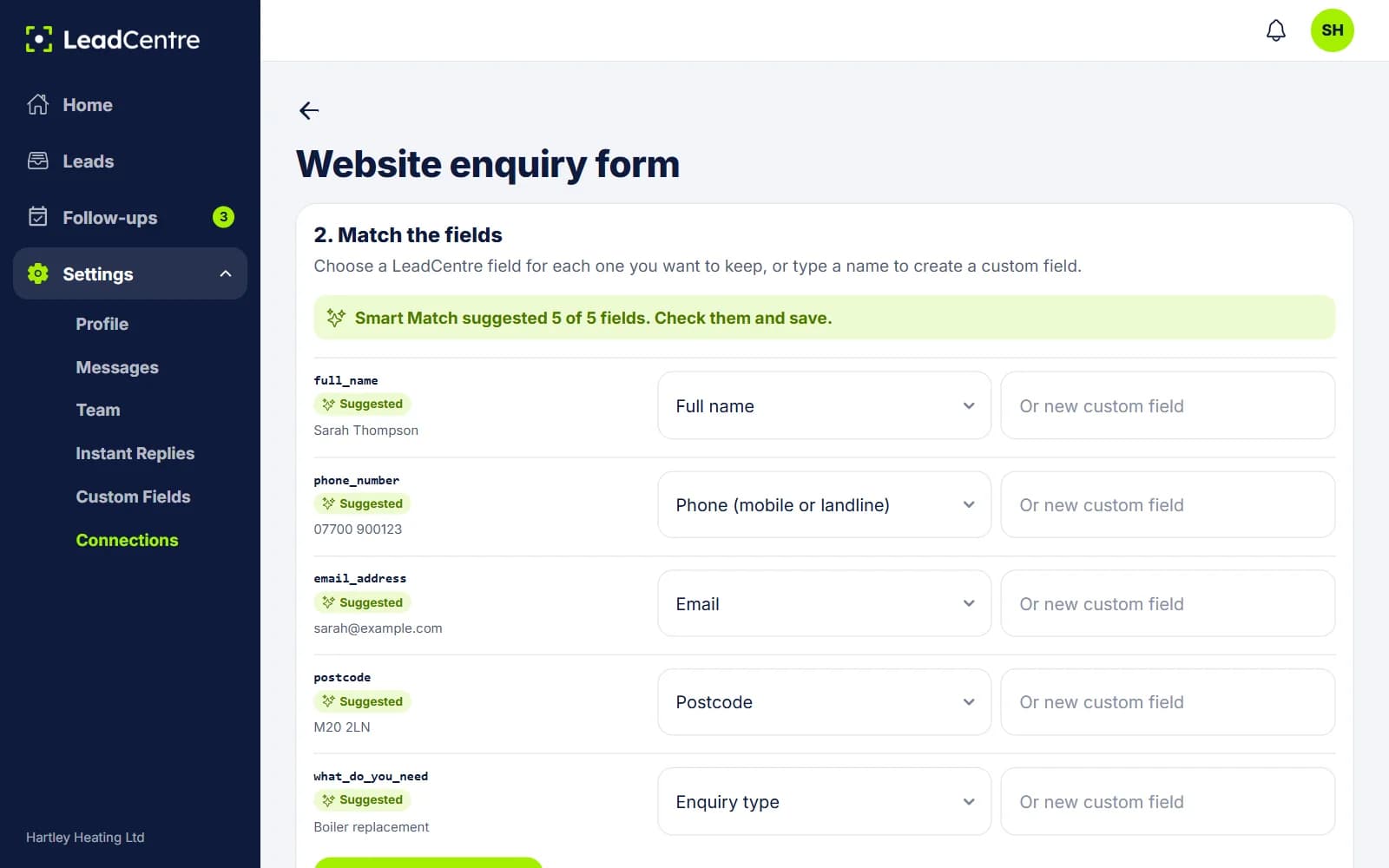
Match the fields
Tracking fields with standard names, such as utm_campaign, campaign_id and gclid, are recognised and kept automatically. If your source uses its own names, point them at the matching attribution field. Point anything else you want to keep, such as a keyword, at a custom field. Smart Match suggests the rest.
- 4
Save field matching
Anything sent before you saved is held, and becomes leads now.
What the client's account then shows
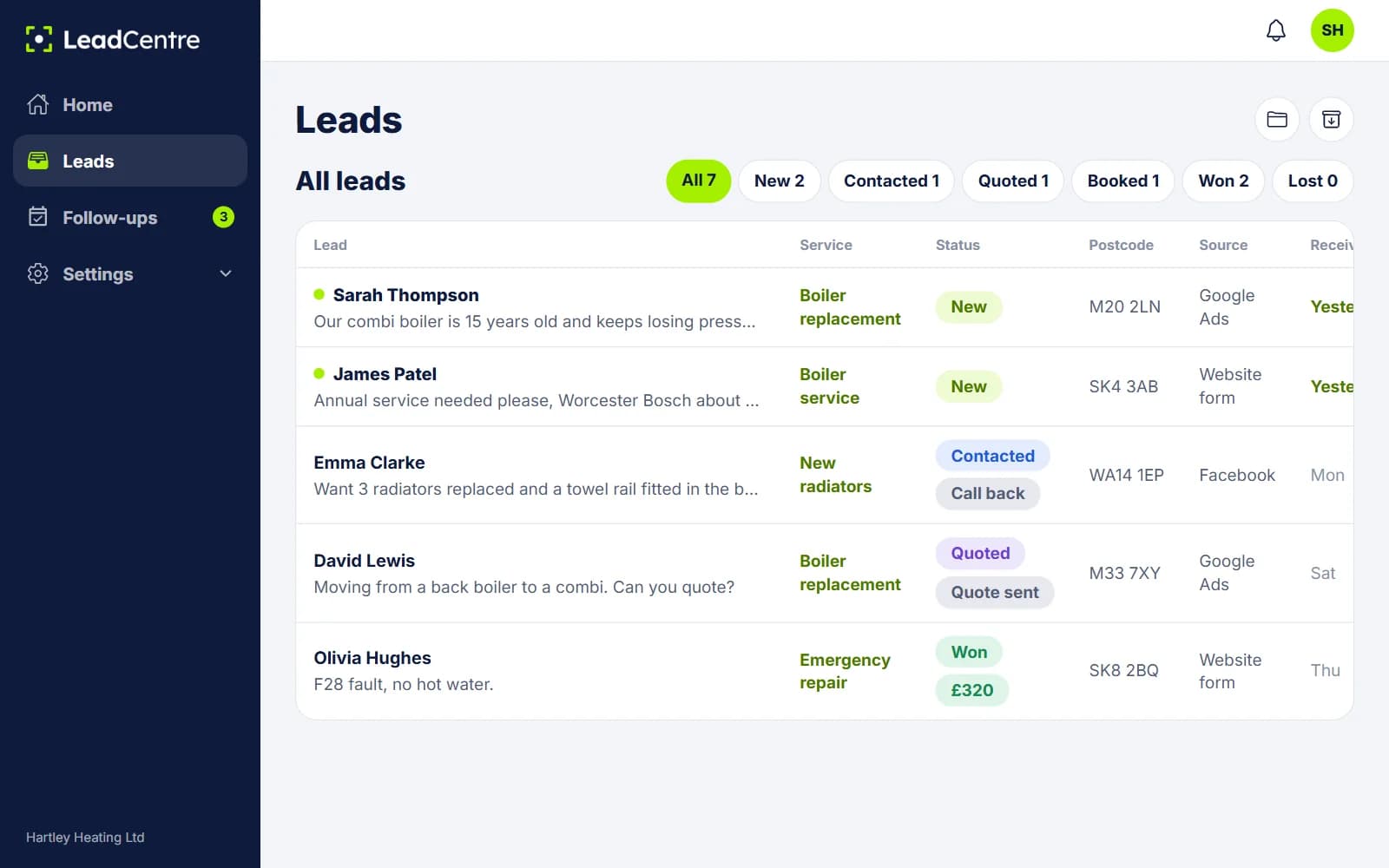
- The Lead source on each lead, and a Source column in the portal's lead list.
- Attribution details on each lead in the portal: the source, campaign, ad and UTM tags your connection sent.
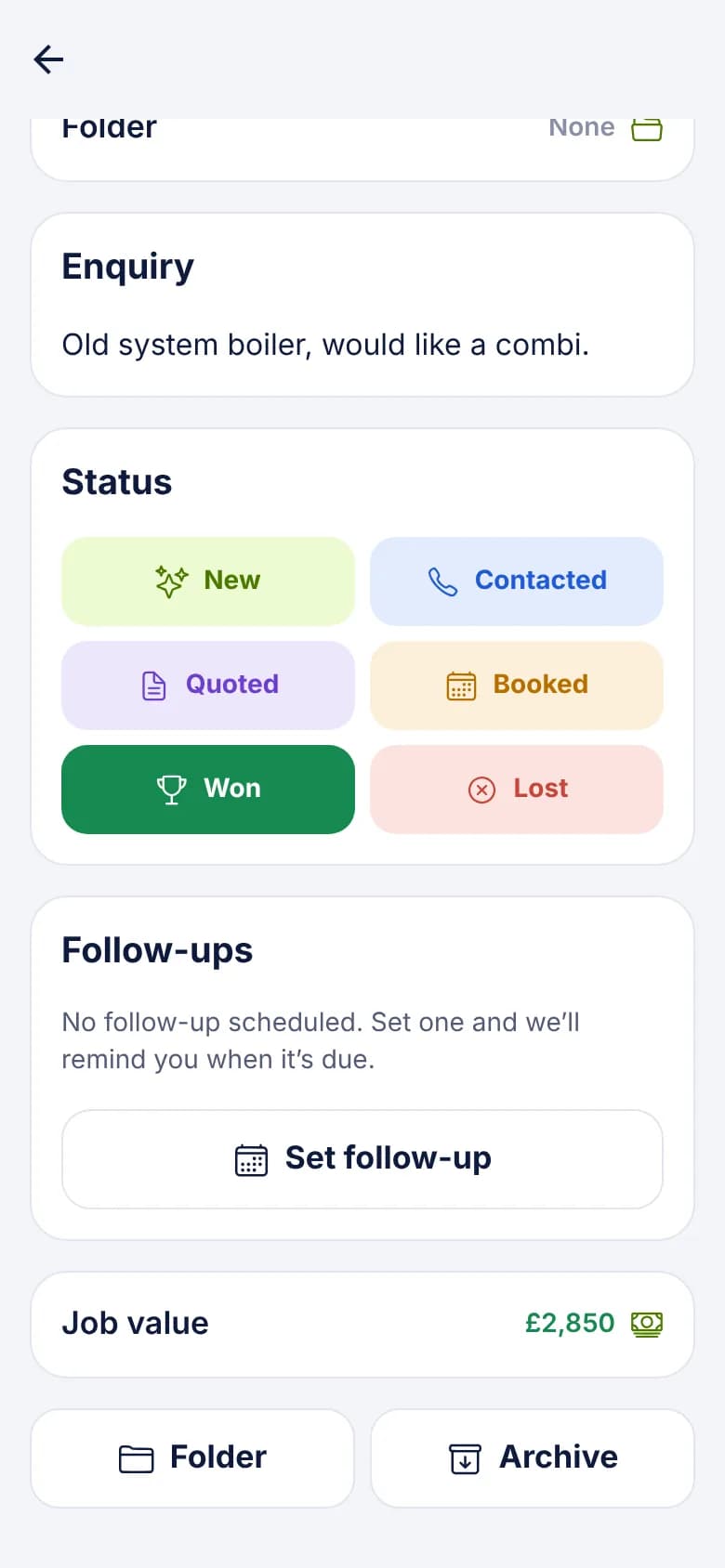
- How far each lead got: New, Contacted, Quoted, Booked, Won or Lost.
- Follow-ups on each lead, and what's Overdue, due Today and Upcoming across the account.
- What won jobs were worth, entered by the person who won them.
- Why leads were lost, if someone recorded a reason.
- Leads, Won, win rate and won value for the client on Home, over the time frame you pick.
Telling bad leads from slow follow-up
Most difficult client calls come down to this distinction. The per-lead record gives you enough to check a sample and go into the call with specifics. Open a lead in the portal and it shows the date and time received, and its History tab lists each status change with who made it and when.
- Response: compare the time received with the first status change on a handful of leads.
- Contacted doesn't prove contact. Tapping a contact button in the app moves a New lead to Contacted, so the time on that change is when someone tapped. They may have got voicemail. A lead still at New may have been rung from the client's own phone or the portal, with nobody updating it.
- Targeting and form problems: Invalid lead, Outside our area and Not a service we offer. That's your cue to check search terms, location settings such as presence versus presence or interest, and whether a form needs a tighter question.
- Sales problems: Price too high and Went with another company usually have little to do with the campaign.
- No response could be either: a fake number from a low intent form, or a client who rang once at the wrong moment.
What you can show a client
You can show each client a list of their real leads, each with its source, status, follow-ups and value, plus their totals for a period. That's enough to answer "did those leads turn into anything?", and to put cost per won job beside CPL using spend from the ad platform.
- Conversion feedback, on every plan. LeadCentre sends each lead's progress back to Google, Microsoft Ads, Meta, LinkedIn and TikTok, from Contacted through to Won with the value of each won job, matched by the Google click ID, Microsoft click ID, Meta lead ID, LinkedIn form response or TikTok lead ID kept on the lead. The ad platforms can then learn which leads become customers. Choose the stages under Settings > Conversions, so a client with few wins can still give the platforms Quoted or Booked to learn from.
- Won jobs by campaign. Open the Won list in the portal and read the Source column, or keep a folder for each campaign.
- Cross-client reporting, on both agency plans. One report across every client you can reach: leads, won jobs, win rate and won value over a chosen time frame, client by client. An Agency User sees only their assigned clients.
- Each client's own Home dashboard, pipeline, follow-ups and won values, when you open that client with Open Workspace.
Why it helps you keep the account
A client who can't see a return starts asking whether to move the account. One who's replying faster, winning more and recording what those jobs were worth can see it in their own app, and you've got cost per won job to put beside CPL. A client can still leave for other reasons, but it's a far better conversation to be having.
Connect campaign activity with recorded sales
Keeping the data clean
Your report is only as good as what's on the lead, and most of that is decided at setup. There's more detail in our guide to tracking Google Ads leads to sales.
- Map a Unique ID, such as the ad platform's lead ID, to stop duplicates when a post is retried.
- Map Date received if your source sends it, and figures will fall in the right period.
- Map Estimated value if your form asks for a budget. Won value is what the client enters later.
- If calls matter, use a call tracking service that can post to a webhook. Those calls then become leads with a source. With the Respond add-on, a missed call to the client's LeadCentre number also becomes a lead.
- Agree with the client what Won means, and when they'll mark it. Your report depends on it.
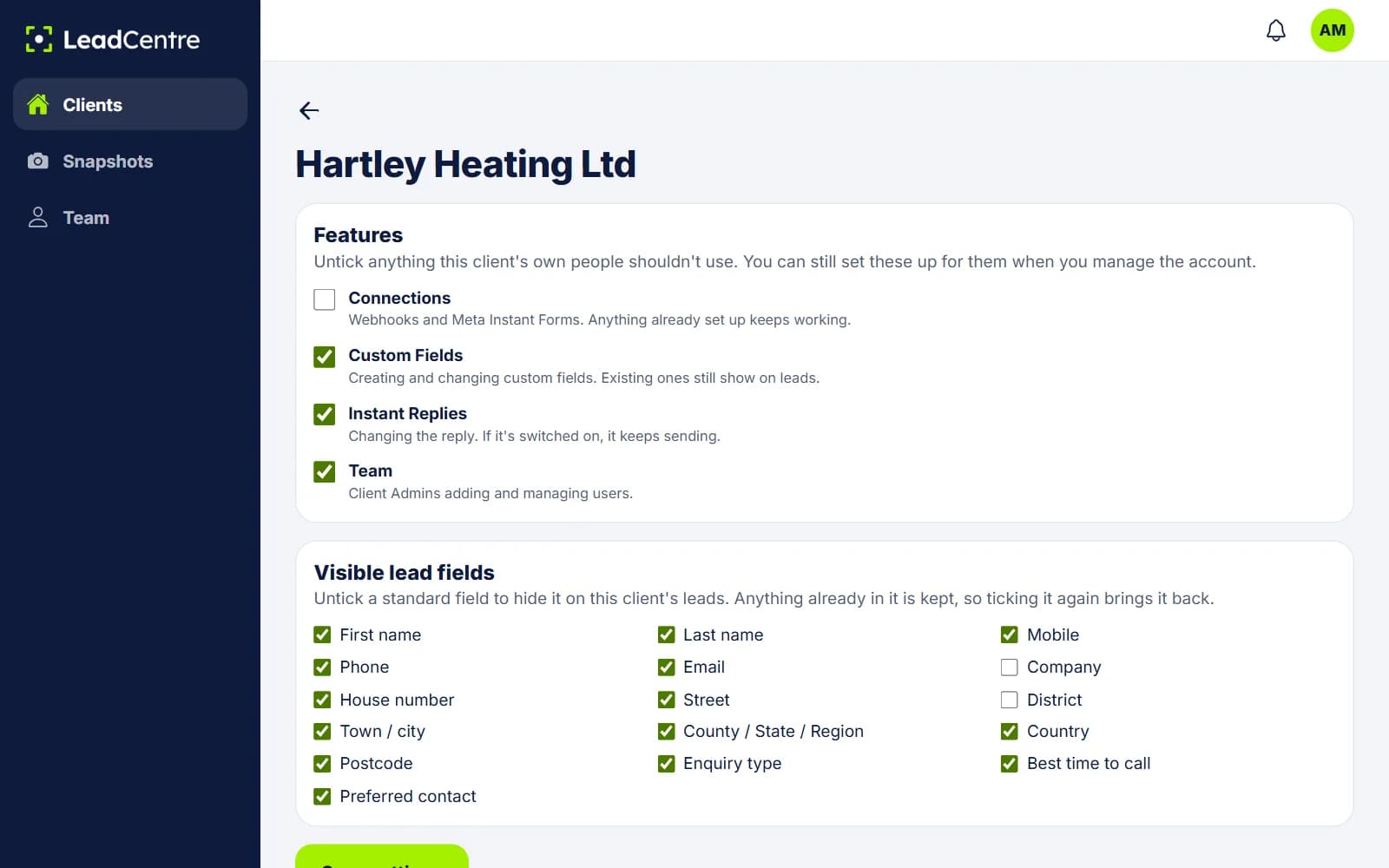
Rolling the setup out to the next client
Once one client's matching works, save it as a snapshot. A new client starts with the same key names, field matching and custom fields, and gets its own URLs. Untick Connections for that client if you don't want their team changing the matching. Anything already set up keeps working.
Common questions
Can LeadCentre send lead outcomes back to Google Ads, Microsoft Ads, Meta, LinkedIn and TikTok?
Yes. Conversion feedback is included on every plan. LeadCentre sends each lead's progress back to Google, Microsoft Ads, Meta, LinkedIn and TikTok, from Contacted through to Won with the value of each won job, matched by the Google click ID, Microsoft click ID, Meta lead ID, LinkedIn form response or TikTok lead ID kept on the lead. The ad platforms can then learn which leads become customers.
Can I store the click ID on the lead?
Yes, if your source sends it. A field called gclid, gbraid, wbraid, msclkid or fbclid is kept automatically, and agency staff and account admins can see it under Technical Details on the lead in the portal. Conversion feedback uses the Google click ID, Microsoft click ID, Meta lead ID or LinkedIn form response kept on the lead.
Can I see performance by campaign?
Yes, lead by lead, through Attribution details and the Lead source. To compare campaigns, open the Won list in the portal and read the Source column, or keep a folder for each campaign.
Can I see how quickly a client responds?
Yes, lead by lead. In the portal, compare the time a lead was received with the status changes on its History tab.
Who marks a lead as won?
Whoever works the lead, usually someone at the client. You can also open the account and update leads yourself once the client has told you the result.
Does the client see the Lead source too?
Yes. It shows on the lead for anyone who can see it. If you use internal campaign names there, keep them readable.
See what happens to the leads you generate
Follow one enquiry from a Facebook ad to your client’s phone and into your agency dashboard. Example data, no sign-in.